DirectAdmin provides an Email Summary feature that allows admin users to review email activity across all user accounts on the server. This tool displays a comprehensive log of email usage within a specified date and time range, making it easy to monitor and audit email traffic. Whether you need to track spamming activities, analyze user behavior, or simply keep tabs on your server's email performance, the Email Summary is an invaluable resource.
How to Check the Email Summary
-
Step 1: Log in to DirectAdmin
To begin, open your preferred web browser and navigate to your DirectAdmin login page. Enter your admin username and password when prompted. If you're unsure of these credentials, contact your hosting provider or check your welcome email.
-
Step 2: Navigate to Email Summary
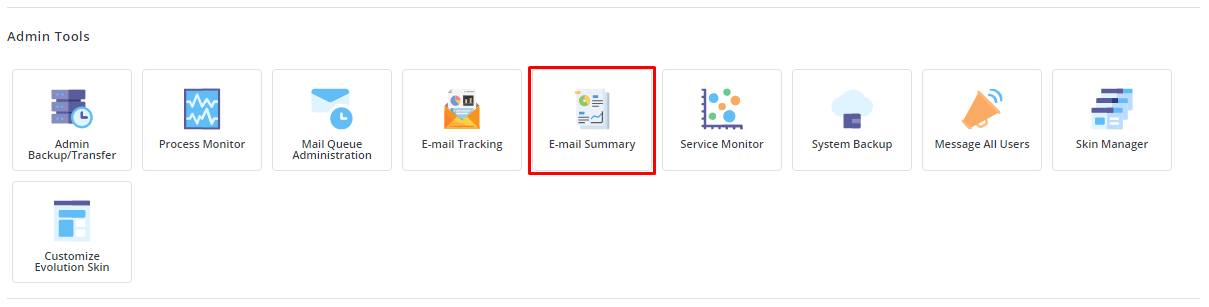
Once logged in, locate the Admin Tools section on the left-hand side of the DirectAdmin interface. Click on it to expand the menu options. From there, find and click on E-mail Summary. This will take you to the Email Summary dashboard.
The E-mail Summary interface will open, displaying your current settings and options for generating a report.
-
Step 3: Configure the Date and Time Range
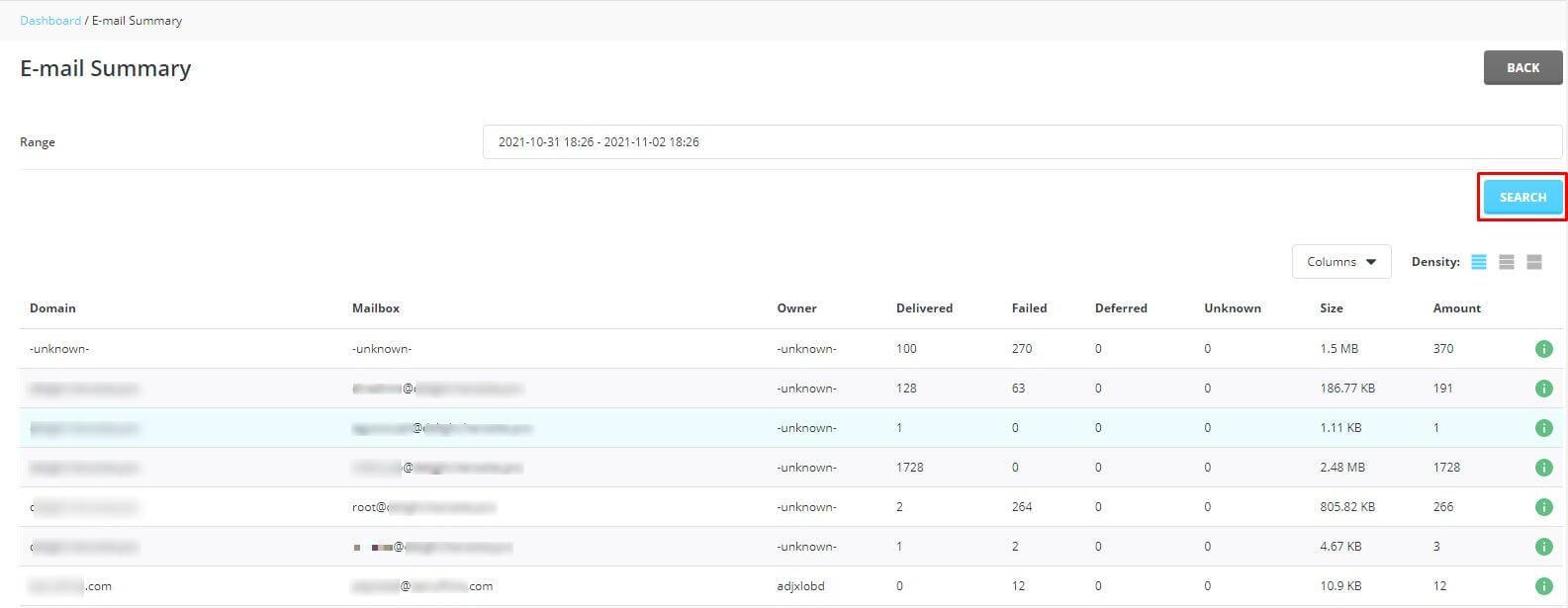
In the Email Summary dashboard, you'll see a form where you can specify the time period for which you want to view email activity. Look for the Range box, which allows you to set custom dates and times.
To select your desired date range, click on the calendar icon next to the "From" and "To" fields. A pop-up calendar will appear, allowing you to pick start and end dates easily. For the time, use the dropdown menus or type in the specific hours and minutes manually.
Setting an accurate date and time range is crucial for obtaining relevant data, so take your time to choose the period that best suits your needs.
-
Step 4: Apply the Range
After you've selected your preferred date and time range, click on the Apply button. This action will update the form with the new settings and prepare the system to generate a report based on the specified criteria.
It's important to note that applying the range does not immediately generate the summary; it only sets up the parameters for the upcoming search query.
-
Step 5: Search for Email Summary
With your date and time range configured, you can now generate the email summary report. Click on the SEARCH button to process the request and compile the data.
The comprehensive summary detailing email usage for the specified time range will be displayed in the form of a log. This report includes information such as the number of emails sent, received, and rejected, along with details on individual user accounts.

Tips:
- For more detailed analysis, consider exporting the summary data to a CSV file by clicking on the export option available in the Email Summary interface. This allows you to manipulate and analyze the data using spreadsheet software.
- To streamline your workflow, bookmark the Email Summary page or create a shortcut for quick access.