You can manage your VPS server directly from the Launchpad dashboard, including starting, stopping, and restarting it. This guide shows you two methods to control your VPS power state through the Launchpad interface.
How to do it
-
Step 1: Log in to Launchpad
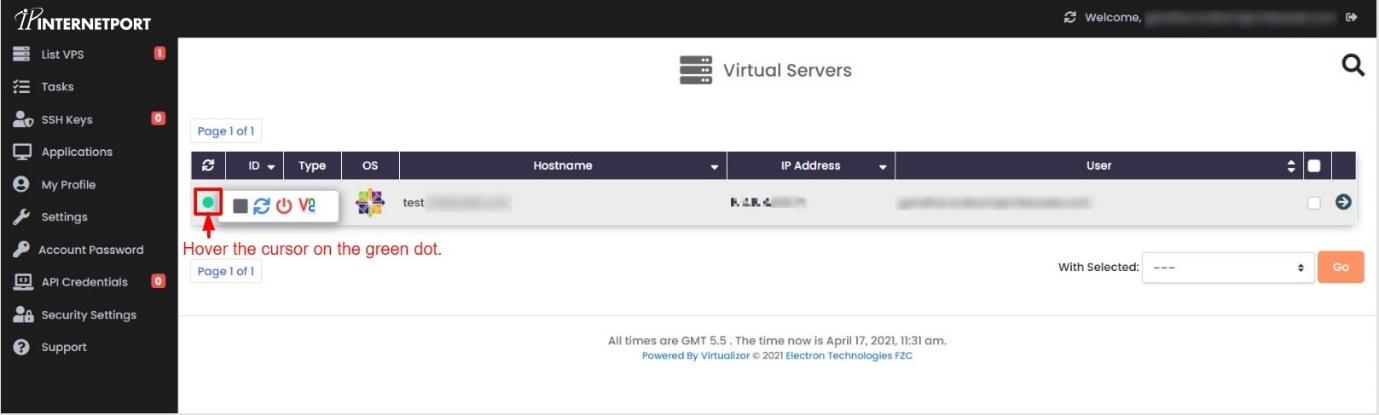
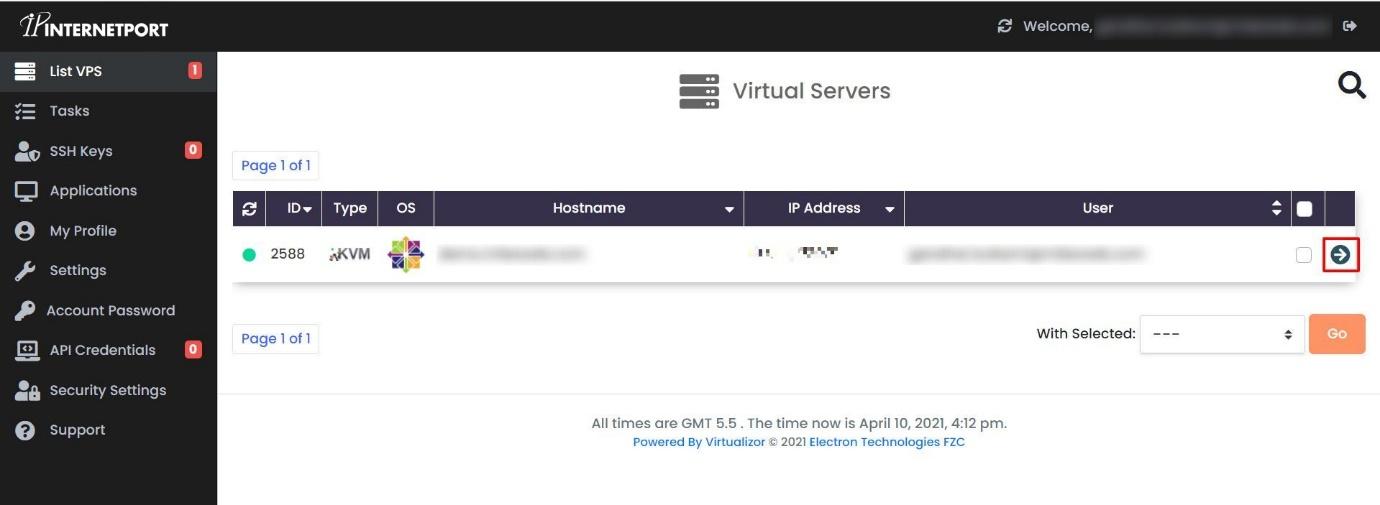
Log in to your Launchpad account using your username and password. Once logged in, navigate to the main dashboard where you can see a list of all your servers.
-
Step 2: Access the quick action menu
Locate the server you wish to manage in the server list. Hover your cursor over the green dot next to the server's name or ID. A menu with various icons will appear, allowing you to perform actions quickly.
-
Step 3: Choose your action
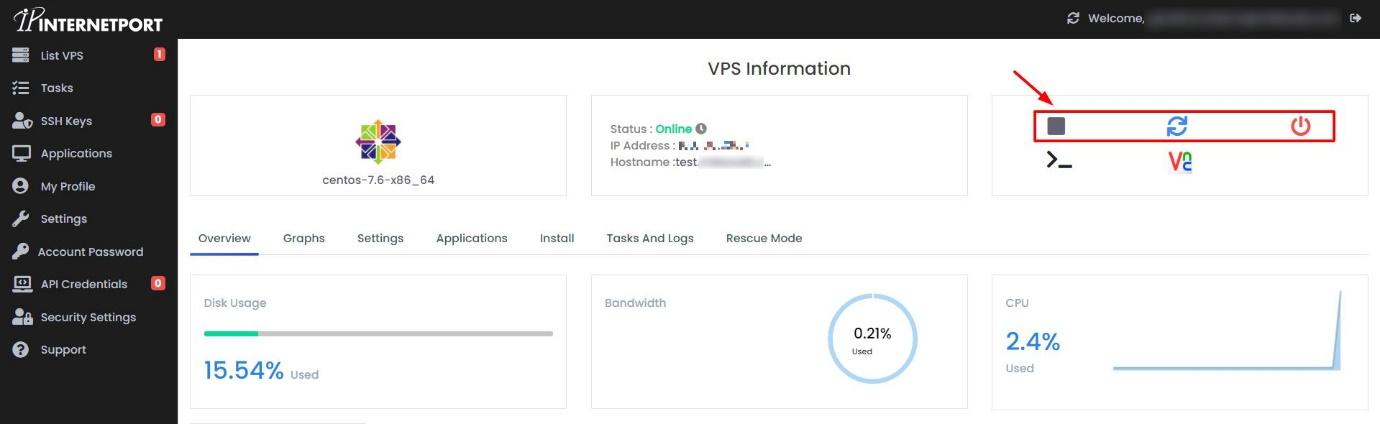
Each icon in the quick action menu performs a specific action:
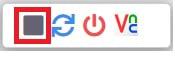
- Stop icon: Click this icon to halt the VPS. This is useful when you need to perform maintenance or updates without the server running.
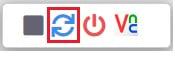
- Restart icon: Click to initiate a restart of the VPS. This can be helpful for troubleshooting issues or applying updates that require a reboot.
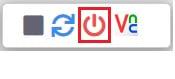
- Start/Turn Off icon: Click this icon to either start or turn off the VPS. The label on the icon will change based on the current state of your server.
- Stop icon: Click this icon to halt the VPS. This is useful when you need to perform maintenance or updates without the server running.
Alternative method: VPS Information page
-
Step 1: Open VPS details
To access more detailed information about your VPS, click on the arrow icon next to the server in the list. This will expand the view to show additional details and controls for that specific server.
-
Step 2: Use the control icons
In the expanded view, you will find the same control icons located in the right corner. Click the appropriate icon to perform the desired action on your VPS.
Tip: Before stopping or restarting your VPS, ensure that all important tasks are completed and that you have saved any unsaved work. Sudden shutdowns can lead to data loss.
You may need to stop, restart, or turn off and start your VPS when configuring certain settings or troubleshooting issues. Always use the control icons provided in the Launchpad dashboard for these actions to avoid potential disruptions.