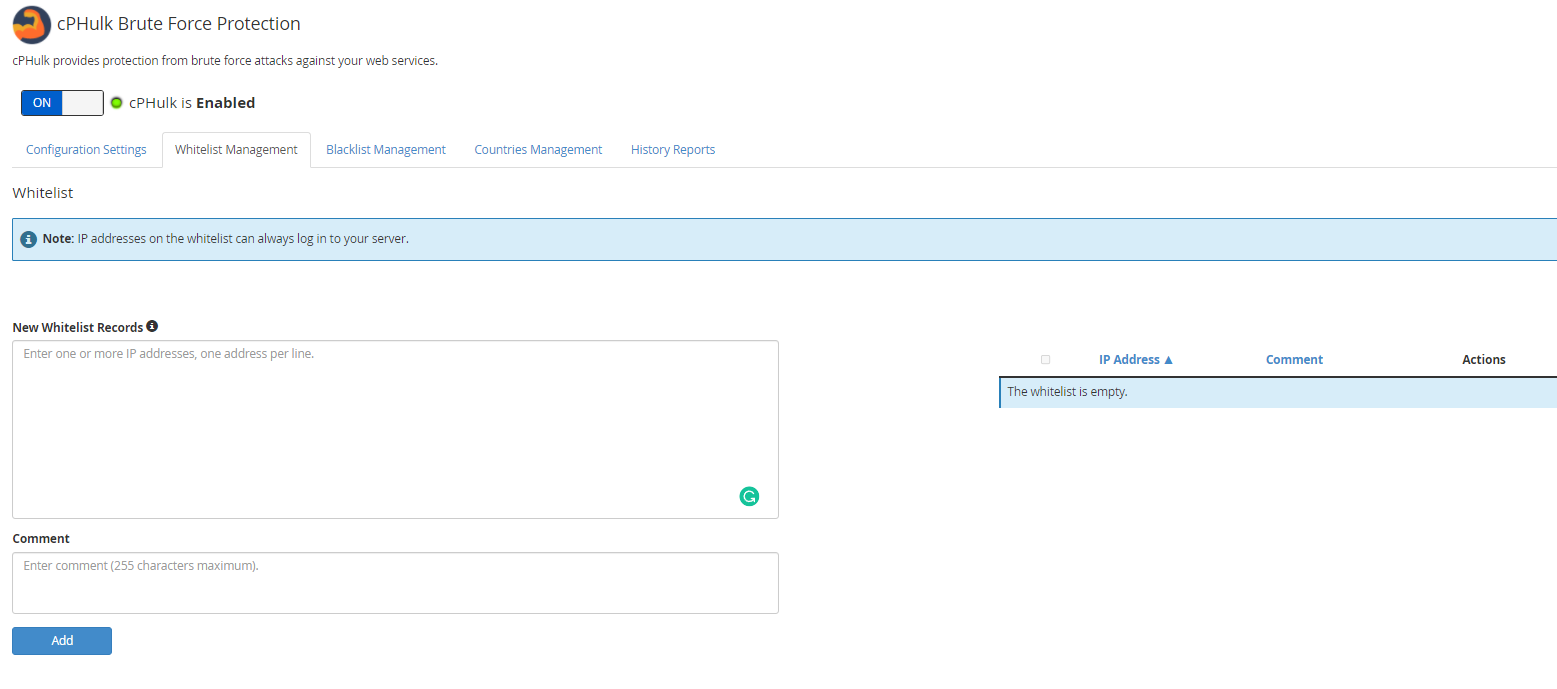
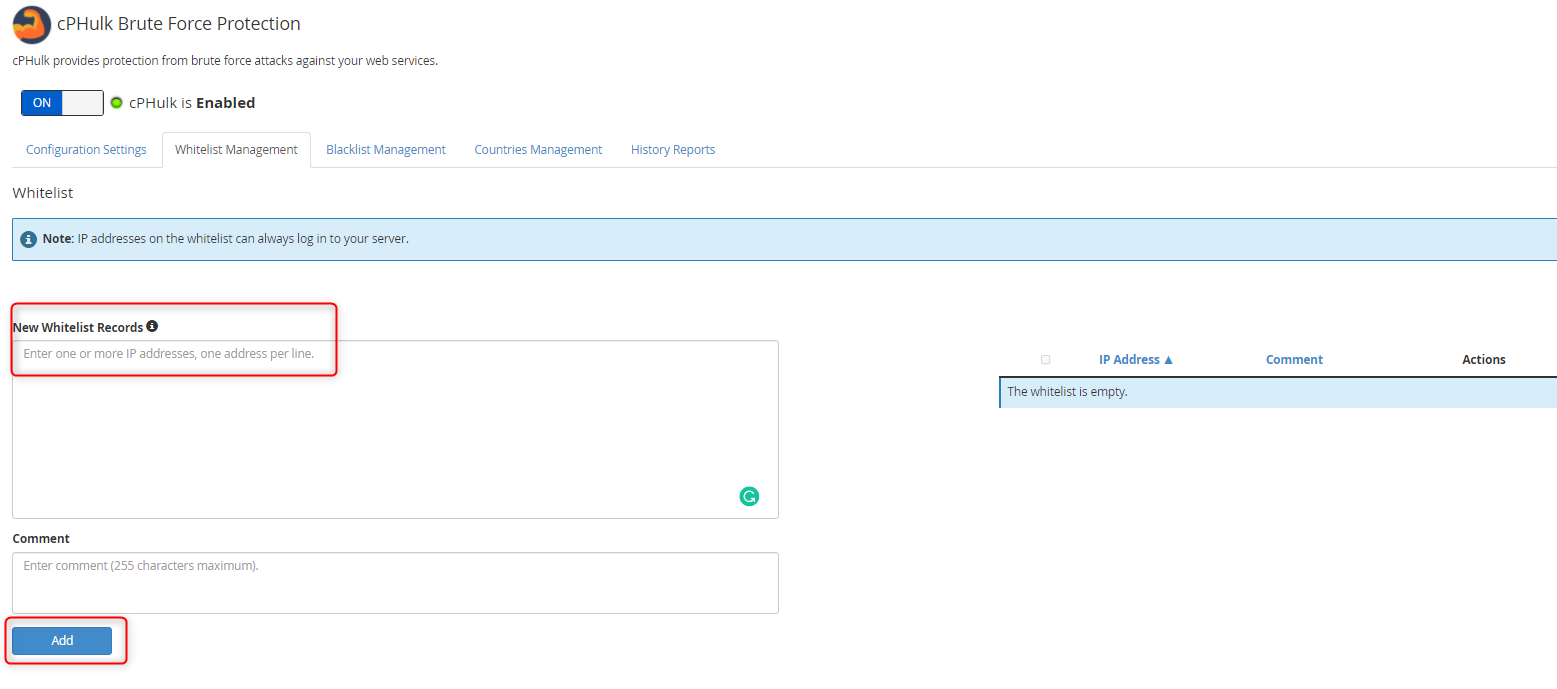
cPHulk Brute Force Protection is a security feature in WHM that protects your server from brute force login attacks by blocking IP addresses after repeated failed login attempts. This guide shows you how to enable, disable, and configure cPHulk, as well as how to recover if you've been locked out.
How to Enable cPHulk Brute Force Protection
-
Step 1: Log in to WHM
Access WHM by logging in with the server's root password. Root access is required to enable or disable this feature.
-
Step 2: Navigate to cPHulk Settings
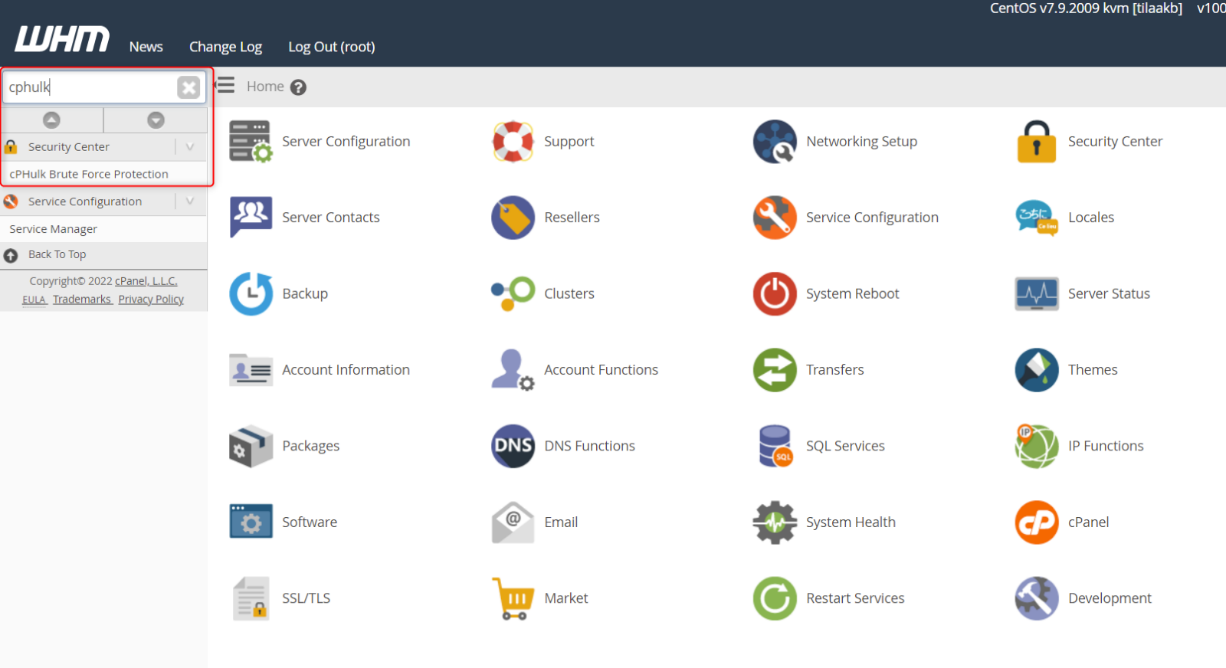
Navigate to the "Security Center" and locate the option for "cPHulk Brute Force Protection".
-
Step 3: Enable cPHulk
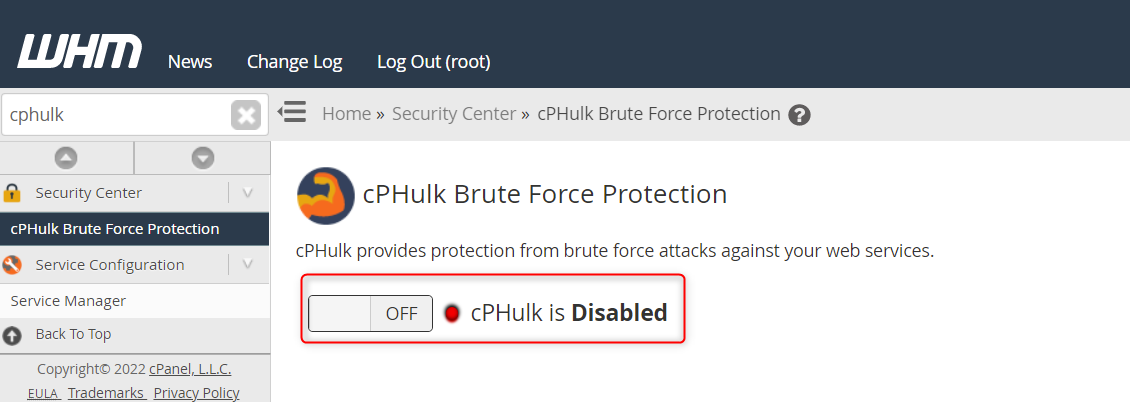
After clicking this button, you will notice that cPHulk is currently deactivated. To enable it, switch the toggle to the "on" position in this menu.
-
Step 4: Configure and Save Settings
Once you've switched it on, you can choose your cPHulk settings before selecting the "Save" button located at the bottom of the page.
How to Disable cPHulk if You're Locked Out
By default, cPanel triggers this protection mechanism after a set number of failed login attempts, leading to the error message "Permission refused, please try again." If you're experiencing denied cPanel login due to cPHulk Brute Force Protection, follow these steps to disable it.
-
Step 1: Access the Server
If your SSH access is also denied, utilize the video display on the Tilaa Dashboard for login.
-
Step 2: Disable cPHulk Service
Run the following commands to shut down the service and terminate any active processes:
whmapi1 configureservice service=cphulkd enabled=0 monitored=0 /usr/local/cpanel/etc/init/stopcphulkd /usr/local/cpanel/bin/cphulk_pam_ctl --disable -
Step 3: Log in and Re-enable cPHulk
Now, you can log in to cPanel and activate cPHulk Brute Force Protection following the instructions outlined in the first section of this article.
How to Whitelist Your IP Address
To avoid encountering lockout issues in the future, consider whitelisting your own IP address.
-
Step 1: Access White/Black List Management
Navigate to the White/Black List Management tab within Security Center > cPHulk Brute Force Protection.
-
Step 2: Add Your IP to the Whitelist
Input your local IP address in the White List (Trusted IP List) and click on Quick Add.