ModSecurity is an open-source web application firewall (WAF) from cPanel that protects against various online threats. Before users can utilize the application on their domains, you must activate the ModSecurity™ Domain Manager via WHM on the server.
How to Enable ModSecurity™ Domain Manager
-
Step 1: Access WHM Security Center
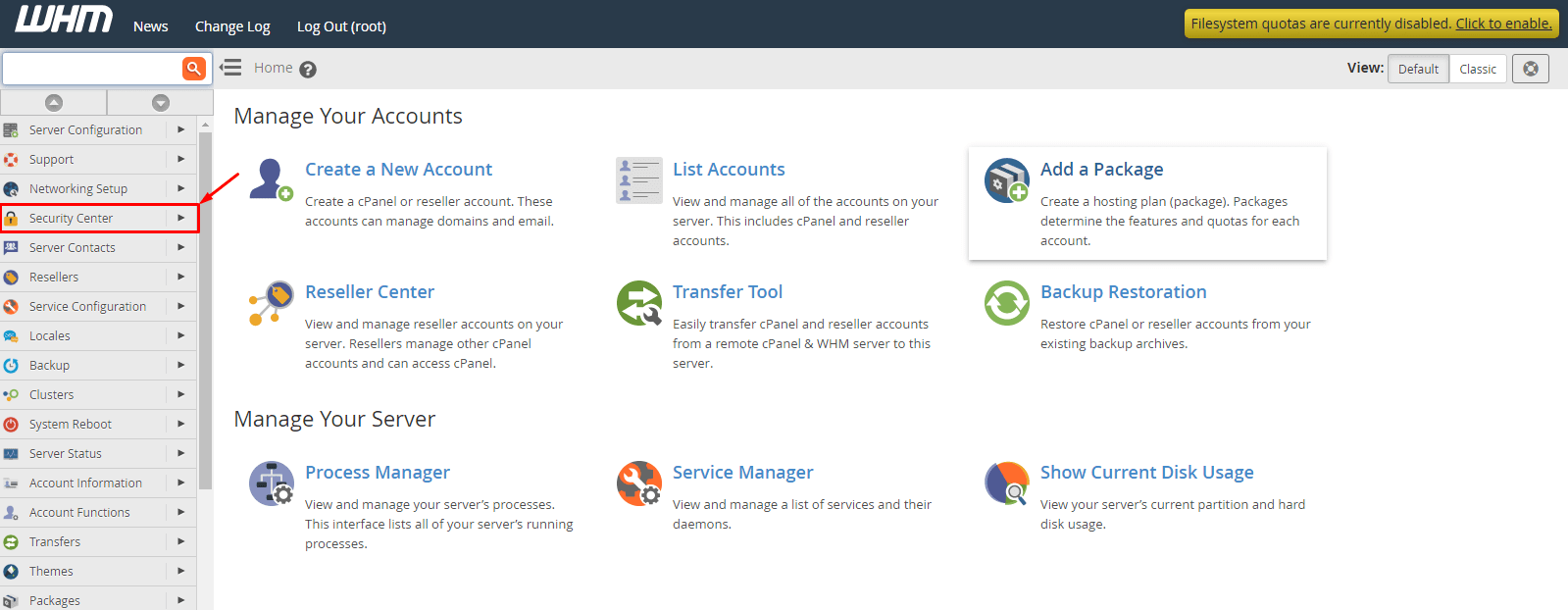
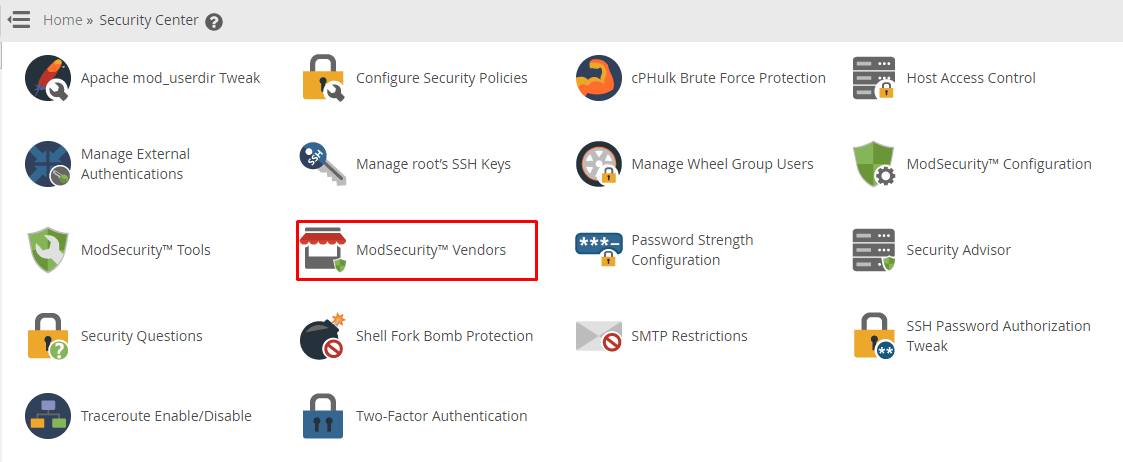
Log in to the WHM interface using your root account and navigate to the Security Center in the menu options.
-
Step 2: Open ModSecurity™ Vendors
Select "ModSecurity™ Vendors" from the Security Center menu.
The Manage Vendors page will be displayed.
-
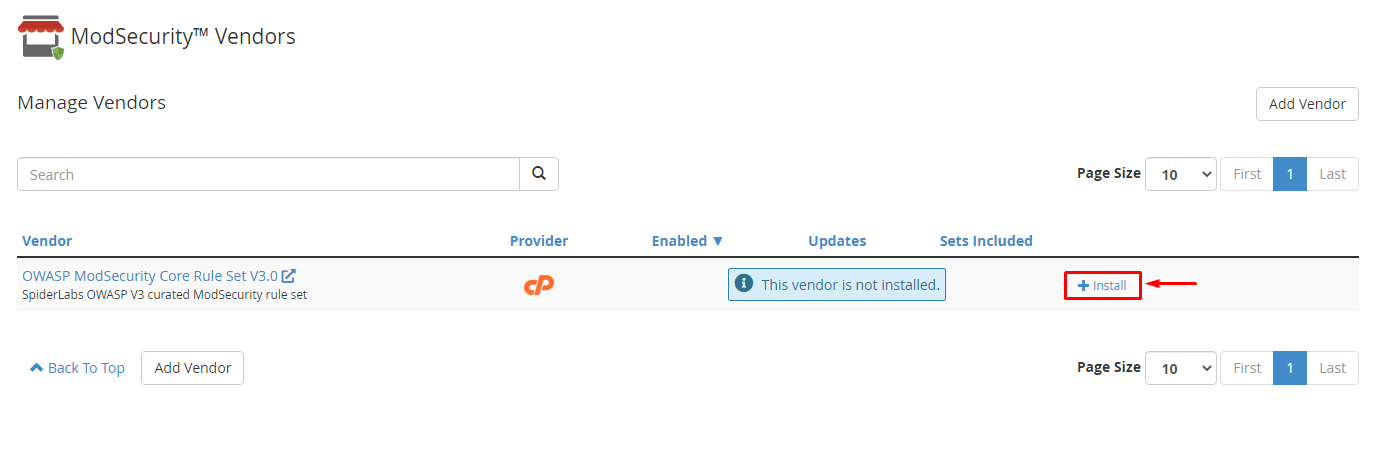
Step 3: Install OWASP Core Rule Set
Install the "OWASP ModSecurity Core Rule Set VX.X" version from the vendor by clicking on +install.
-
Step 4: Install and Restart Apache
Select the "Install and Restart Apache" button.
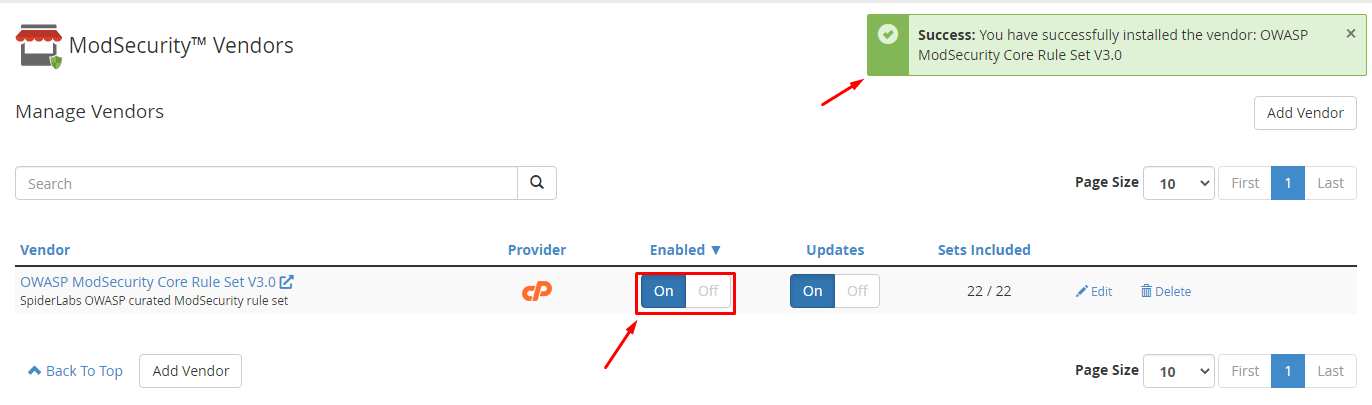
The system will display a success message: "You have successfully installed the vendor: OWASP ModSecurity Core Rule Set VX.X."
-
Step 5: Enable the Vendor
Turn on the toggle button in the Enabled column.
This will encompass all sets of the ModSecurity application for the installed vendor.
-
Step 6: Customize Rule Sets (Optional)
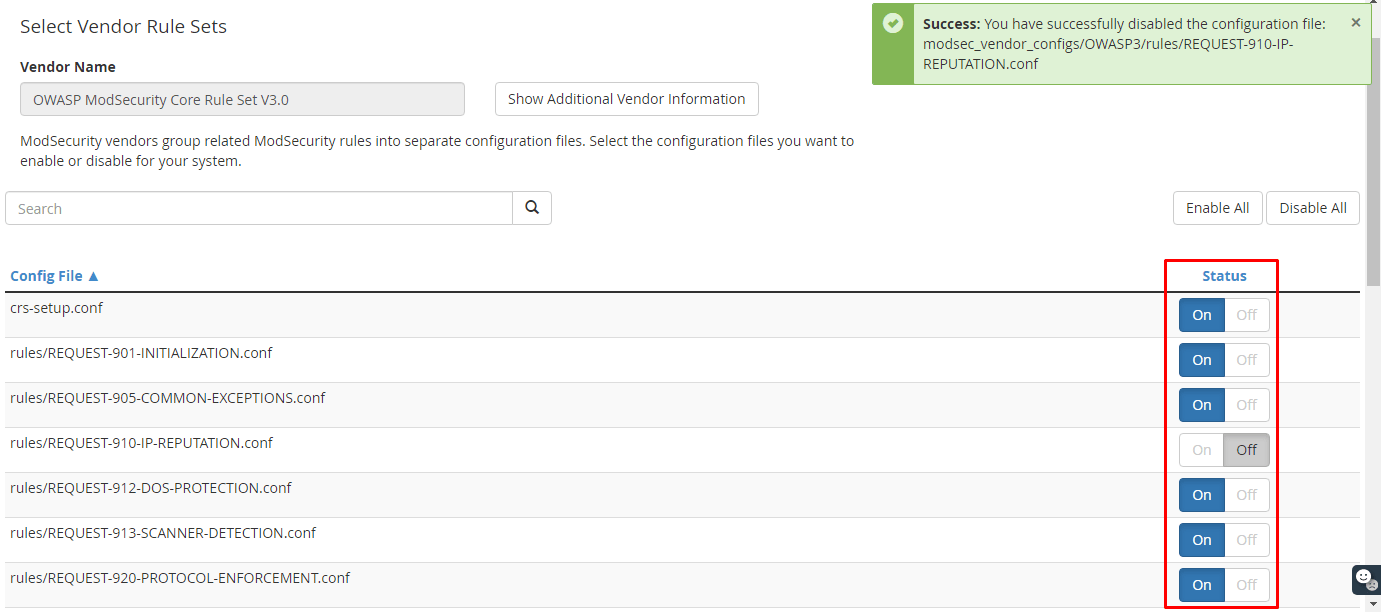
You can customize the sets included in the ModSecurity application for the vendor. Select "Edit" to access the configuration.
Adjust the status of any sets to On or Off for the vendor's ModSecurity based on your preferences.


How to Enable ModSecurity for cPanel Accounts
After enabling ModSecurity™ Domain Manager in WHM, you need to activate the ModSecurity feature for your cPanel accounts.
-
Step 1: Navigate to Feature Manager
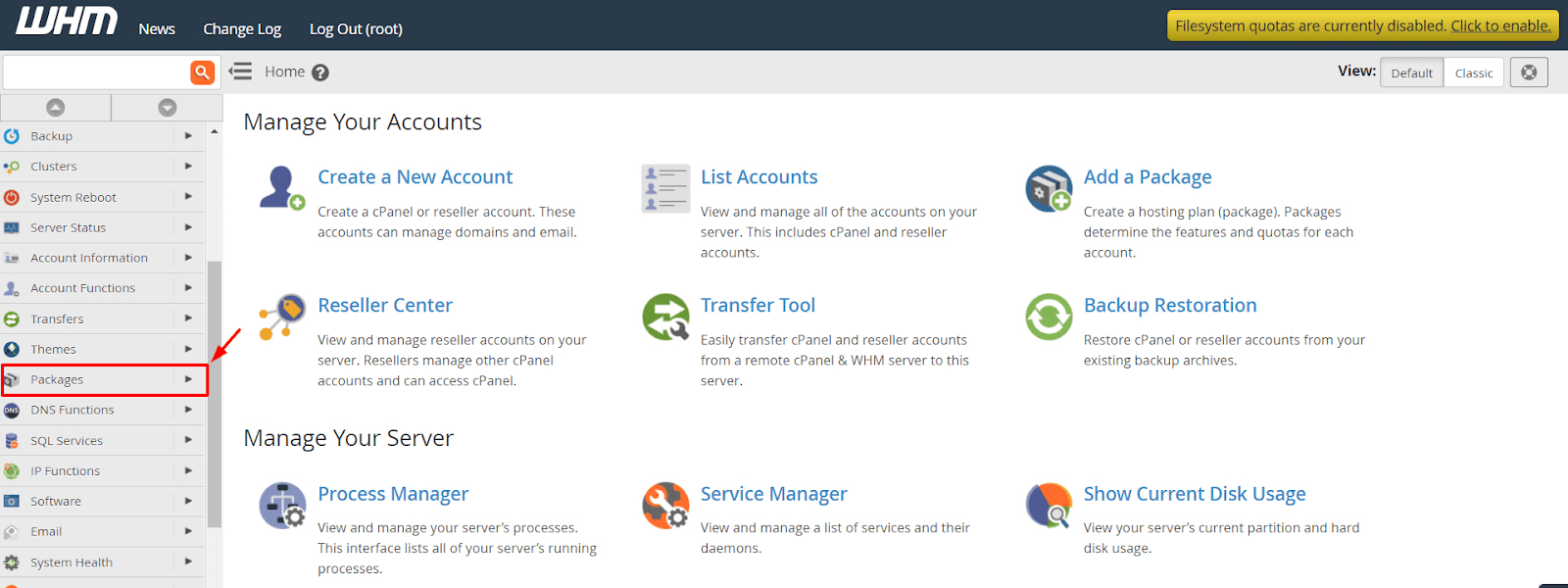
Return to the home page of the WHM interface and choose the "Packages" option from the navigation menu.
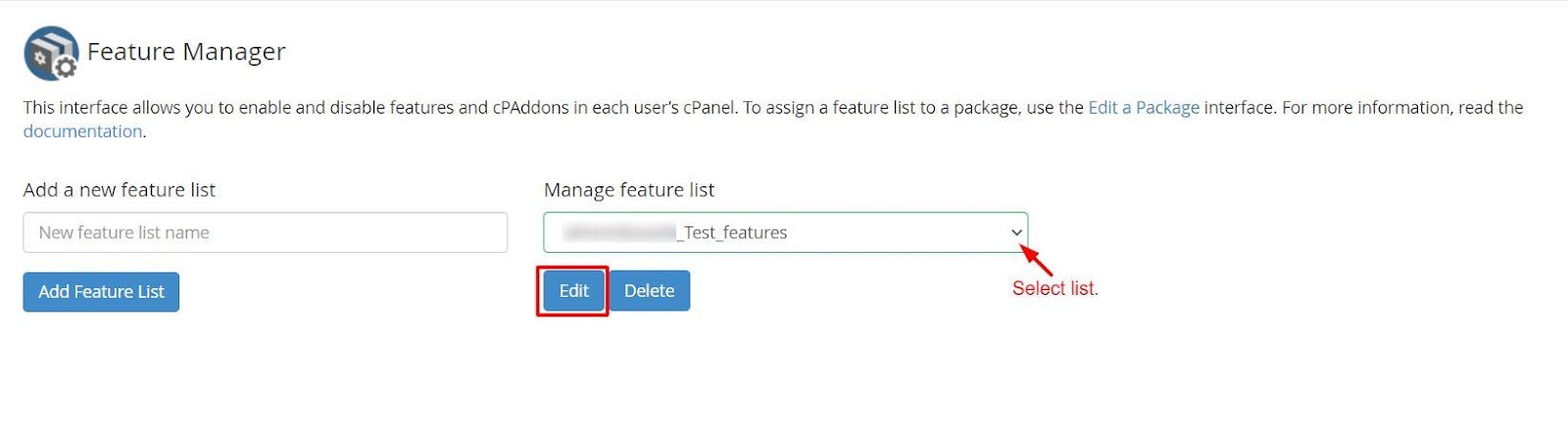
Access the Feature Manager.
-
Step 2: Choose Feature List Option
You have two options:
- Add a new features list: Create a new feature list from the beginning and apply it to a cPanel account.
- Manage feature list: Add the ModSecurity™ Domain Manager feature to the existing list you are currently using for a cPanel account.
For this guide, we'll manage an existing feature list.
-
Step 3: Edit Feature List
Click the "Edit" button under the Manage feature list.
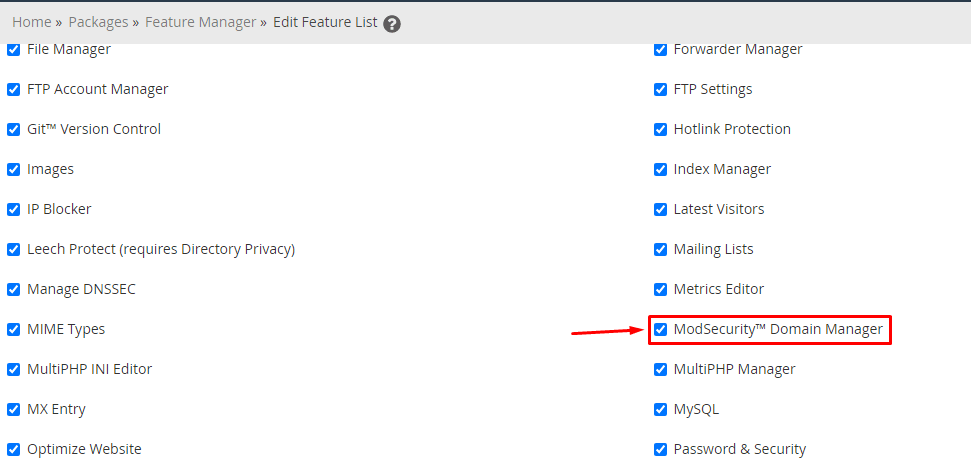
The list of all available features for your server will be displayed.
-
Step 4: Enable ModSecurity™ Domain Manager
Check the box for the ModSecurity™ Domain Manager feature.
-
Step 5: Save Changes
Scroll down and click the Save button.
By doing so, you will have activated ModSecurity for the cPanel accounts. Users can manage the application's status through their cPanel interface, enabling or disabling it as needed.