Rebooting your VPS or Dedicated server through WHM allows you to restart the system safely using either a graceful or forceful reboot method. This guide walks you through accessing the reboot function in WHM and choosing the appropriate reboot option for your situation.
How to Do It
-
Step 1: Log in to WHM
To log in to WHM on your server, open a web browser and enter the URL provided by your hosting provider. Typically, it will look something like
https://yourserverip:2087. Enter your root username and password when prompted. It's important to use secure connections (HTTPS) to protect your credentials. -
Step 2: Navigate to Server Reboot
Once logged in, locate the Server Configuration section on the main dashboard. Click on Server Reboot. This will take you to a page where you can initiate a reboot of your server.
-
Step 3: Choose Reboot Type
Select one of the available reboot options:
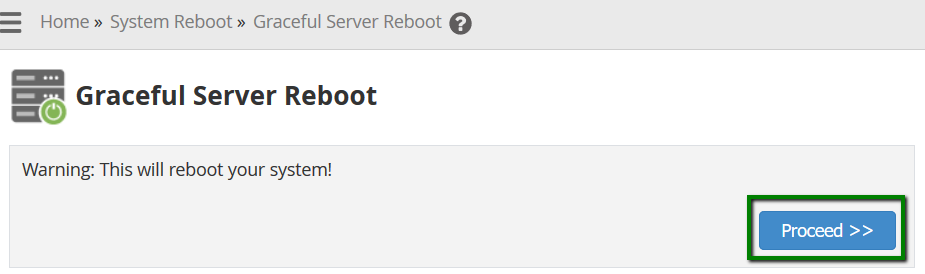
- Graceful Server Reboot (recommended): This option initiates a system reboot without data loss. The reboot is queued and all services are stopped normally, allowing ongoing operations to complete. This method is less disruptive and is generally preferred for routine maintenance or updates. It typically takes approximately 5 minutes.
- Forceful Server Reboot: Use this option only if the Graceful Reboot fails or if there is a high load on the server preventing a graceful shutdown. This method forcefully reboots your system and may result in data loss, so it should be used as a last resort. It can take up to 15 minutes to complete.
Tip: If you're unsure which option to choose, it's best to start with a Graceful Reboot. Only resort to a Forceful Reboot if the server is unresponsive or you are unable to complete a graceful shutdown.
-
Step 4: Confirm and Initiate Reboot
After selecting your preferred option, click the Proceed button. WHM will display a confirmation dialog asking you to confirm that you want to proceed with the reboot.
Click the Confirm button in the dialog to proceed. You will receive a notification confirming the initiation of the reboot. During this time, your server will be unavailable, so plan accordingly and ensure that you have saved any unsaved work.


Note: After initiating a reboot, it may take several minutes for your server to come back online. You can monitor the status of your server through your hosting provider's control panel or by attempting to access your server via SSH.