If you need to reinstall your VPS operating system, you can do so directly from the InterServer VPS Management Panel. This process allows you to start fresh with a clean OS installation, choose a different distribution, or recover from system issues. Important: Reinstalling the operating system will erase all existing data on your server, so ensure you have backups of any important files before proceeding.
How to Reinstall Your Operating System
-
Step 1: Access the VPS Management Panel
Log in to the VPS Management Panel at https://my.interserver.net/.
-
Step 2: Select Your VPS
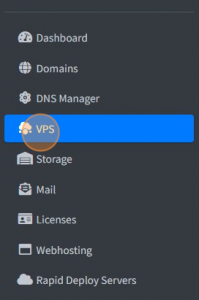
Navigate to the VPS section and choose the VPS you want to reinstall.
-
Step 3: Open VPS Settings
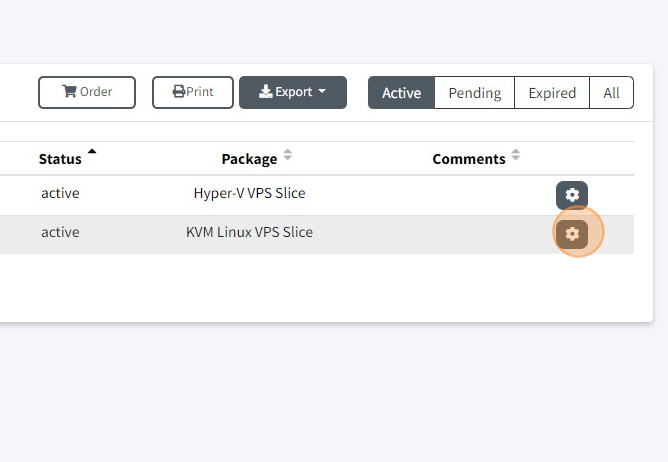
Press the gear symbol to access the VPS settings menu.
-
Step 4: Initiate OS Reinstallation
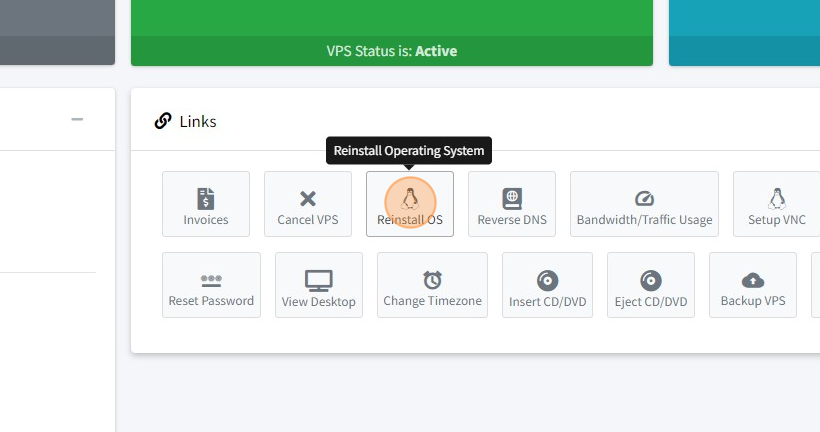
Click on the option "Reinstall OS" from the settings menu.
-
Step 5: Choose Operating System Distribution
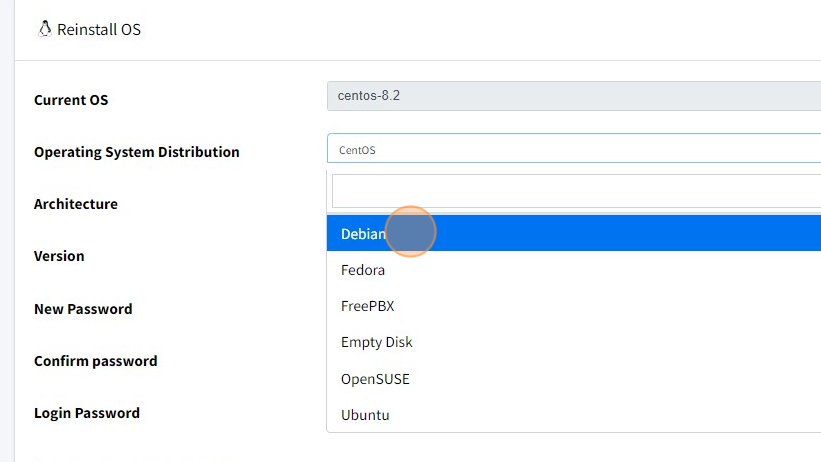
A popup window will appear. Select the OS distribution you wish to install from the available options.
-
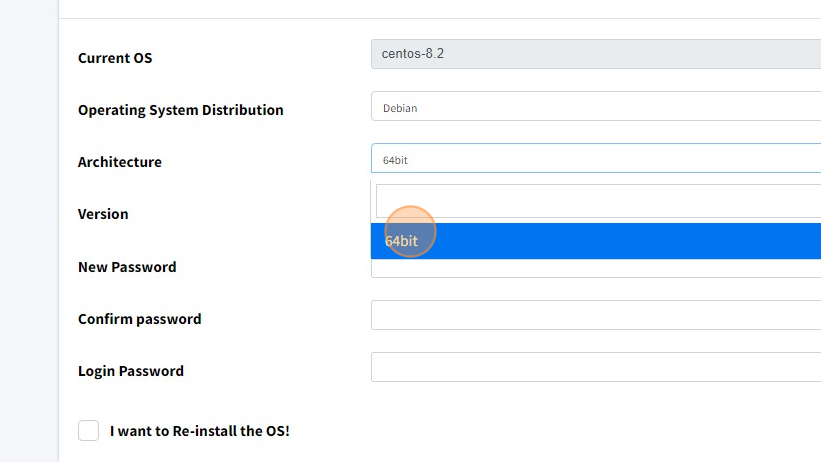
Step 6: Select Architecture
Choose the system architecture (32-bit or 64-bit) that matches your requirements.
-
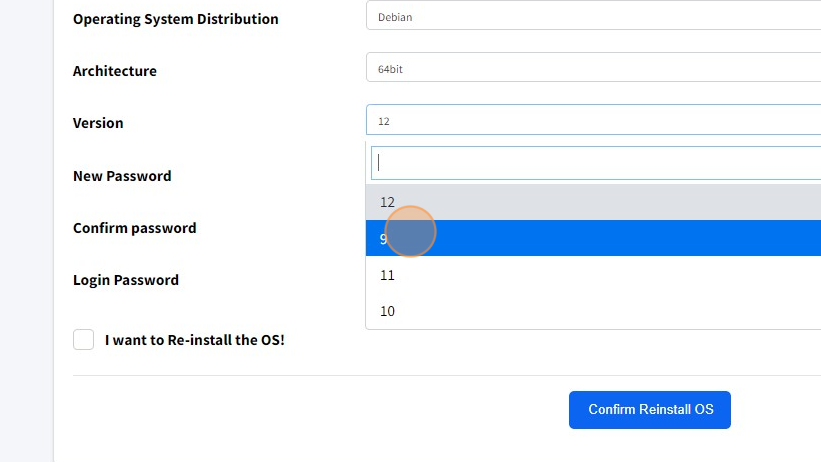
Step 7: Choose Version and Control Panel
Select the specific OS version and optionally choose a control panel (such as cPanel, Plesk, or none) to install alongside the operating system.
-
Step 8: Set VPS Password and Confirm
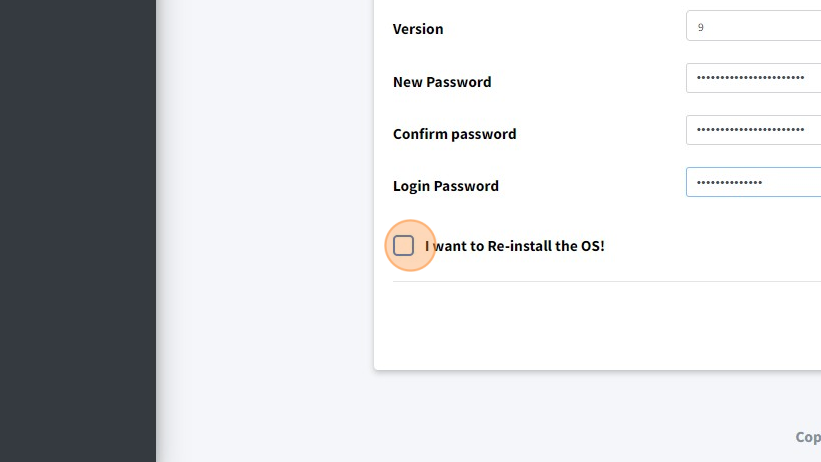
Enter a new password in the "New Password" field and confirm it in the "Confirm Password" field. This will be the root password for your VPS after reinstallation.
You will also need to enter your InterServer client area login password (the password you use to log in to https://my.interserver.net/) to authorize the reinstallation.
Check the confirmation checkbox to acknowledge that you understand all data will be erased.
-
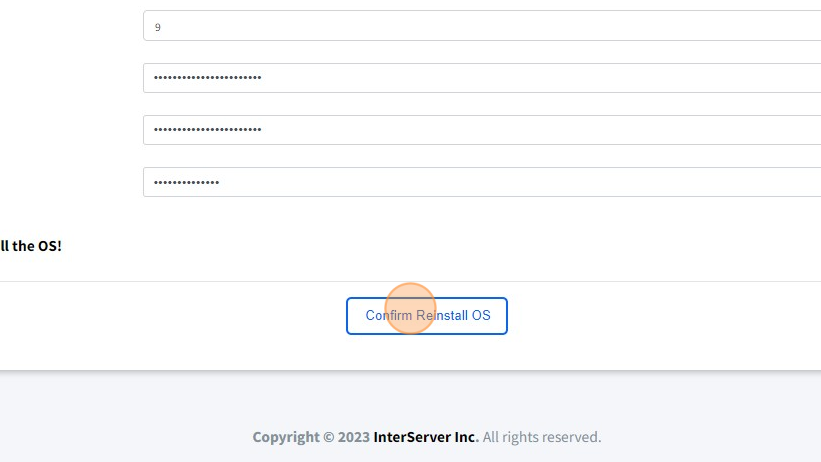
Step 9: Confirm Reinstallation
Click on the "Confirm Reinstall OS" button to begin the reinstallation process.
-
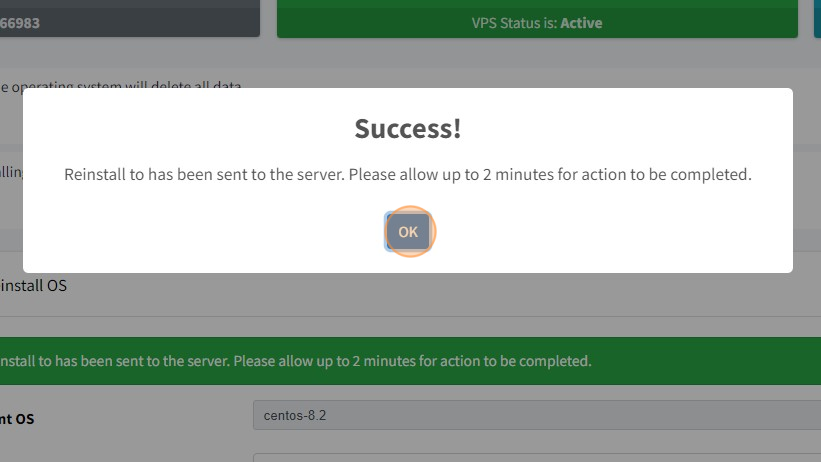
Step 10: Verify Success
A success popup will appear confirming that the OS reinstallation has been initiated. The process typically takes several minutes to complete. You can monitor the progress in the VPS Management Panel.