Restricting administrator access to specific IP addresses is a critical security measure in Plesk. By limiting which IP addresses can log in to the administrator account, you prevent unauthorized access even if login credentials are compromised, making remote server hacking significantly more difficult.
How to Restrict IP Addresses
-
Step 1: Access IP Access Restriction Management
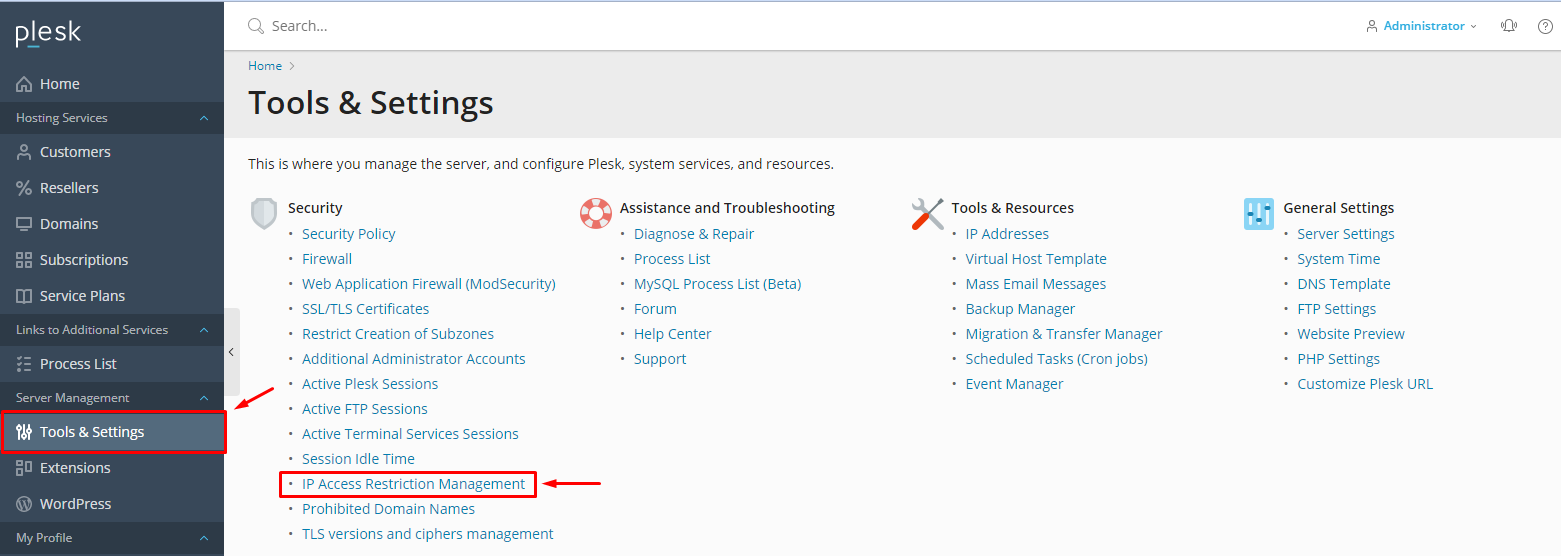
Log in to your Plesk administrator account. Navigate to the side menu and choose Tools & Settings. Under the Security section, click on IP Access Restriction Management.
-
Step 2: Configure Access Policy
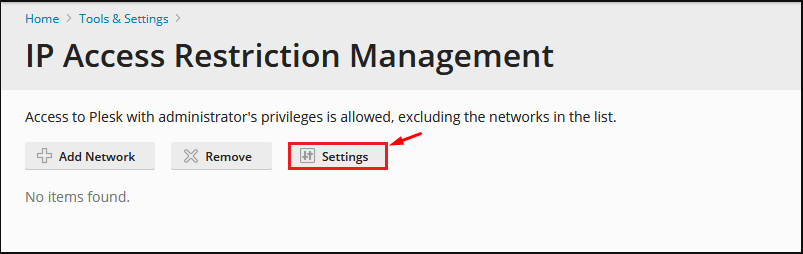
Select the Settings option.
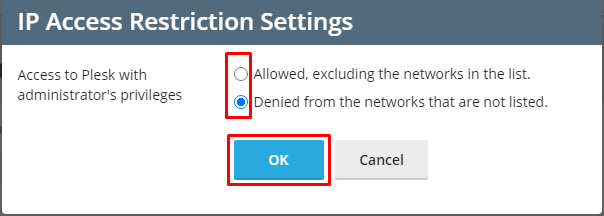
Choose one of the following options:
- Allowed, excluding the networks in the list: This prevents login from the listed IP addresses for the Administrator or Additional Plesk Administrator. Use this option if you want to block certain IPs while allowing all others.
- Denied from the networks that are not listed: Only the specified IP addresses in the list will have authorization to log in as Plesk Administrator or Additional Plesk Administrator. This is useful for creating a whitelist of trusted IP addresses.
Click OK.
Tip: If you're unsure about the IP addresses to include, consider using a VPN or logging your current public IP address from multiple locations to ensure you don't lock yourself out.
-
Step 3: Add Restricted IP Addresses
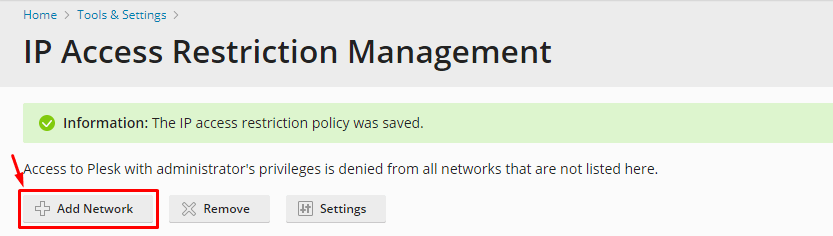
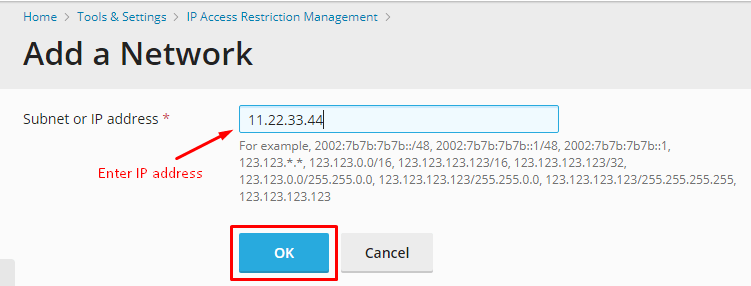
Select Add Network to include a new restricted IP address.
Input the Subnet or IP address to append to the list of restricted IP addresses and then click OK.
Tip: You can specify a range of IPs using CIDR notation (e.g., 192.168.1.0/24) to cover an entire subnet.
Additional Tips:
- Regularly review and update your list of allowed or blocked IP addresses, especially if you travel frequently or work from different locations.
- Consider using a VPN service to ensure that you can access Plesk from any location without needing to add new IPs manually.
- If you are unsure about the security implications of these settings, consult with a network administrator or IT professional before making changes.