Deleting a MySQL database in cPanel is a straightforward process that permanently removes the database and all its data. This guide walks you through the steps to safely delete a database using the MySQL® Databases tool in cPanel. Always create a backup before deletion to prevent irreversible data loss.
Warning: Deleting a database means permanent loss of its data. Be sure to take a backup before deleting the database.
How to Delete a MySQL Database
-
Step 1: Log in to cPanel
To begin, open your web browser and navigate to your cPanel login page. Enter your username and password to access your account.
-
Step 2: Open MySQL® Databases
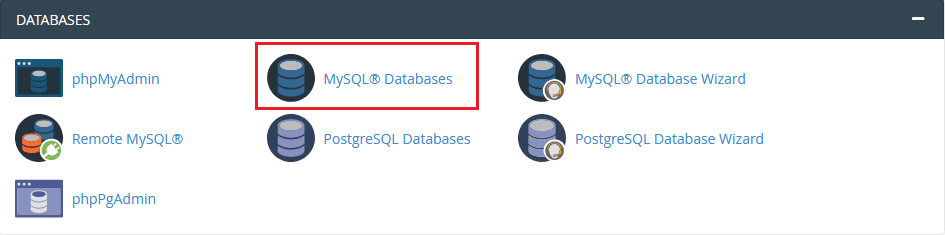
Once logged in, locate the DATABASES section on the main cPanel dashboard. Click on the MySQL® Databases icon to open the database management interface.
The MySQL® Databases application will load, displaying your current database settings and options.
-
Step 3: Locate the Database
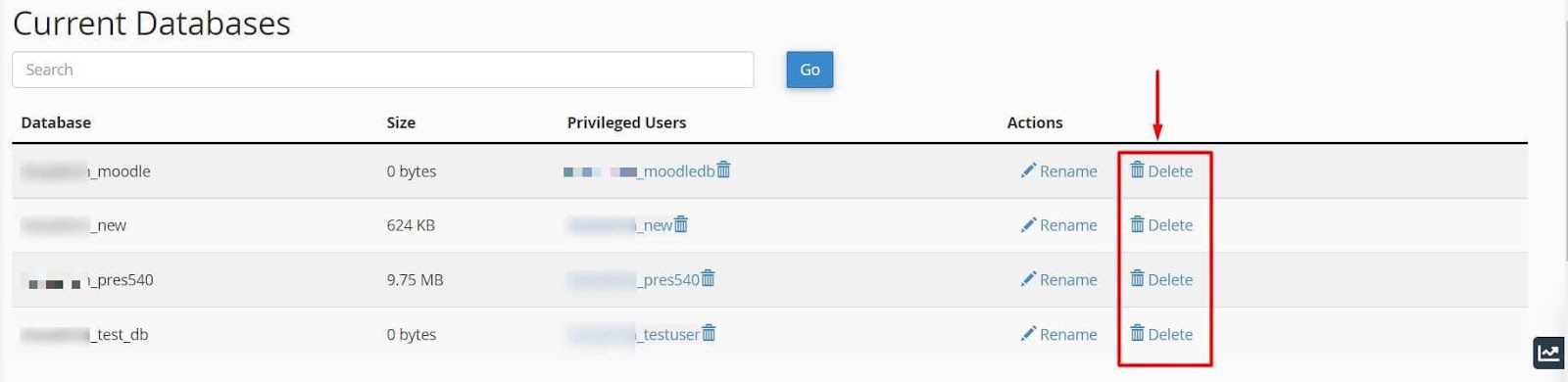
In the MySQL® Databases interface, scroll down to find the Current Databases section. Here, you will see a list of all databases associated with your cPanel account. Each database is listed alongside its name and details.
-
Step 4: Click Delete
Find the database you wish to delete in the list. To the right of the database name, under the Actions column, click on the Delete button.
A confirmation dialog will appear, asking you to confirm the deletion of the selected database.
-
Step 5: Confirm Deletion
In the confirmation dialog, click on the Delete Database button. This action is irreversible and will permanently delete the database along with all its data.
After confirming, cPanel will process the deletion and remove the selected MySQL database from the list of current databases.

Tips:
- Always ensure you have a recent backup of your database before attempting to delete it. This can be done using the Backup Wizard in cPanel.
- If you are unsure about deleting a specific database, consider renaming it instead. You can do this by exporting the data, creating a new database with a different name, and then importing the data into the new database.
- Be cautious when deleting databases associated with active websites or applications, as doing so may cause functionality issues on your site.