As a WHM administrator, you can manage and update passwords for user accounts on your cPanel hosting server. This guide shows you how to change a user account password through the WHM interface.
How to Do It
-
Step 1: Log in to WHM
To begin, open your web browser and navigate to your WHM login page. This is usually accessible via a URL like
https://yourserver.com:2087. Enter your administrator username and password when prompted. -
Step 2: Navigate to Account Functions
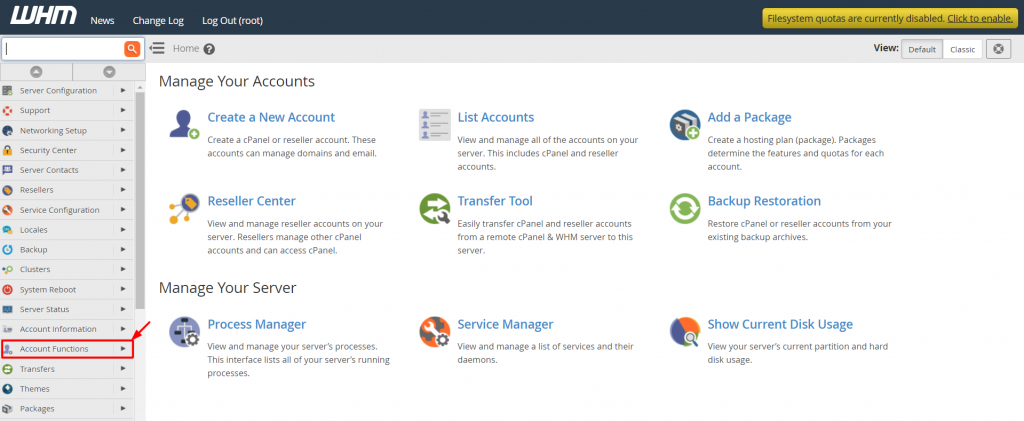
In the WHM interface, locate and click on the main menu, then select Account Functions from the drop-down menu. This section contains various tools for managing your hosting accounts.
-
Step 3: Select Password Modification
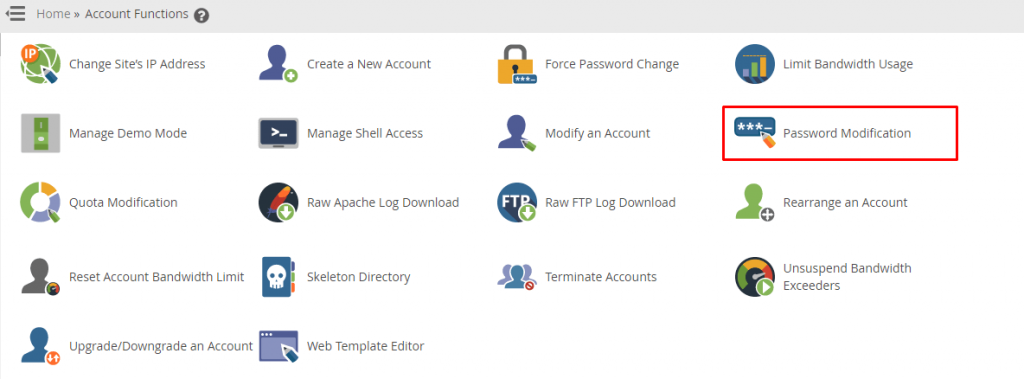
From the Account Functions menu, click on Password Modification. This tool allows you to change passwords for any of your hosting accounts.
The Password Modification interface will appear, allowing you to update the password for your hosting users.
-
Step 4: Choose the User Account
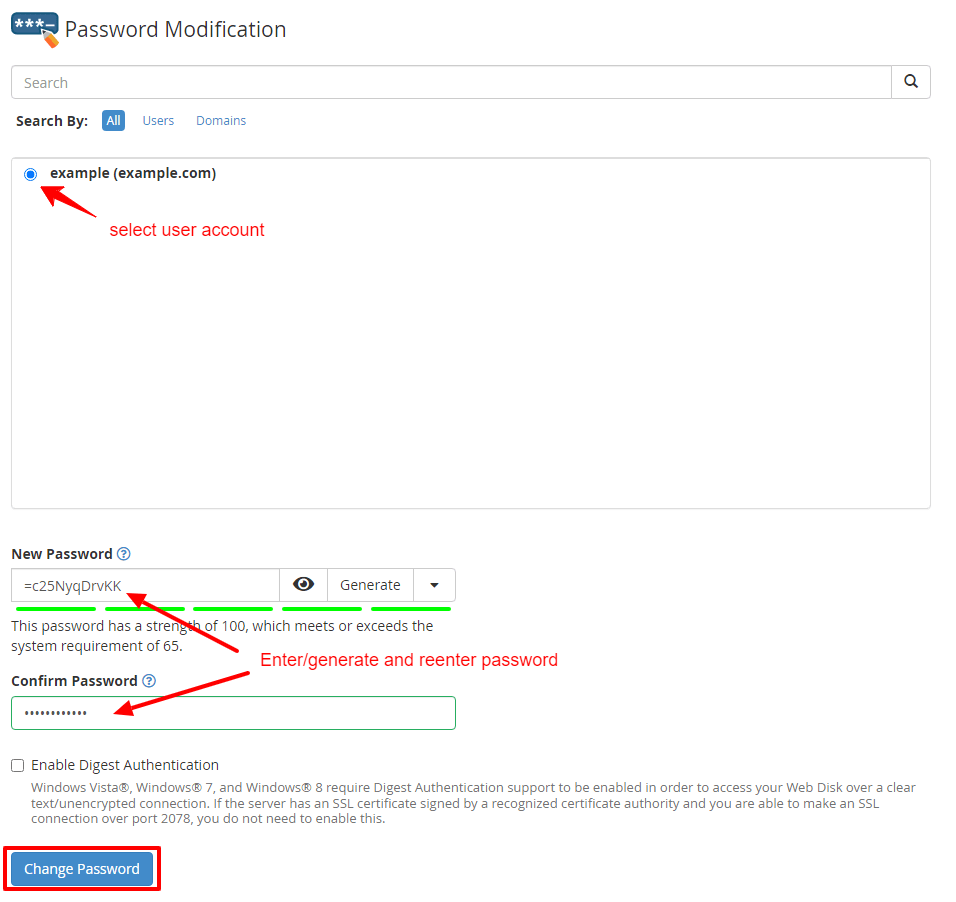
In the Password Modification interface, you'll see a list of all user accounts associated with your WHM. Use the search bar if necessary to find the specific account whose password you want to change. Click on the username or select it from the drop-down menu.
-
Step 5: Set the New Password
Enter a new password in the designated field. It's crucial to choose a strong password that includes a mix of uppercase and lowercase letters, numbers, and special characters to enhance security. Alternatively, you can use the built-in password generator by clicking on the Password Generator button next to the password field. This tool will create a secure, random password for you. After entering or generating your new password, confirm it by re-entering it in the Confirm Password field.
-
Step 6: Apply the Changes
Once you've entered and confirmed the new password, click the Change Password button to save and apply the changes. WHM will process the request and update the password for the specified user account immediately.
After clicking the button, you should see a confirmation message indicating that the password has been successfully changed. It's a good practice to inform the user about the password change and provide them with their new credentials securely.
Tips:
- Always ensure that you have backups of important data before making any changes to user accounts or passwords.
- Consider enabling two-factor authentication (2FA) for an additional layer of security on user accounts.
- Regularly review and update passwords, especially if there are signs of unauthorized access.