Log processing is an essential aspect of server monitoring. By adjusting the schedule for processing log files in WHM (Web Host Manager), administrators can configure the system's log routine for optimal performance and ensure that statistics are generated at appropriate intervals. This guide will walk you through the process of changing the log file processing schedule to better suit your needs.
How to Do It
-
Step 1: Access WHM
To begin, you need to log in to your WHM root account. Open a web browser and enter the URL provided by your hosting provider, which typically looks like
https://yourdomain.com:2087. Enter your username and password when prompted. -
Step 2: Navigate to Server Configuration
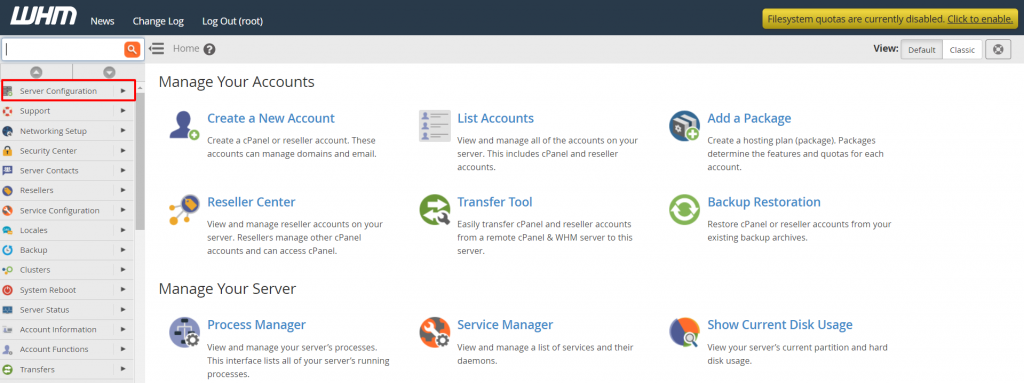
Once logged in, you will be presented with the WHM dashboard. On the left-hand side of the screen, locate the "Server Configuration" section and click on it.
This section contains various configuration options for your server.
-
Step 3: Open Statistics Software Configuration
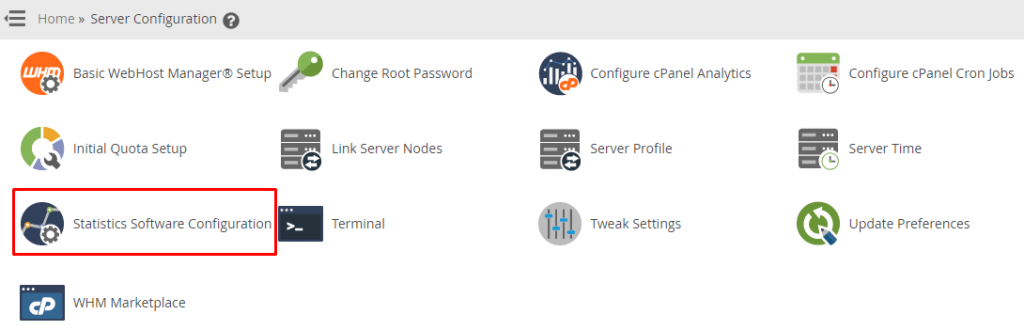
Within the "Server Configuration" menu, find and click on "Statistics Software Configuration." This will open a new page where you can adjust settings related to log processing and statistics generation.
The Statistics Software Configuration interface will open, showing you various options for configuring your statistics software.
-
Step 4: Modify the Schedule
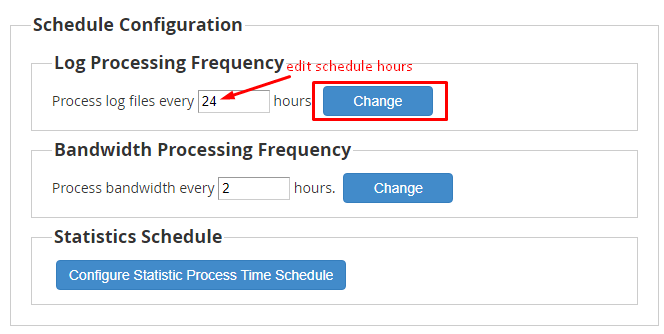
Scroll down to the "Schedule Configuration" section. Here, you'll find the option to change the frequency of log processing. The default setting is usually set to process logs once a day at midnight. To modify this schedule, enter your preferred time in the "Log Processing Frequency" field. You can specify the hour and minute for when you want the log files to be processed.
For example, if you want the logs to be processed every day at 3:00 AM instead of midnight, change the time accordingly.
Note: Be mindful of server load during peak traffic times. It's generally recommended to schedule log processing during off-peak hours to avoid impacting server performance.
-
Step 5: Save Changes
After you have entered your new schedule, click on the "Change" button at the bottom of the page to apply the adjustments. This will update the schedule for processing log files on your server.
Once you click "Change," WHM will confirm the update, and your new schedule for log processing will be in effect.
Tips:
- Regularly reviewing your server's performance can help you determine the best time to process logs without affecting user experience.
- If you are unsure about the optimal time for log processing, consider scheduling it during times when your traffic is lowest.
- Keep in mind that changing the schedule might affect the availability of real-time statistics. Ensure that any changes align with your reporting needs.