Optimizing URLs for search engines can significantly enhance indexing and improve SEO performance. This guide demonstrates how cPanel users can transform WordPress search URLs from the default http://www.example.com/?s=search-term format to a cleaner, more SEO-friendly structure: http://www.example.com/search/search-term. By modifying the functions.php file and .htaccess configuration, you'll align your search URL slugs with your site's permalink format.
Background
Simply configuring your WordPress website with SEO-friendly URLs is insufficient for effective indexing and improved SEO ranking. It is crucial that the structure of these search URLs appears authentic and is easy for search engine crawlers to read, optimizing the search pages for search engines. This guide covers two methods: rearranging the site's function file and enhancing the search URL slug with .htaccess.
Method 1: Rearrange Site's Function File
-
Step 1: Access cPanel File Manager
Log in to your cPanel user account.
Go to the FILES area and click the File Manager button.
The File Manager interface will be accessible.
-
Step 2: Locate and edit functions.php
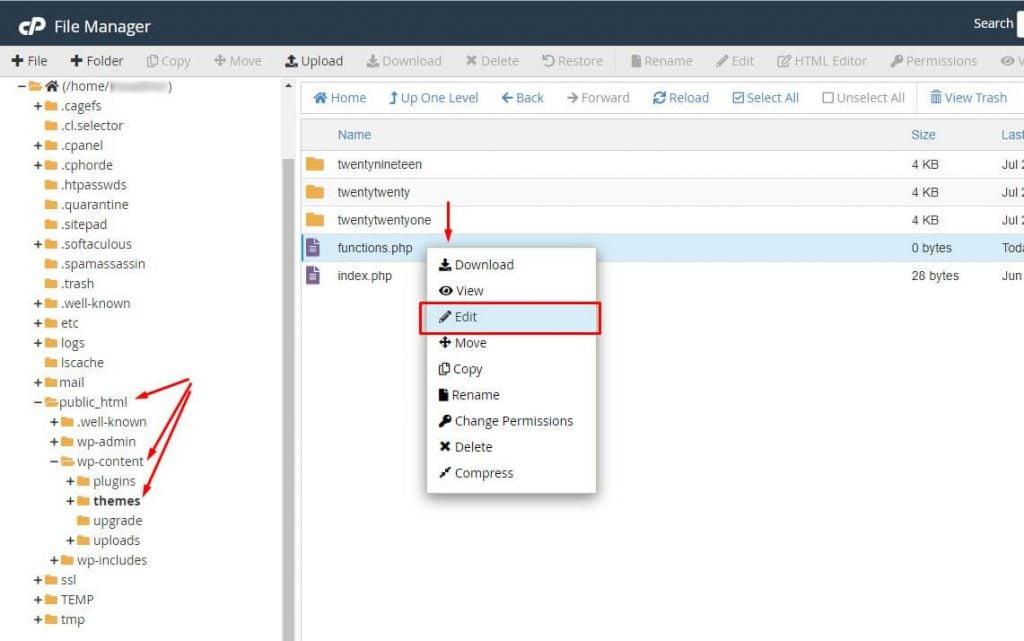
Navigate through
public_html>>wp-content>>themesto locate the functions.php file.Right-click on the functions.php file and choose the Edit option.
The file will be shown in the window for editing.
-
Step 3: Add the search URL redirect code
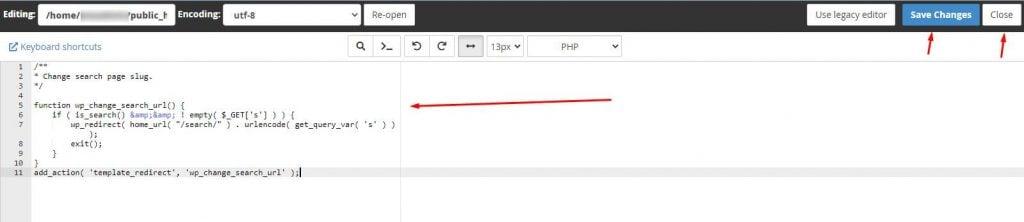
Attach the provided code to the end of the file:
/** * Change search page slug. */ function wp_change_search_url() { if ( is_search() && ! empty( $_GET['s'] ) ) { wp_redirect( home_url( "/search/" ) . urlencode( get_query_var( 's' ) ) ); exit(); } } add_action( 'template_redirect', 'wp_change_search_url' ); -
Step 4: Save changes
Save Changes and close the editor by clicking on the respective buttons.
This should optimize the structure of the search URL slug to the highest level.

Method 2: Improve Search URL Slug with .htaccess
-
Step 1: Access cPanel and File Manager
Log in to your cPanel account.
Access the File Manager and locate the .htaccess file for editing.
Note: Refer to the article on How To Edit A .htaccess File Through The cPanel File Manager for detailed instructions.
-
Step 2: Add rewrite rules
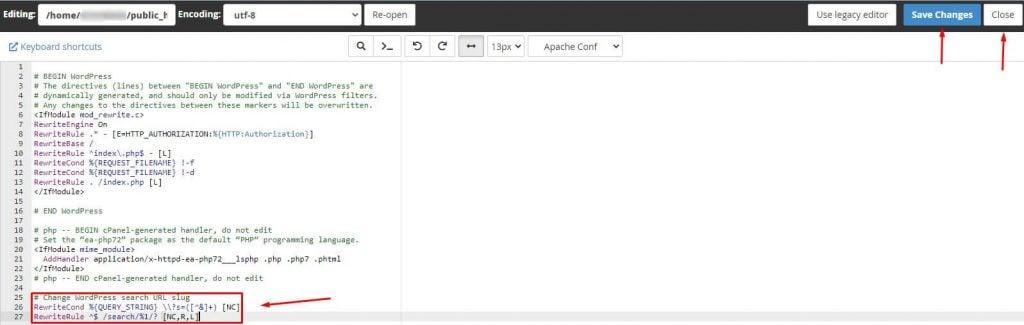
Place the given code at the conclusion of the file:
# Change WordPress search URL slug RewriteCond %{QUERY_STRING} \?s=([^&]+) [NC] RewriteRule ^$ /search/%1/? [NC,R,L] -
Step 3: Save changes
Save Changes and close the editor by clicking on the respective buttons.
By employing either of these methods, cPanel users can efficiently modify the search URL slug of a WordPress site, thereby enhancing its SEO.