Demo Mode in cPanel allows hosting providers to give customers a trial version of the control panel. In this mode, users can explore all cPanel features without being able to modify any files or folders. This guide shows how to enable or disable Demo Mode for an account from WHM.
How to Enable Demo Mode
-
Step 1: Log in to WHM
Log in to your root account for WHM.
-
Step 2: Navigate to Account Functions
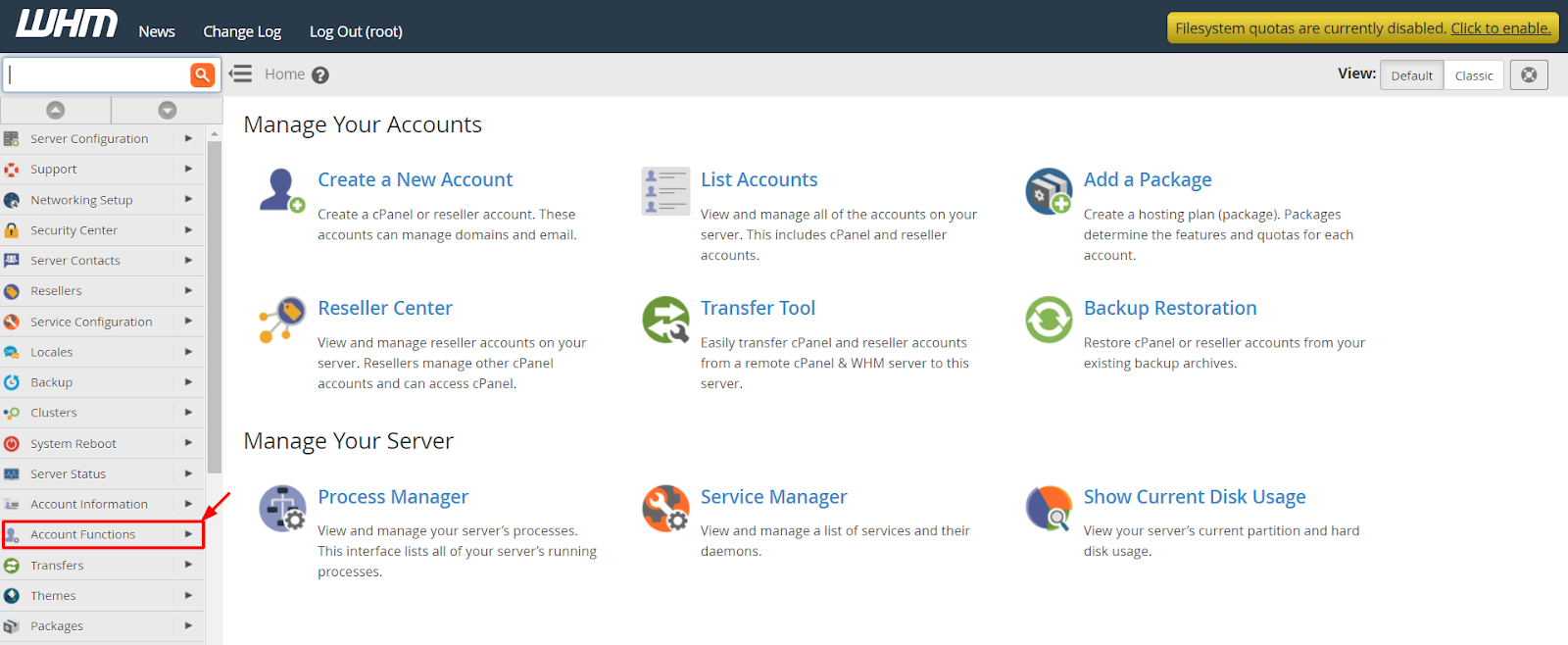
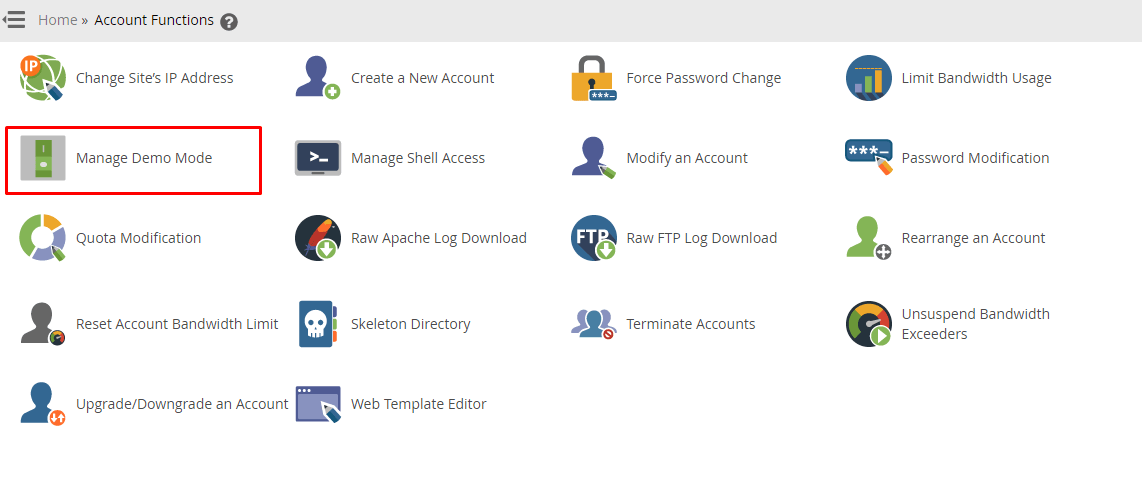
Choose the Account Functions option from the navigation menu.
-
Step 3: Open Manage Demo Mode
Click Manage Demo Mode.
-
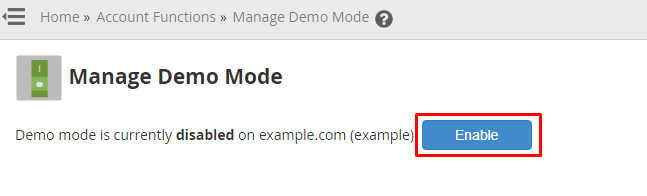
Step 4: Enable Demo Mode
If demo mode is currently disabled for the domain, click Enable.
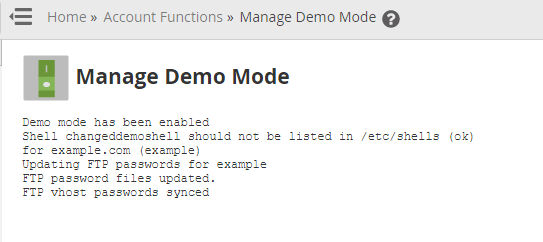
WHM will enable demo mode for the account and configure its settings accordingly.
The account will now work in demo mode for as long as it remains active.
How to Disable Demo Mode
-
Step 1: Navigate to Account Functions
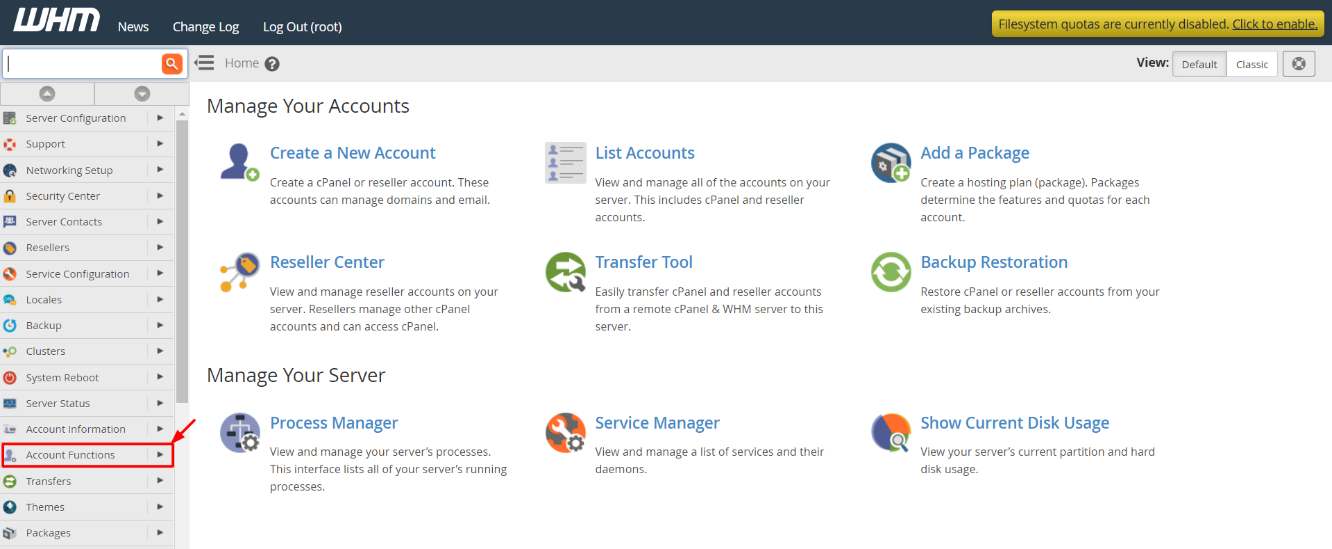
Choose the Account Functions option from the navigation menu.
-
Step 2: Open Manage Demo Mode
Click Manage Demo Mode.
-
Step 3: Disable Demo Mode
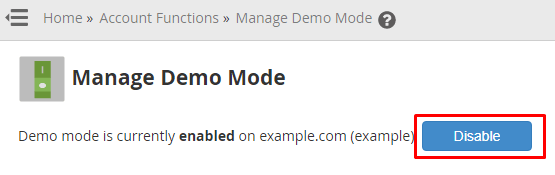
If demo mode is currently enabled for the account, you will see a Disable button. Click it.
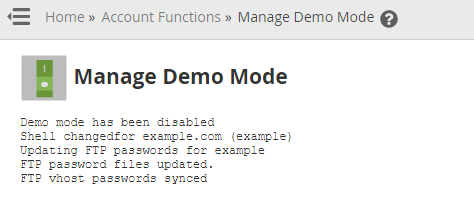
WHM will disable demo mode for the account.
The system will reassign all account privileges and configure settings, making the account fully functional.