Global Email Filters allow you to apply filtering rules to all email accounts within a domain, rather than configuring filters individually for each account. This guide shows you how to set up Global Email Filters via cPanel to efficiently manage email filtering across your entire domain.
How to Set Up Global Email Filters
-
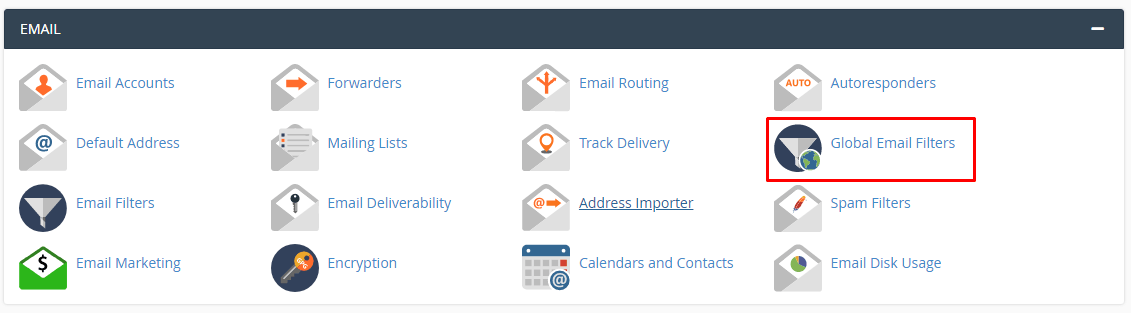
Step 1: Access Global Email Filters
Log in to your cPanel account and navigate to Global Email Filters under the EMAIL section.
-
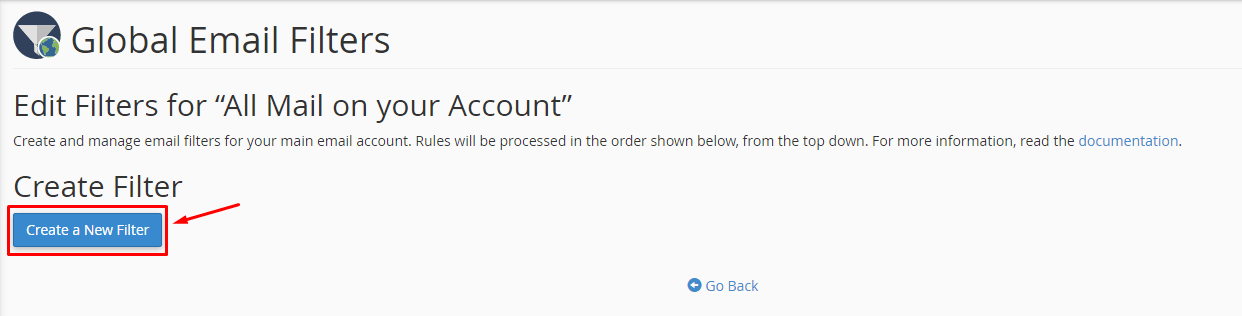
Step 2: Create a New Filter
Click Create a New Email Filter.
-
Step 3: Configure Filter Settings
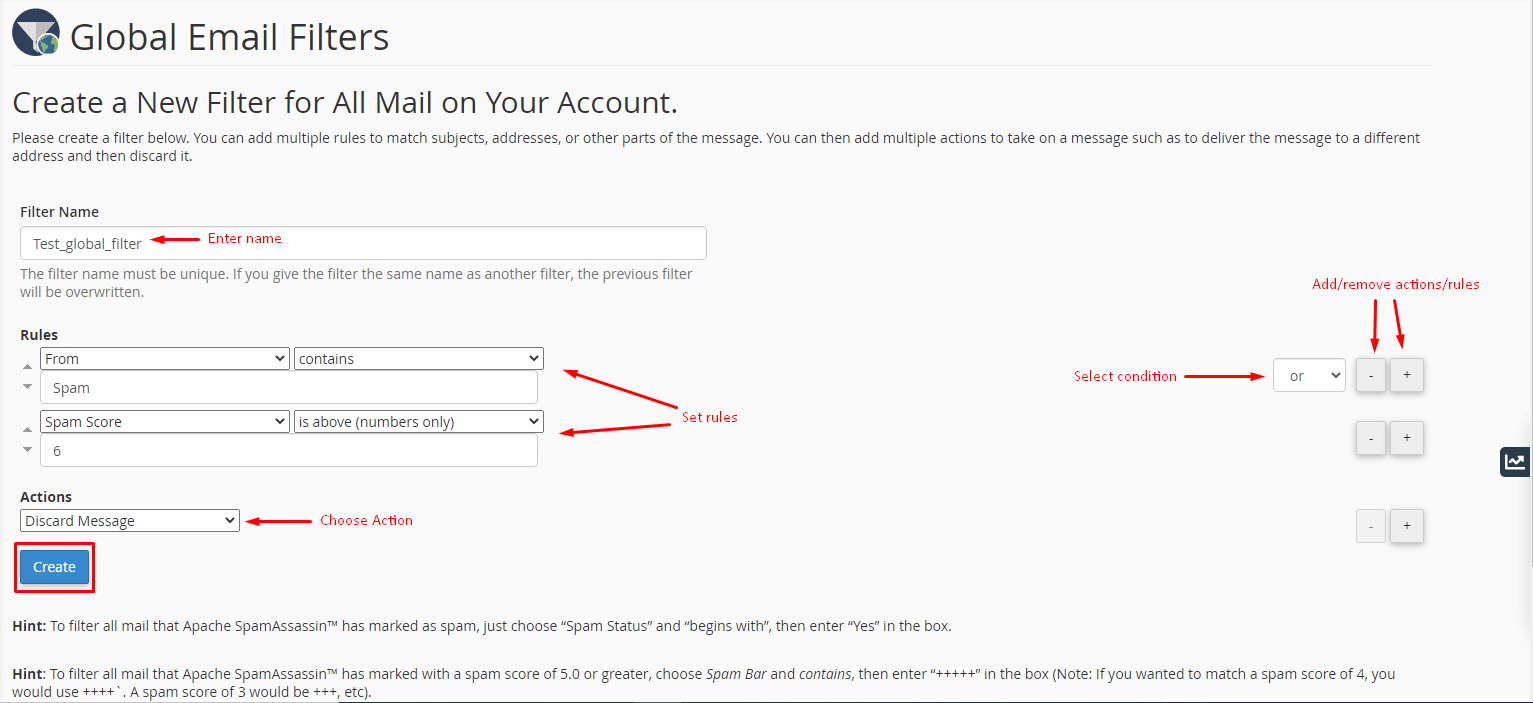
A form will open where you can customize your filter:
- Enter a Filter Name. Note: Using a name identical to an existing filter will overwrite the previous filter. Choose a descriptive name to easily identify the purpose of the filter.
- Set Rules to define which emails should be filtered. You can specify criteria such as the sender's email address, keywords in the subject line, or specific phrases within the body of the email. For example, you might create a rule that filters out all emails from "spam@sender.com" or any email with "win money now" in the subject.
- Choose the Action to be performed on filtered emails. Common actions include deleting the email, forwarding it to another address, moving it to a specific folder, or marking it as spam. For instance, you could configure an action that deletes all emails from known spam domains.
- Add or remove Rules and Actions using the + or - buttons. This allows for complex filtering logic tailored to your needs.
- Apply conditions (and/or) to trigger multiple Actions or Rules. For example, you can set a filter that only moves an email to the "Promotions" folder if it contains both "sale" in the subject and comes from a specific domain.
-
Step 4: Save the Filter
Click Create when you have configured the desired settings.
The system will establish the Global Email Filter and display a success message. The filter will now be applied to all email accounts under your cPanel account.
Tips for Effective Use of Global Email Filters
- Regularly Update Filters: As spam tactics evolve, regularly review and update your filters to ensure they remain effective.
- Test New Filters: Before applying a new filter globally, test it on a single account to make sure it behaves as expected.
- Combine Multiple Actions: Use the "and" or "or" conditions to combine multiple actions for more sophisticated filtering.
- Backup Important Emails: Ensure that important emails are not inadvertently filtered out by setting appropriate rules and actions.
By following these steps and tips, you can effectively manage your email traffic and keep your domain's inboxes organized and free from unwanted messages.