Migrating emails from G Suite to a cPanel server requires proper IMAP configuration and the imapsync tool. This guide walks you through enabling the necessary Gmail settings and performing the migration using command-line tools on your cPanel server.
Prerequisites
Before starting the migration, ensure you have:
- G Suite email account username and password
- cPanel mail account username and password
- SSH access to your cPanel server
- IMAP enabled in your Gmail account
How to Migrate
-
Step 1: Enable IMAP in Gmail
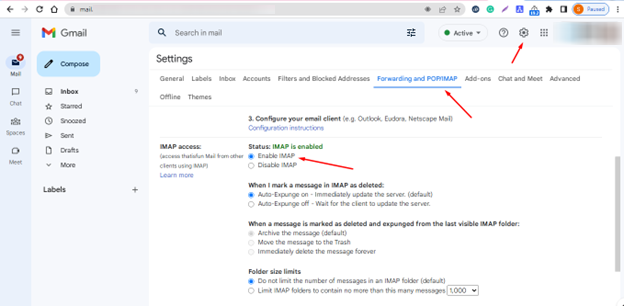
Log in to your Gmail account and navigate to Settings. Click on "Forwarding and POP/IMAP" and locate the "IMAP Access" section. Enable IMAP if it's currently disabled.
-
Step 2: Enable Less Secure Apps Access
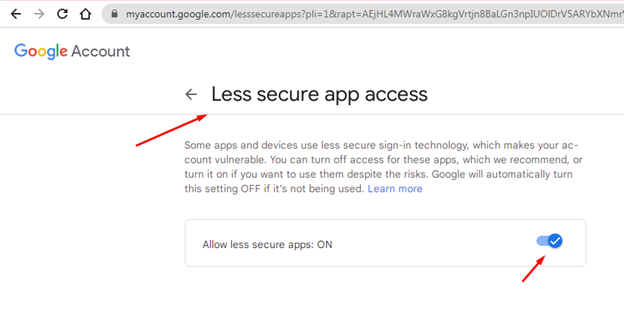
Click on your Gmail profile logo and select "Manage your Google Account." Navigate to the Security section and scroll down to "Less Secure App Access." Turn it ON.
Note: Google has deprecated this feature for newer accounts. You may need to use App Passwords instead for accounts with 2-factor authentication enabled.
-
Step 3: Install imapsync Tool
Connect to your cPanel server via SSH and install the imapsync tool:
sudo yum install imapsync -
Step 4: Create Password Files
Create two files to store your passwords securely. Replace the paths and filenames as needed:
echo "your_gmail_password" > /home/gaurav/pass1 echo "your_cpanel_password" > /home/gaurav/pass2 chmod 600 /home/gaurav/pass1 /home/gaurav/pass2/home/gaurav/pass1contains your Gmail account password./home/gaurav/pass2contains your cPanel account password. -
Step 5: Run the Migration Command
Execute the following command inside a screen session to start the migration:
imapsync --host1 imap.gmail.com --port1 993 --ssl1 --user1 goransh@thatisfun.in --passfile1 /home/gaurav/pass1 --host2 eternity.herosite.pro --port2 993 --ssl2 --user2 goransh@thatisfun.in --passfile2 /home/gaurav/pass2Replace the following values with your actual information:
goransh@thatisfun.in– your email addresseternity.herosite.pro– your cPanel server hostname/home/gaurav/pass1and/home/gaurav/pass2– paths to your password files
The migration process will begin and display progress in the terminal.
Common Issues
- Authentication failed: Verify that IMAP is enabled and Less Secure Apps is turned on (or use App Passwords for 2FA accounts).
- Connection timeout: Check that ports 993 are not blocked by your server firewall.
- imapsync not found: Ensure the tool is properly installed using the yum command in Step 3.