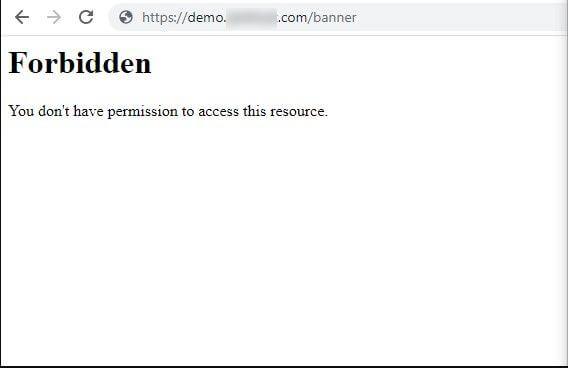
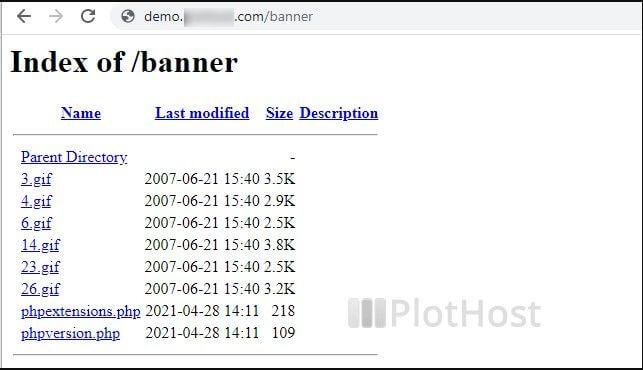
Directory listing allows visitors to view the contents of a directory when no index file is present. As a cPanel user, you can control this behavior using .htaccess files. For security reasons, web servers often disable directory listing by default, showing a 403 Forbidden error instead. This guide shows you how to enable or disable directory listing for your directories.
How to Enable Directory Listing
-
Step 1: Create or locate the .htaccess file
Use the cPanel File Manager to create a .htaccess file in the directory where you want to enable listing. Simply name the file
.htaccess.If you already have a .htaccess file, locate and edit it using the cPanel File Manager.
-
Step 2: Add the directory listing directive
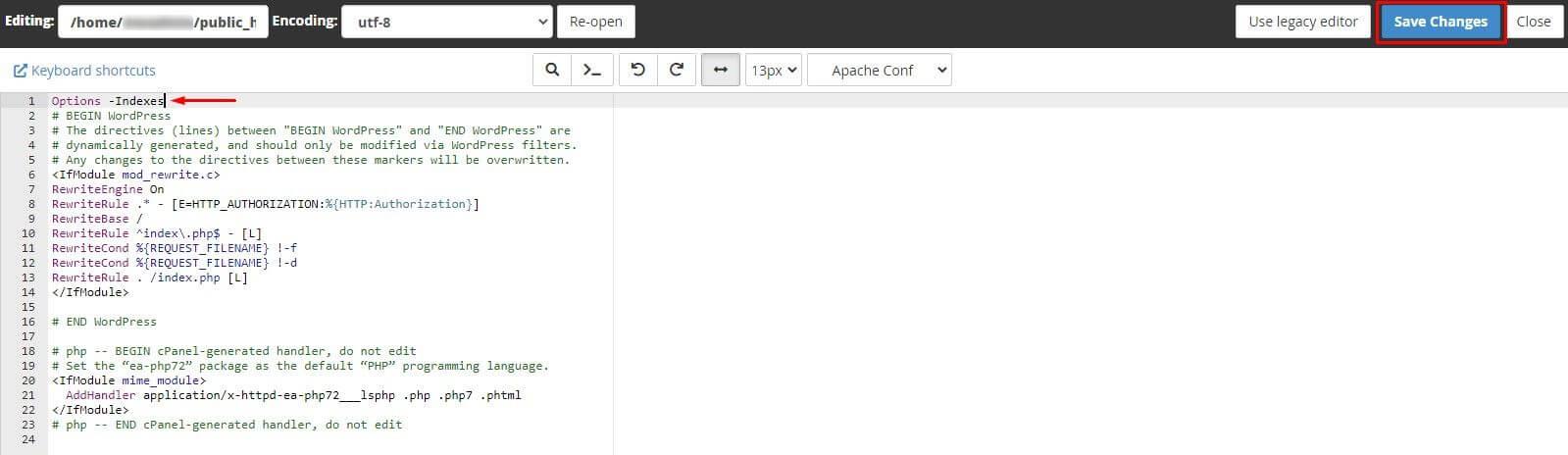
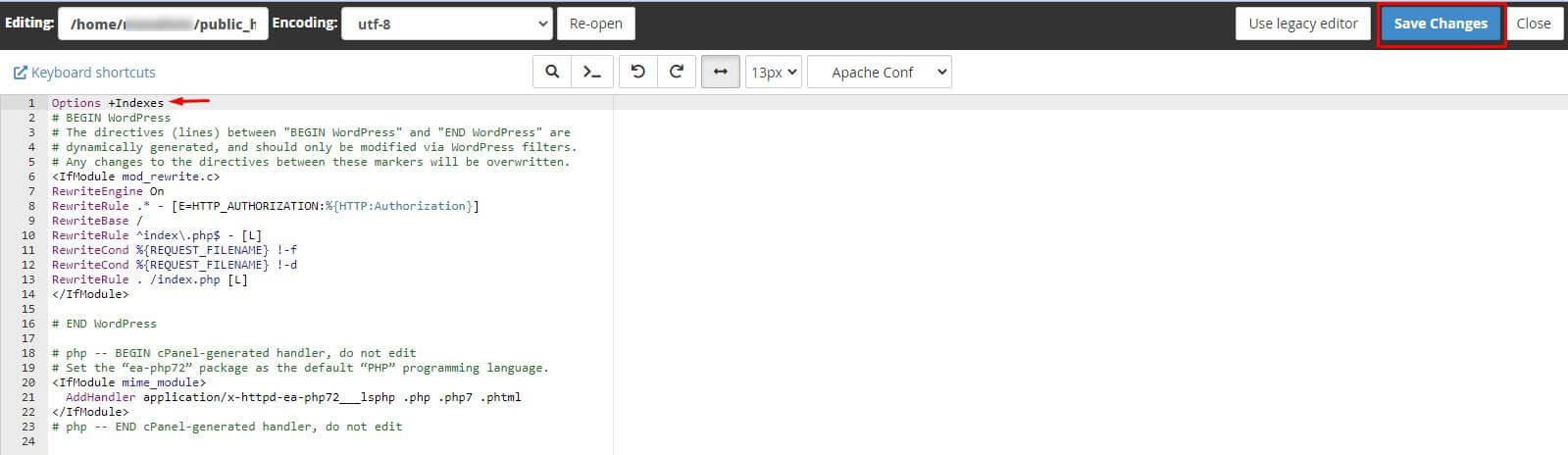
Enter or copy the following code at the beginning of the file:
Options +Indexes -
Step 3: Save the changes
Click Save Changes and Close.
The next time you browse the directory, it will display the index of files.
How to Disable Directory Listing
-
Step 1: Create or locate the .htaccess file
Create or edit the .htaccess file in the directory using cPanel File Manager.
-
Step 2: Add the disable directive
Enter or copy the following code at the beginning of the file:
Options -Indexes -
Step 3: Save the changes
Click Save Changes and Close.
The next time you browse the directory, it will display a 403 Forbidden error instead of the file listing.