Directory listing allows visitors to see all files in a directory when no index file is present. By default, web servers disable this feature for security reasons, showing a 403 Forbidden error instead. Using .htaccess in cPanel, you can easily enable or disable directory listing for specific directories on your web hosting account.
How to Enable Directory Listing
-
Step 1: Create or locate the .htaccess file
Use the cPanel File Manager to create a .htaccess file in the directory where you want to enable listing. If the file already exists, locate and open it for editing.
-
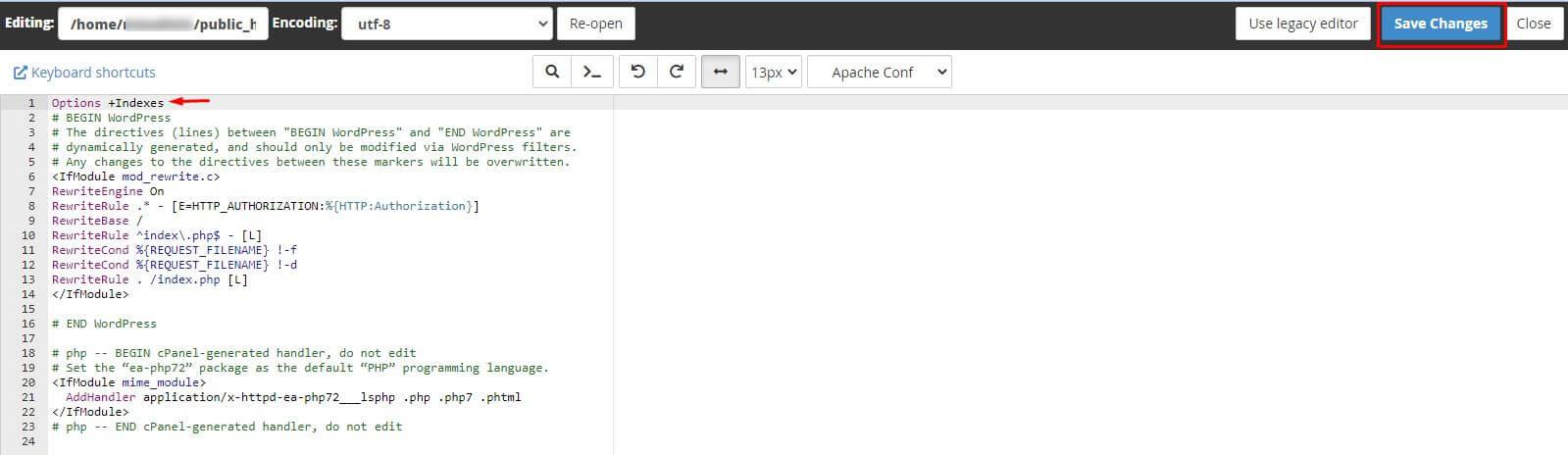
Step 2: Add the enable directive
Enter or copy the following code at the beginning of the file:
Options +Indexes -
Step 3: Save the changes
Click Save Changes and close the editor.
-
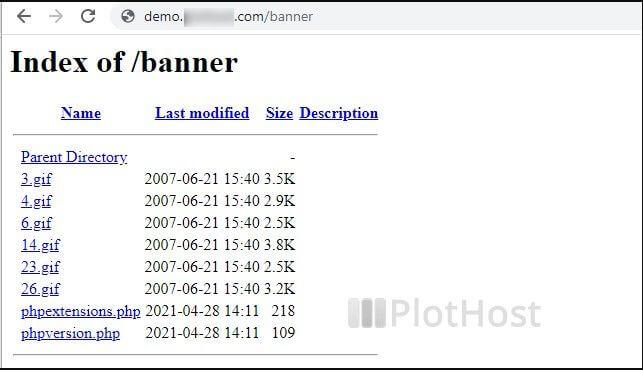
Step 4: Verify the result
Browse to the directory in your web browser. You should now see an index listing of all files and subdirectories.
How to Disable Directory Listing
-
Step 1: Create or locate the .htaccess file
Use the cPanel File Manager to create or edit the .htaccess file in the directory where you want to disable listing.
-
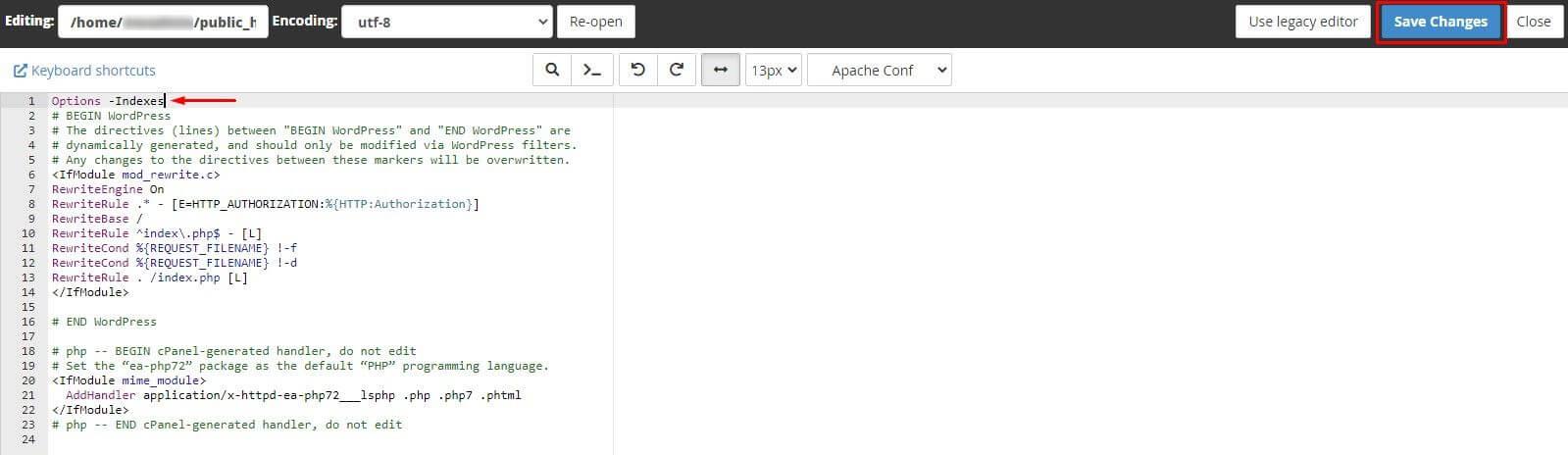
Step 2: Add the disable directive
Enter or copy the following code at the beginning of the file:
Options -Indexes -
Step 3: Save the changes
Click Save Changes and close the editor.
-
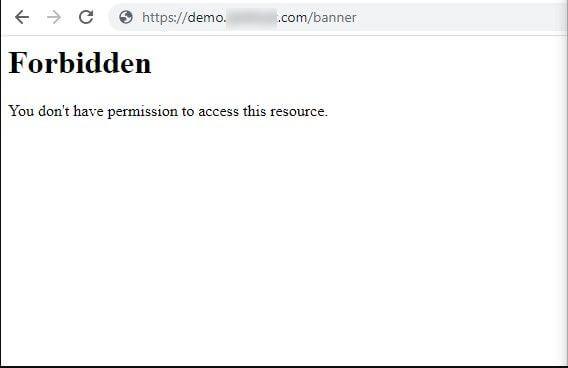
Step 4: Verify the result
Browse to the directory in your web browser. You should now see a 403 Forbidden error instead of the file listing.