Symlink Protection is a security feature in WHM that automatically mitigates vulnerabilities in the Linux kernel by preventing unauthorized access through symbolic links. This guide shows you how to enable this protection to enhance your server's security.
How to Enable Symlink Protection
-
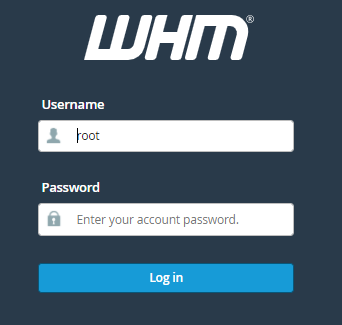
Step 1: Log in to WHM
Access your WHM control panel using your credentials. Ensure you have the necessary administrative privileges to make changes to server settings.
-
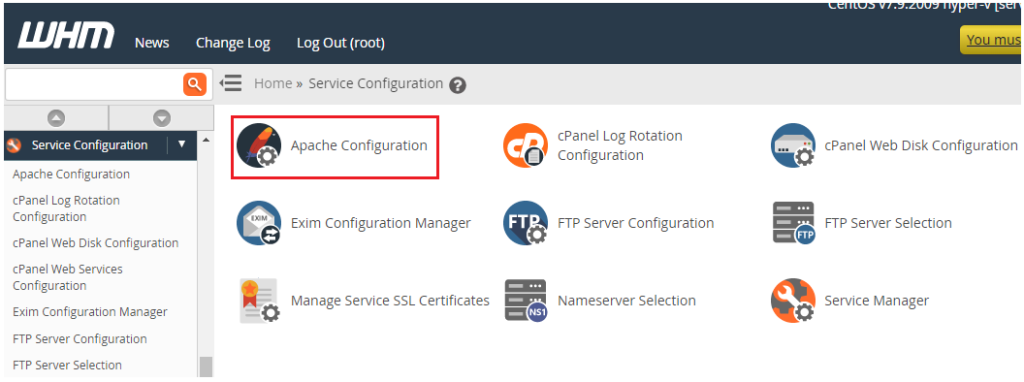
Step 2: Navigate to Apache Configuration
From the left sidebar, locate the Service Configuration section and click on Apache Configuration. This section allows you to customize various settings related to your server's web service.
-
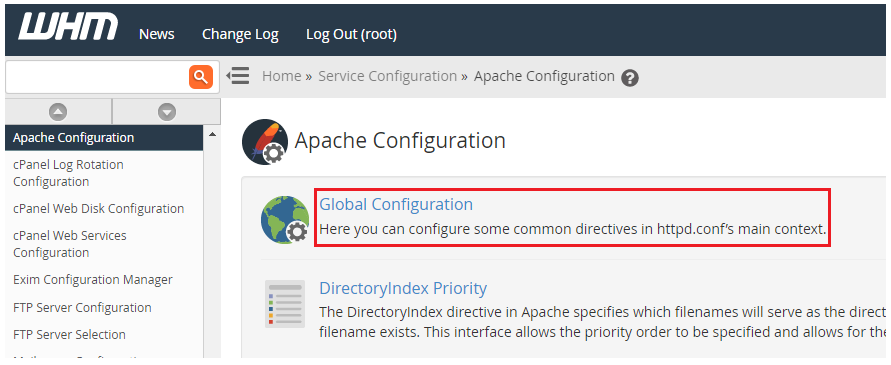
Step 3: Open Global Configuration
Under Apache Configuration, select Global Configuration. This option lets you adjust global settings that affect all websites hosted on your server.
-
Step 4: Locate Symlink Protection Setting
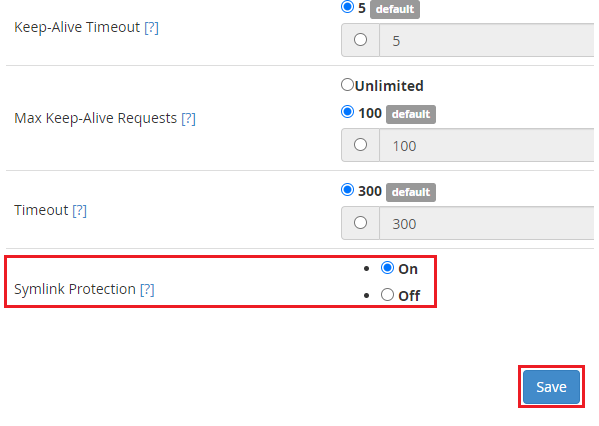
You will be directed to the Global Configuration page. Scroll down until you find the Symlink Protection option. This setting is crucial for enhancing your server's security by preventing unauthorized access.
-
Step 5: Enable Symlink Protection
Toggle the Symlink Protection switch to the On position. This action activates the protection mechanism. After toggling, click the Save button located at the bottom of the page to save your changes.
-
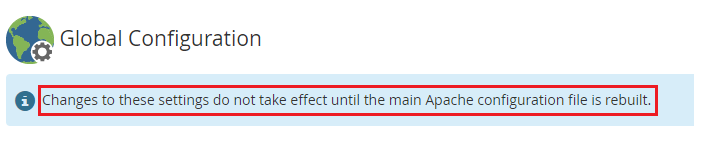
Step 6: Rebuild Configuration and Restart Apache
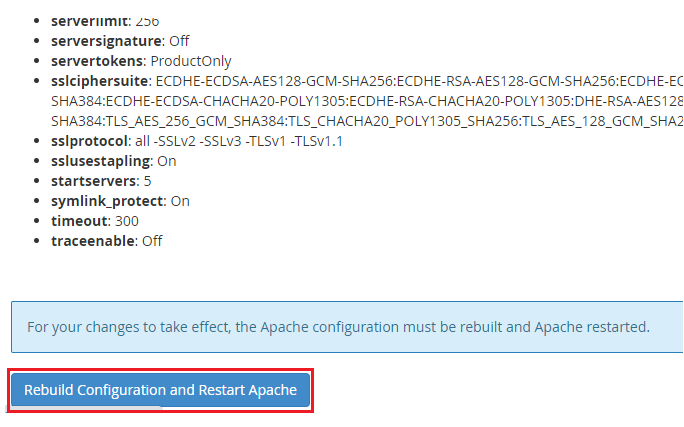
To apply the changes, scroll to the bottom of the page and click the Rebuild Configuration and Restart Apache button. This action will rebuild your Apache configuration file and restart the web server, ensuring that the new settings take effect immediately.
-
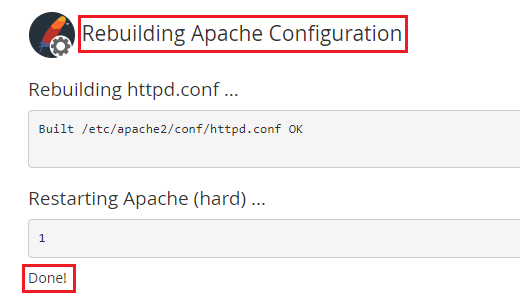
Step 7: Verify Completion
You will receive a confirmation message indicating that Apache has been successfully rebuilt and restarted with Symlink Protection enabled. This confirms that your server is now better protected against symlink attacks.
Tips:
- Always ensure you have a backup of your server configuration before making changes.
- If you encounter any issues after enabling Symlink Protection, consult the WHM documentation or contact support for assistance.
- Regularly check and update your server's security settings to protect against new vulnerabilities.