When backing up a cPanel server, you may want to exclude certain files and directories to reduce backup size and avoid duplicating existing backup archives. By creating a cpbackup-exclude.conf file in your home directory, you can specify which files and folders should be omitted from the backup process.
How to Do It
-
Step 1: Access File Manager
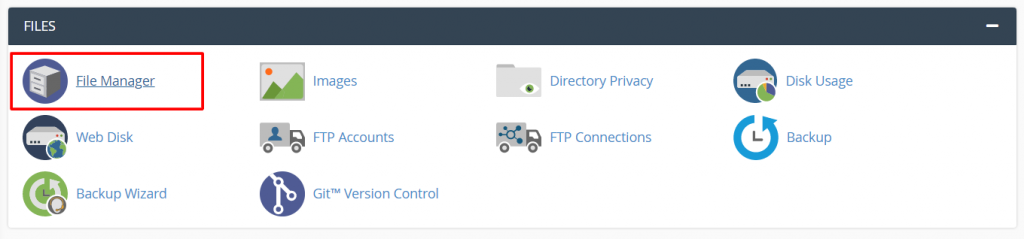
Log in to your cPanel account and navigate to the FILES section. Click on File Manager.
The File Manager interface will open in a new tab.
-
Step 2: Create a New File
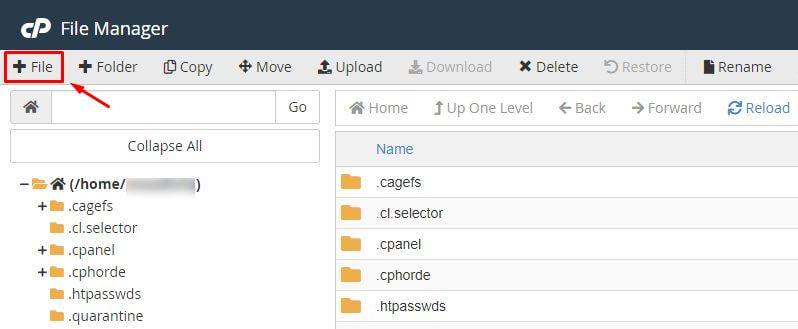
In the File Manager, ensure you are in your home directory. Click the +File button in the top-right corner.
-
Step 3: Name the Exclusion File
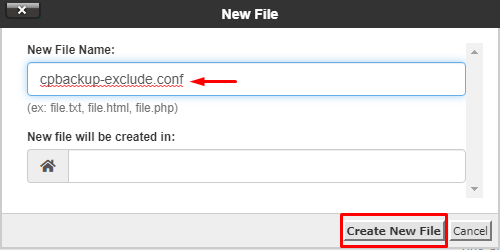
In the New File dialog, enter the filename
cpbackup-exclude.confand click Create New File.The
cpbackup-exclude.conffile will now appear in your file list. -
Step 4: Edit the Exclusion File
Right-click on the
cpbackup-exclude.conffile and select Edit from the context menu. The file will open in the text editor. -
Step 5: Add Exclusion Rules
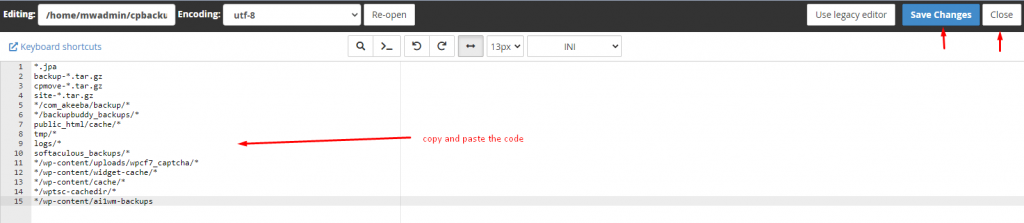
Insert the following code into the file to exclude common backup files and directories:
*.jpa
backup-*.tar.gz
cpmove-*.tar.gz
site-*.tar.gz
*/com_akeeba/backup/*
*/backupbuddy_backups/*
public_html/cache/*
tmp/*
logs/*
softaculous_backups/*
*/wp-content/uploads/wpcf7_captcha/*
*/wp-content/widget-cache/*
*/wp-content/cache/*
*/wptsc-cachedir/*
*/wp-content/ai1wm-backups
Note: The files and directories listed above are associated with popular backup utilities like BackupBuddy and Akeeba. You can customize this list by adding additional lines to exclude other items from cPanel backups.
The backup system also excludes these files and directories for all users' backups by default:
*/.wysiwygPro_* */core.[0-9] .MirrorSearch .cpan .cpanel/caches .cpanel/datastore .cpcpan .sqmailattach access-logs public_ftp/.ftpquota -
Step 6: Save the File
Click Save Changes and close the file editor.
cPanel will automatically exclude these files and directories from future server backups.