This tutorial guides you through the process of installing Tomcat 8.5 with private instances on a cPanel server. All instructions assume you are logged in via SSH as root or using WHM's Terminal. In the examples below, $username represents the username associated with the specific cPanel account (e.g., /home/example123/.bashrc).
How to Install and Configure Tomcat 8.5
-
Step 1: Install the Tomcat RPM
Begin by installing the
ea-tomcat85andrng-toolspackages:yum install ea-tomcat85 rng-tools -y -
Step 2: Add Tomcat Support to an Account
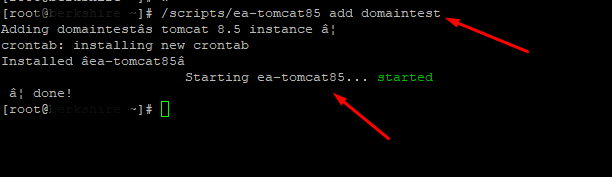
Add Tomcat support to the account(s) that need it. Execute the following command for each user requiring Tomcat:
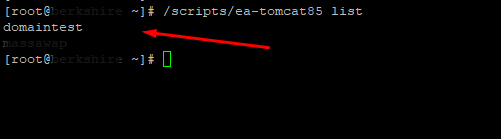
/scripts/ea-tomcat85 add $usernameAfter completing this step, verify that Tomcat has been enabled for the accounts:
/scripts/ea-tomcat85 list -
Step 3: Install Ubic
The installation of Ubic for any given cPanel user requires the cPanel user to have shell access to the server, including write permissions to the
/home/$username/.bashrcfile. Use the following commands in the shell/terminal while logged in with root access, replacing$usernamewith the correct username:su - $username echo "export PATH=$(dirname $(readlink /usr/local/cpanel/3rdparty/bin/perl)):$PATH" >> /home/$username/.bashrcFor CloudLinux users: If you are using CloudLinux, execute the following commands (from the root level) to add Java to the CageFS mounts:
cagefsctl --addrpm tzdata-java cagefsctl --force-update -
Step 4: Verify Ubic Installation
After installation, confirm that Ubic is running and Tomcat is enabled for the user with the following command (from the root level):
su - $username -s /bin/bash -c 'ubic status ea-tomcat85' -
Step 5: Configure the Application Directory
To enable the ROOT webapp directory for testing, add an entry to the
/home/$username/ea-tomcat85/conf/server.xmlfile. This section begins with the deploy options, so it can be placed below the line containing theautoDeploy,deployOnStartup, anddeployXMLsettings. -
Step 6: Verify the Environment
To ensure that the environment is functioning correctly, copy the test JSP file and attempt to call it directly before making any modifications that may impact Apache's configuration.
First, identify the port for testing using the following command:
egrep 'Connector port.*HTTP' /home/$username/ea-tomcat85/conf/server.xmlCopy the test script:
sudo -u $username cp -avp /opt/cpanel/ea-tomcat85/test.jsp /home/$username/ea-tomcat85/webapps/ROOT/Reboot the user's Private Tomcat Instance:
su - $username -s /bin/bash -c 'ubic restart ea-tomcat85'To verify that
test.jspis operational, accesshttp://yourserverip:$PORT/test.jspin your browser, where$PORTis the previously obtained port. You should see a page with the following content:Test JSP Page
This is a page to check that .jsp support has been enabled. -
Step 7: Configure ProxyPass
To properly configure the ProxyPass directive, start by obtaining the AJP connector port:
egrep 'Connector port.*AJP' /home/$username/ea-tomcat85/conf/server.xmlOnce you have obtained the port, create a ProxyPass Apache include file. Perform this action twice, once for http (std) and another for https (ssl). The path for http (std) includes:
/etc/apache2/conf.d/userdata/std/2_4/$username/$domain.tld/tomcatproxypass.confThe content of the file should resemble the following:
ProxyPass "/" "ajp://127.0.0.1:$PORT/" Where
$PORTis the port value retrieved from the previous command.After creating the include files, rebuild the Apache configuration and restart the service:
/usr/local/cpanel/scripts/rebuildhttpdconf && /usr/local/cpanel/scripts/restartsrv_httpdFinally, confirm that the ProxyPass include is functioning by loading
https://example.com/test.jspin your browser. You should see:Test JSP Page
This page verifies the successful enabling of .jsp support. -
Step 8: Install Your Site
If you have reached this point successfully, you are now ready to install your application. Simply copy the application files into
/home/$username/ea-tomcat85/webapps/ROOT/, and your application will be accessible atyourdomain.tld/.