Redis is a powerful open-source, in-memory data structure store that functions as a key-value store for strings, hashes, lists, sets, and sorted sets. Installing Redis and the PHP Redis extension on your cPanel server enables efficient caching and data storage for PHP applications without compromising performance.
Background
Redis leverages passive data caching to efficiently clear outdated content when updating with new information, allowing you to store substantial data volumes seamlessly. The PHP Redis extension provides the interface between your PHP applications and the Redis server.
How to Install Redis and PHP Redis
-
Step 1: Access your server via SSH
Log in to your cPanel server using SSH with root access.
-
Step 2: Download Redis RPM files
Execute the following commands to download the required RPM packages:
wget http://dl.fedoraproject.org/pub/epel/6/x86_64/epel-release-6-8.noarch.rpm wget http://rpms.famillecollet.com/enterprise/remi-release-6.rpm -
Step 3: Install Redis
Run these commands to install Redis on your server:
rpm -Uvh remi-release-6*.rpm epel-release-6*.rpm yum install -y redis -
Step 4: Enable Redis to start on boot
Execute the following command to ensure Redis starts automatically upon server reboot:
chkconfig redis on -
Step 5: Configure Redis
Open the Redis configuration file and add the following lines to the end:
vi /etc/redis.confAdd these configuration lines:
maxmemory 256mb
maxmemory-policy allkeys-lru
This establishes the fundamental configurations for Redis on your server.
-
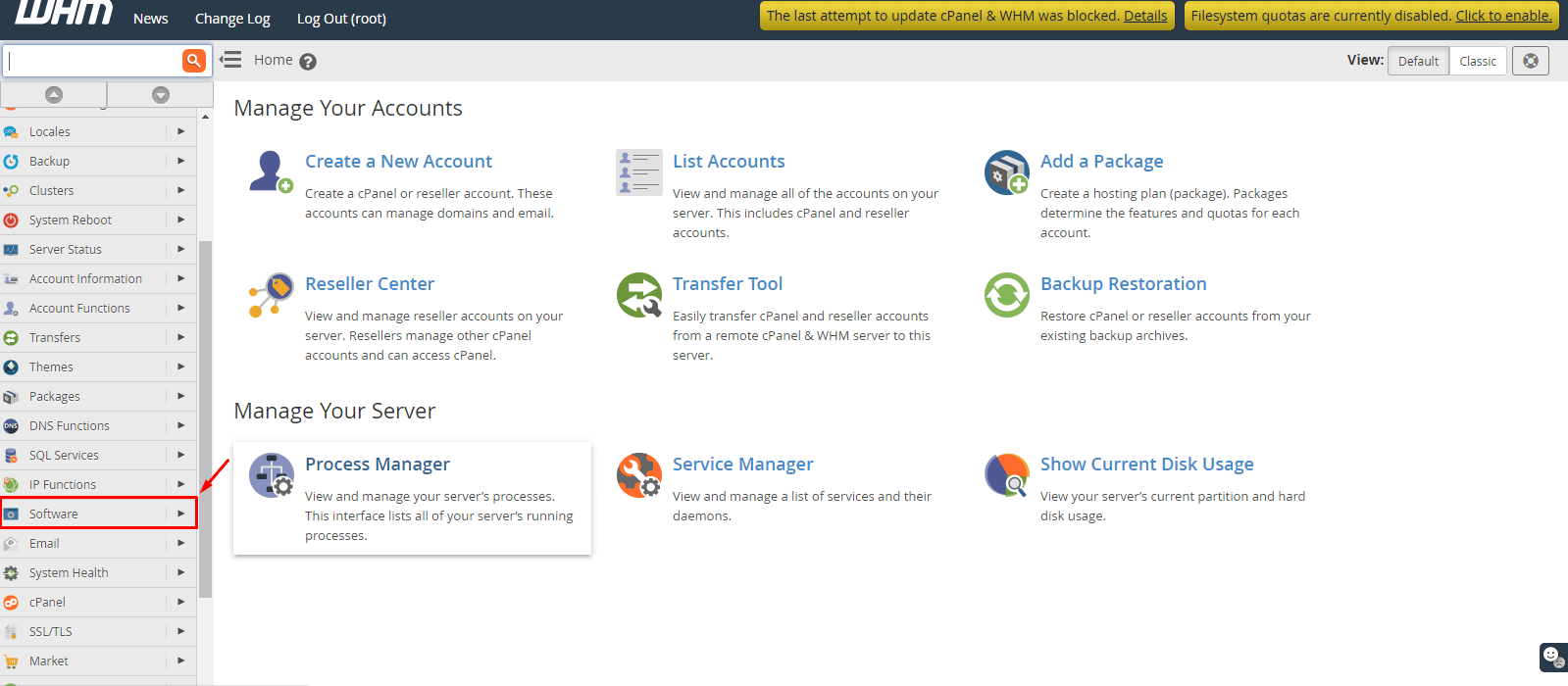
Step 6: Access WHM
Log in to WHM with root access.
-
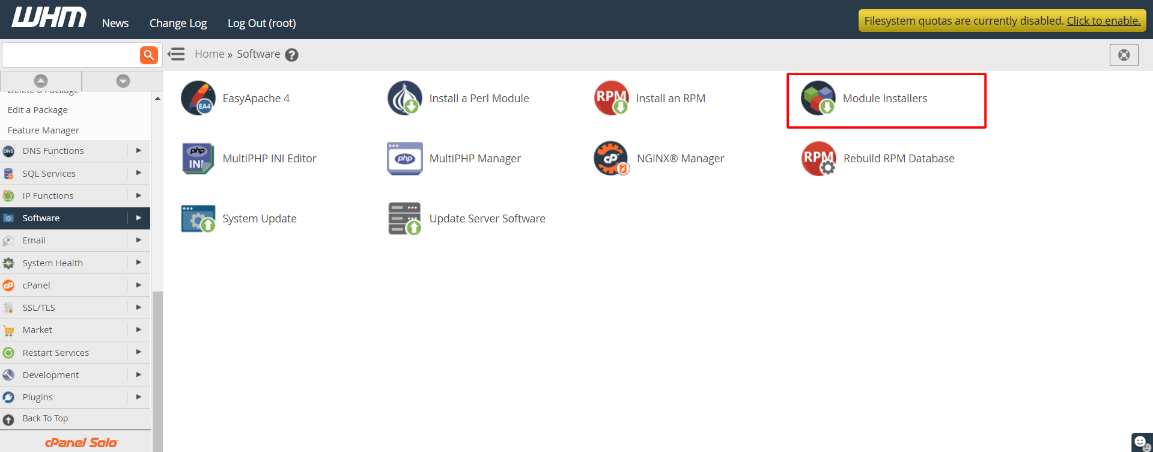
Step 7: Navigate to Module Installers
Choose Software from the navigation menu, then select Module Installers.
-
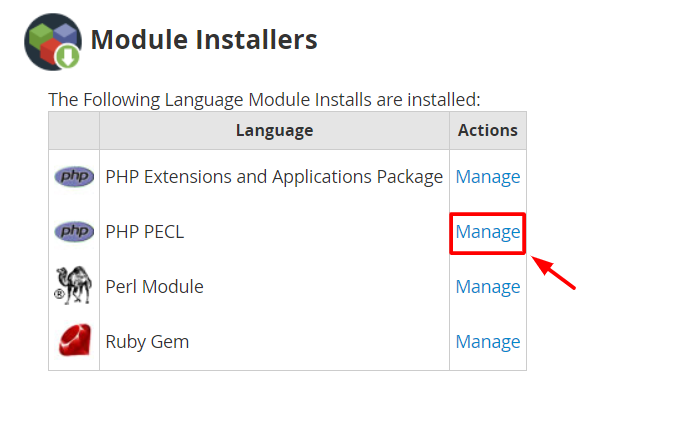
Step 8: Manage PHP Pecl
Choose Manage for PHP Pecl.
-
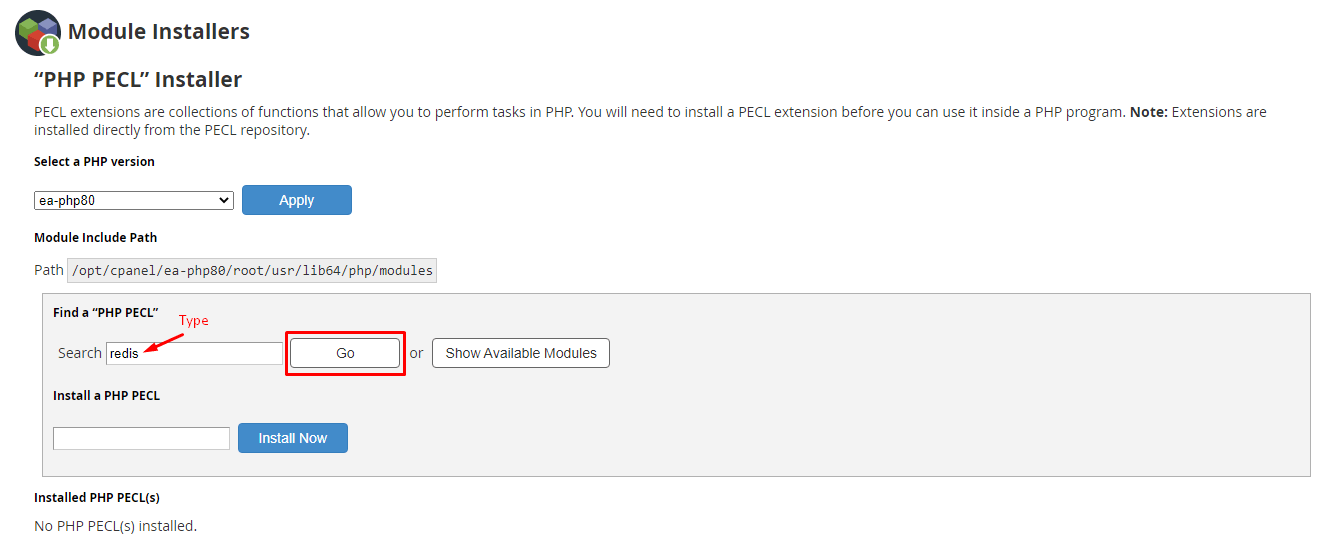
Step 9: Search for Redis module
In the PHP Pecl Installer section, locate the area labeled "Find a PHP PECL". Enter
redisin the Search box and click Go. -
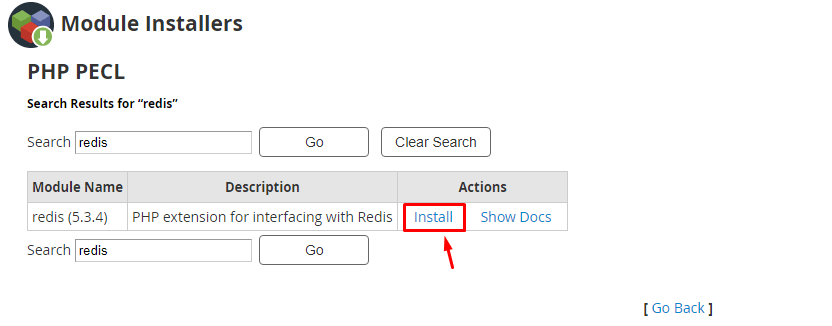
Step 10: Install PHP Redis extension
The search results will display the relevant PHP Redis module. Click Install.
This will install the PHP extension, serving as an interface for Redis.
-
Step 11: Restart services
To finalize the installation, execute the following commands in SSH to restart Redis and httpd:
service httpd restart
service redis restart
This ensures all changes take effect. The installation of Redis and PHP Redis on your cPanel server is now complete.