When you no longer need a domain name in your cPanel account, you can remove it through the Addon Domains or Domains section. This process removes the domain from cPanel but does not cancel your domain registration or hosting service with your provider.
How to Remove a Domain
-
Step 1: Login to cPanel
Open your web browser and go to your cPanel login page (usually
https://yourdomain.com/cpanel).Enter your cPanel username and password to sign in.
-
Step 2: Locate the Domains Section
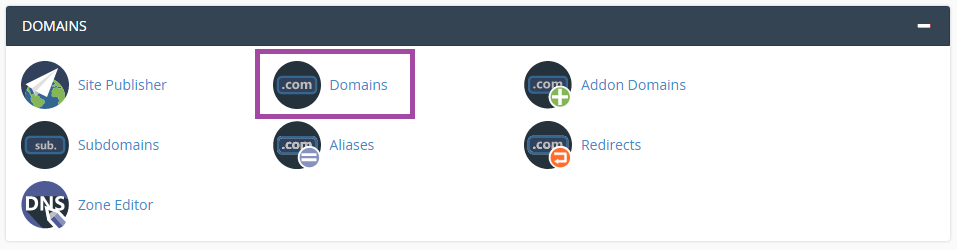
After logging in, locate the "Addon Domains" or "Domains" section within cPanel. The specific wording may vary slightly depending on your cPanel version.
-
Step 3: Select the Domain to Remove
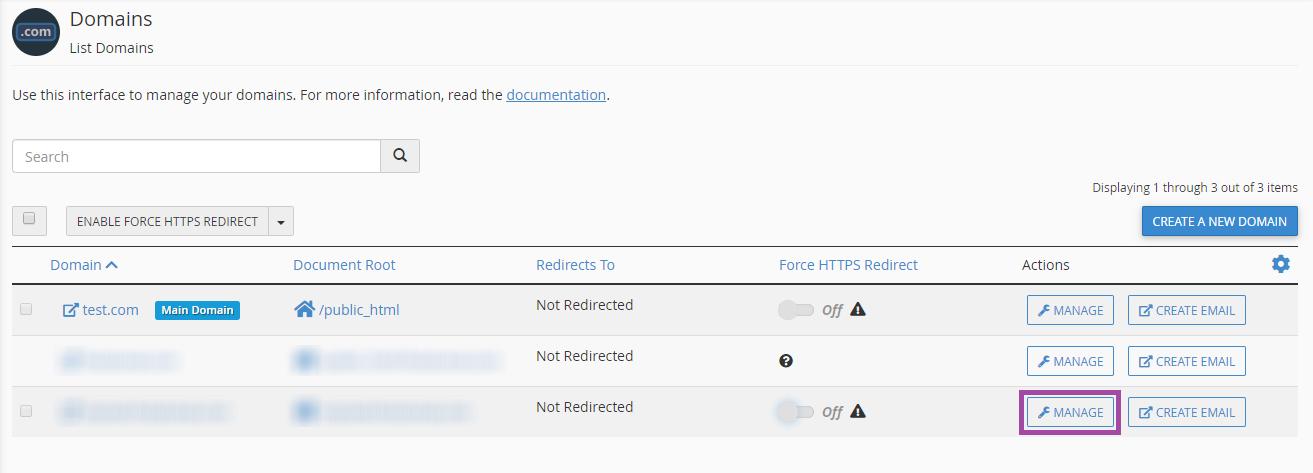
Within the "Addon Domains" or "Domains" section, you will find a list of domains linked to your cPanel account.
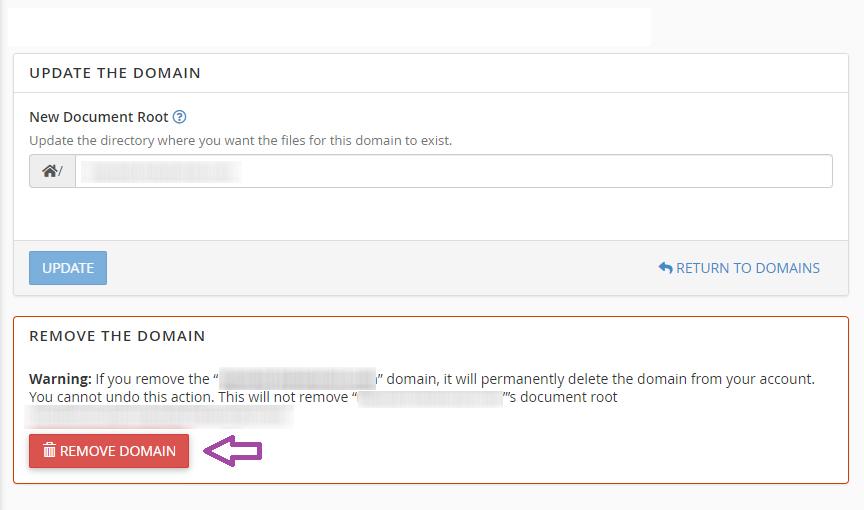
Locate the specific domain you wish to remove and click on the "Remove" or "Delete" option next to it.
-
Step 4: Confirm Removal
A confirmation screen will appear, prompting you to verify your intention to remove the domain. Ensure your decision, as this action is irreversible.
-
Step 5: Handle Subdomains and Databases (Optional)
If your domain has linked subdomains or databases, you may be asked whether you want to delete them. Decide if you wish to remove associated subdomains and databases.
-
Step 6: Complete the Removal
After reviewing the information, click the "Confirm" or "Remove" button to execute the removal of the domain.
-
Step 7: Verify Removal
Once the process is finished, a confirmation message will confirm the successful removal of the domain.
Important: Removing a domain from cPanel does not automatically cancel your domain registration or hosting service with your provider. It only removes the domain from your cPanel account. If you intend to cancel your domain or hosting service, contact your hosting provider directly.