Renaming files and folders in cPanel is useful for organizing your website structure, temporarily disabling web applications, or creating backups. This guide shows you how to rename both files and folders using the cPanel File Manager tool. It's important to note that renaming can affect links and references to those files or folders within your website, so proceed with caution.
How to Do It
-
Step 1: Access File Manager
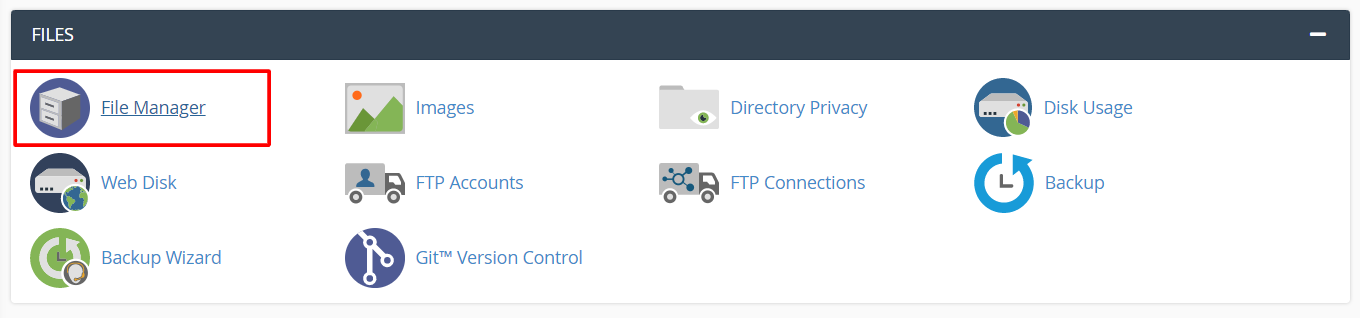
Log in to your cPanel account and scroll to the FILES section. Click File Manager.
The File Manager interface opens in a new tab, displaying all files and folders for your hosting account. You can choose between the Web Root (public_html) or another directory by selecting from the dropdown menu at the top.
-
Step 2: Rename a Folder
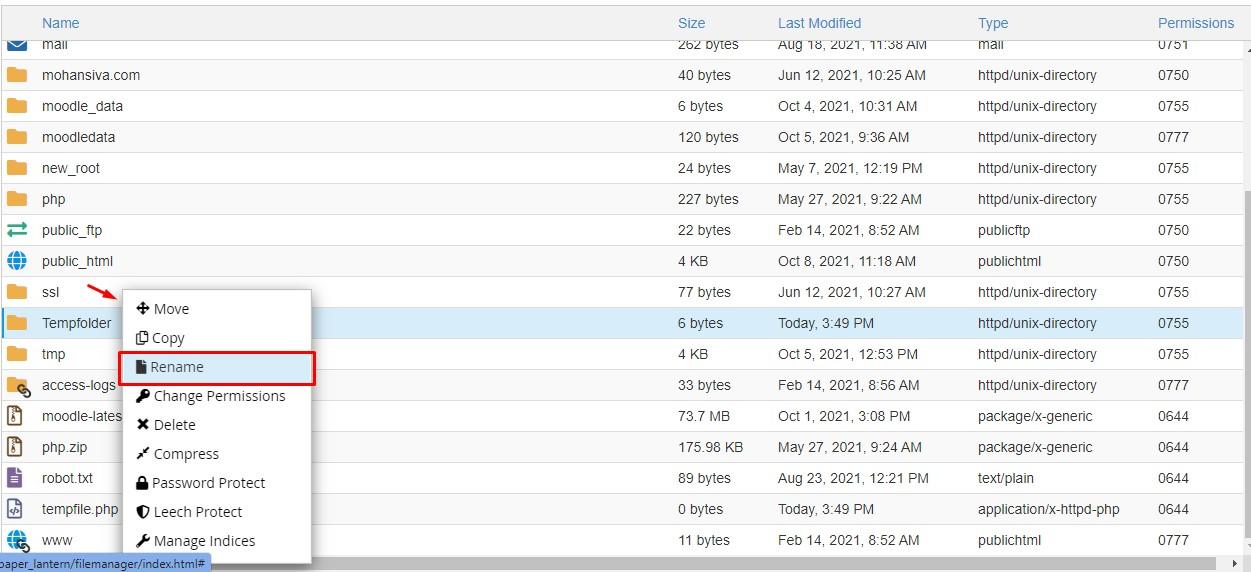
Right-click the folder you want to rename to open the context menu, then select Rename.
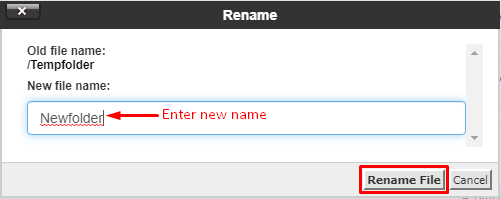
A window appears showing the existing folder name. Enter the new name in the text field and click Rename File. Ensure that your new folder name does not contain any spaces or special characters, as these can cause issues with URLs.
The File Manager will update the folder name immediately. If you encounter any errors, double-check that the new name is unique and does not conflict with existing files or folders.
-
Step 3: Rename a File
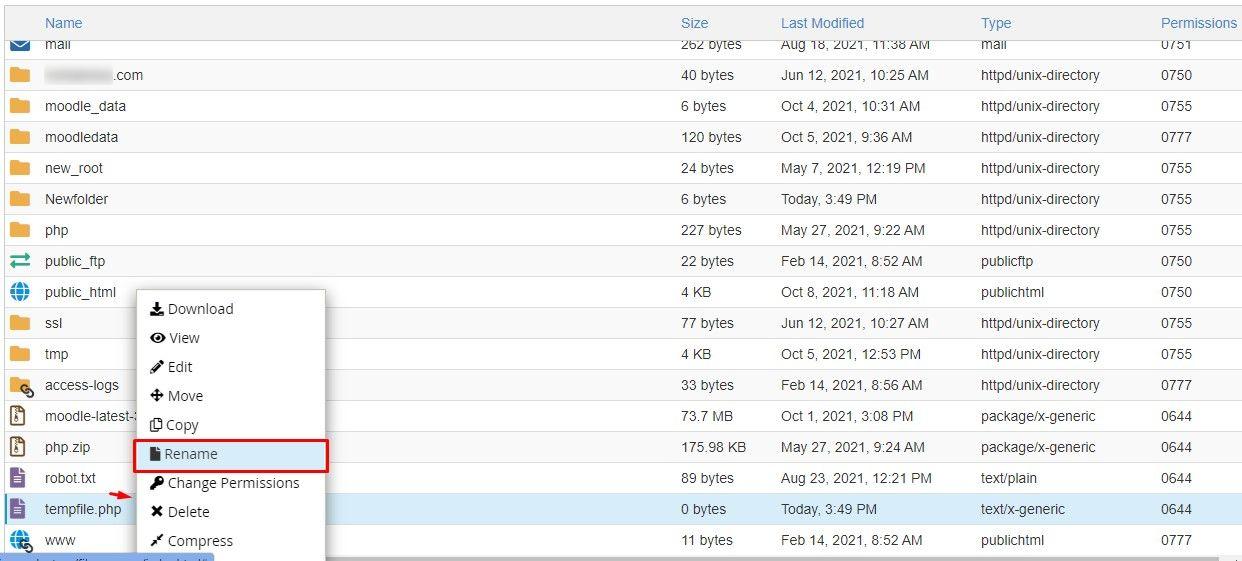
Right-click the file you want to rename and select Rename from the context menu.
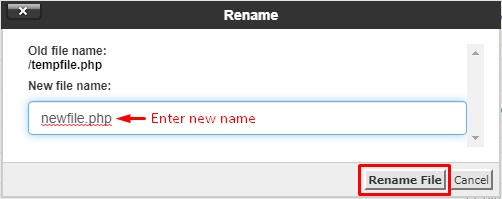
A window appears with the existing filename. Enter the new name in the text field and click Rename File. When renaming files, make sure to keep the original file extension (e.g., .html, .php) intact to preserve the file type.
The File Manager will update the filename immediately. After renaming, it's a good practice to check your website to ensure that all links and references are still functioning correctly.
Tips:
- Always make sure to back up your files before performing any renaming operations.
- If you're unsure about the impact of a rename, consider creating a duplicate of the file or folder first.
- Use lowercase letters and hyphens in filenames for better compatibility with web standards.