Global Email Filters allow you to apply filtering rules to all email accounts within a specific domain, rather than configuring filters individually for each account. This guide shows you how to set up Global Email Filters via cPanel to streamline email management across your domain.
How to Do It
-
Step 1: Access cPanel
Log in to your cPanel account.
-
Step 2: Navigate to Global Email Filters
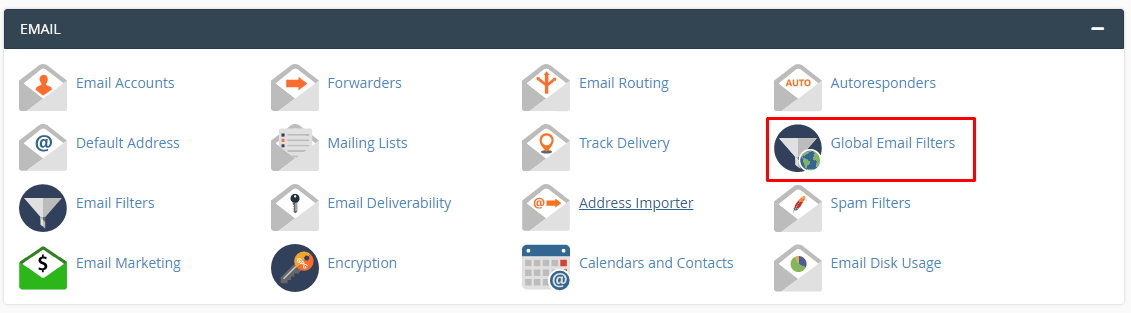
Under the EMAIL section, click on Global Email Filters.
-
Step 3: Create a New Filter
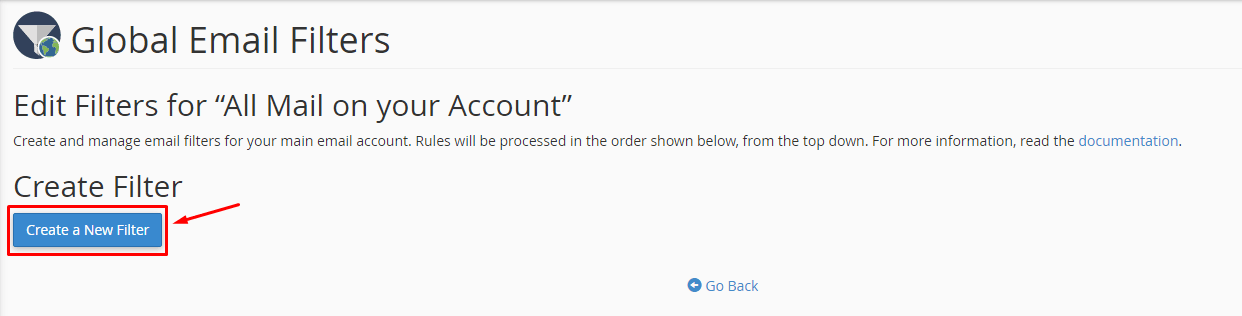
Click Create a New Email Filter.
-
Step 4: Configure Filter Settings
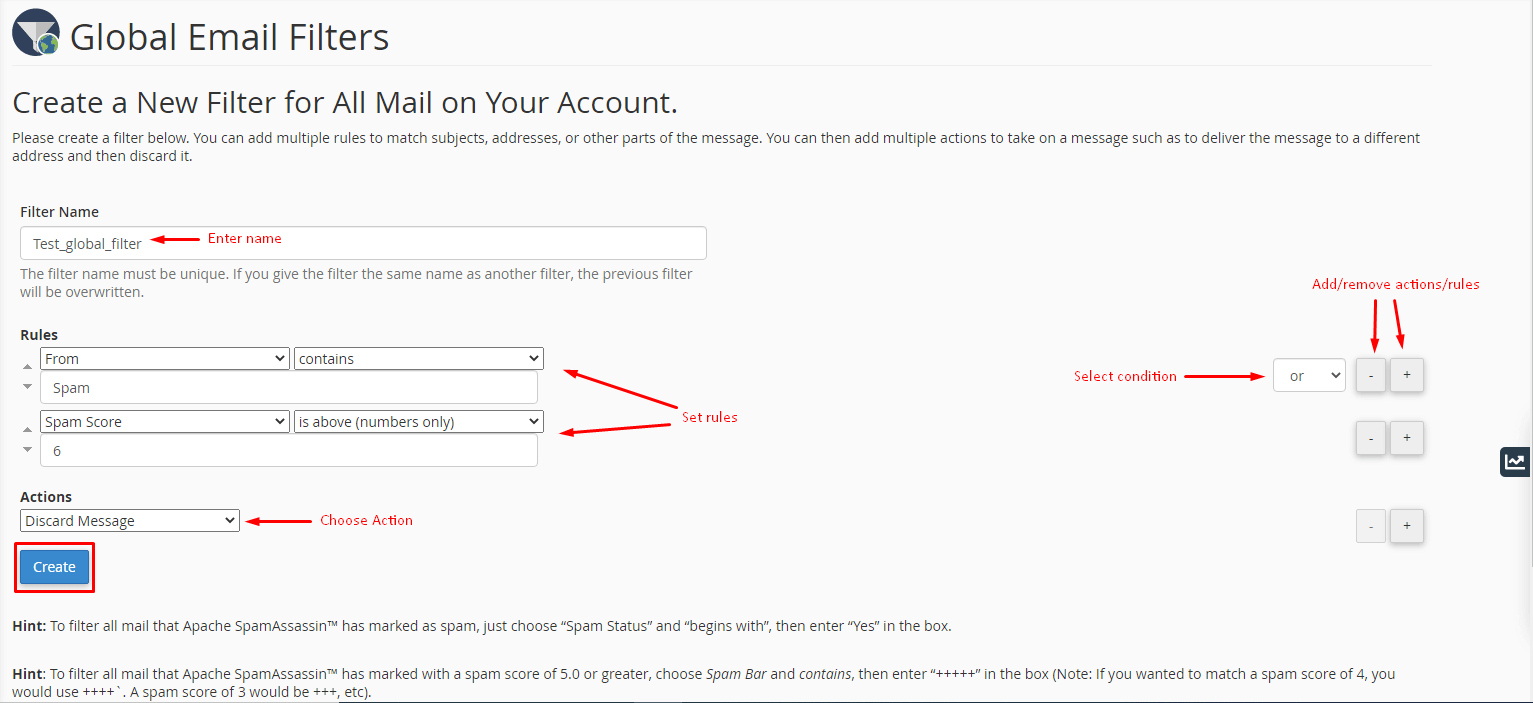
A form will open where you can customize the filter:
- Enter a Filter Name. Note: If you use a filter name similar to an existing one, it will overwrite the previous filter.
- Set Rules to define which emails should be filtered.
- Choose the Action for filtered emails (e.g., delete, redirect, deliver to folder).
- You can add or remove Actions or Rules by clicking the + or - button beside them.
- Apply conditions (and/or) to trigger multiple Actions or Rules.
-
Step 5: Save the Filter
Click Create when you have configured the desired settings.
The system will establish the Global Email Filter and display a success message. These filters will be applied to all email accounts under your cPanel account.