This guide explains how to permanently terminate a cPanel account in WHM (Web Host Manager). Once terminated, the account cannot be recovered unless you have a backup. This procedure is essential for resellers and users managing VPS or dedicated servers who need to remove accounts completely.
Important Warning
Account termination is irreversible. All data associated with the account will be permanently deleted from the server. Always create and download a full backup before proceeding with termination.
How to Terminate the Account
-
Step 1: Access WHM
Log in to your WHM account.
-
Step 2: Navigate to Account List
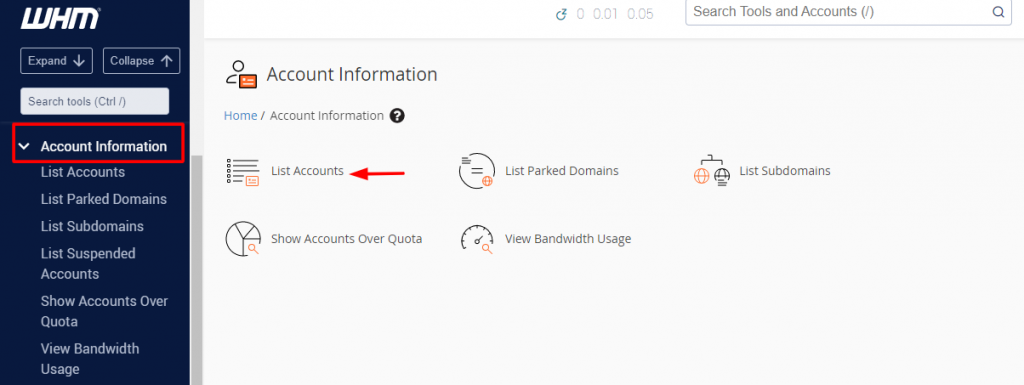
In the left-hand side pane, go to the Account Information section, then select List Accounts.
-
Step 3: Locate the Account
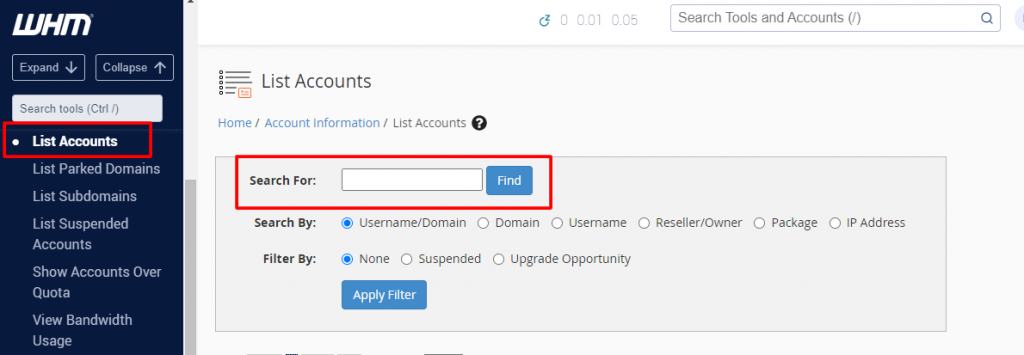
You will see a list of all cPanel accounts created on your server. Use the Search For option to find the specific cPanel account you want to terminate.
-
Step 4: Open Account Actions
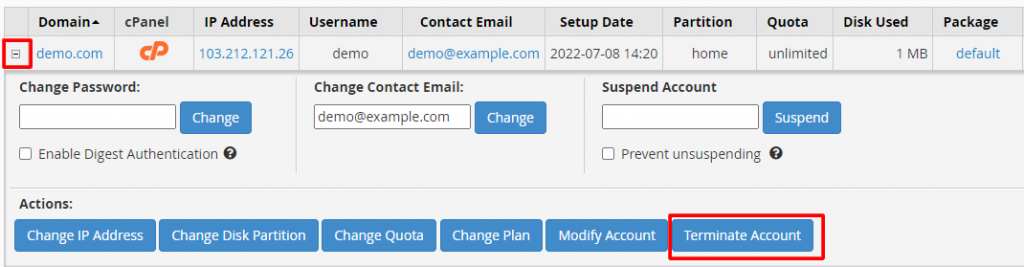
Next to the domain name, click on the small Square Box icon. This reveals the action panel for the cPanel account. Click on the Terminate Account option.
-
Step 5: Confirm Termination
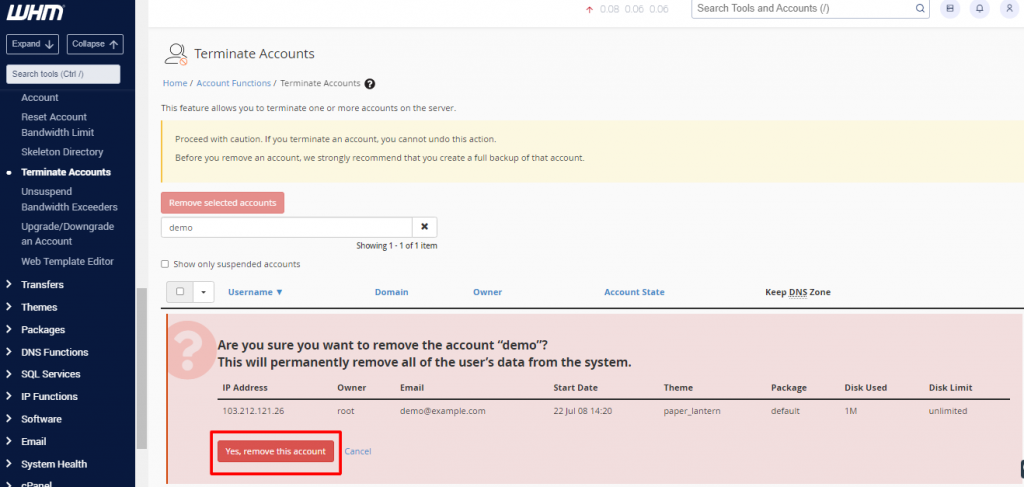
A confirmation dialog will appear asking: "Are you sure you want to remove the account (account name)? This action will permanently delete all of the user's data from the system."
Click on Yes, remove this account to confirm the termination.
-
Step 6: Wait for Completion
The account termination process will begin. The duration depends on the size of the account being removed. Once complete, the cPanel account will be permanently deleted from the server.