If you're experiencing issues with sending or receiving emails, you can track an email in cPanel by generating a delivery report. This report provides a comprehensive overview of the email transmission process, showing whether messages were successfully delivered, failed, or are still in progress. Understanding these details can help you diagnose and resolve any problems with your email service.
How to Track Email Delivery
-
Step 1: Access Track Delivery in cPanel
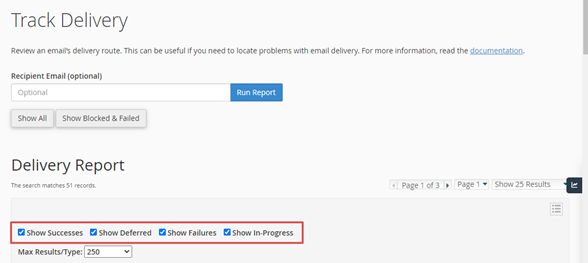
To begin, log in to your web hosting account and navigate to the cPanel dashboard. In the main interface, locate the Email section on the left-hand menu and click on the "Track Delivery" option. This tool allows you to monitor the status of emails sent from your domain.
-
Step 2: Configure Display Options
Once you are on the "Track Delivery" page, you will see a form where you can specify the email address and time frame for which you want to track emails. Enter the recipient's email address in the provided field. To ensure you capture all relevant data, scroll down and check the boxes next to "Show Success," "Show Failures," and "Show In-progress." Click the "Track" button to generate your report.
-
Step 3: View Email Details
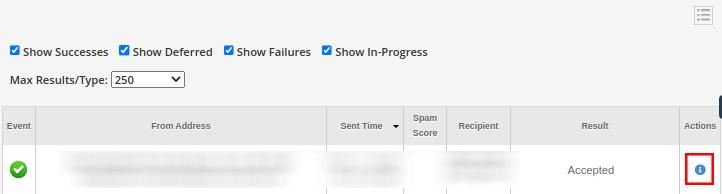
The results will display a list of emails that match your criteria. Each entry includes details such as the sender, recipient, subject, and date sent. To get more information about a specific email's delivery status, click on the "i" icon located in the "Actions" column next to the email you wish to track.
-
Step 4: Review Delivery Status
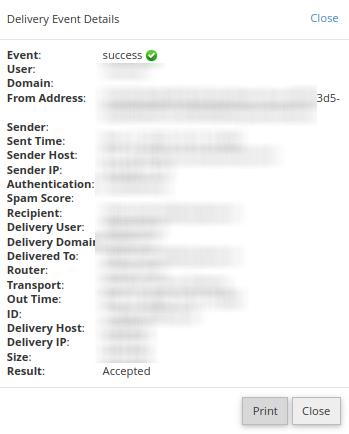
A new window or tab will open displaying the detailed status of the email. This includes a step-by-step breakdown of the transmission process, timestamps for each stage, and any error messages that may have occurred during delivery. If an email failed to deliver, this section can provide clues as to why, such as recipient server issues or spam filters.

Tips:
- Regularly check the "Track Delivery" feature to ensure all your emails are being sent and received as expected.
- If you frequently encounter delivery issues, consider checking your domain's reputation and ensuring that your email server is properly configured.
- Consulting with your hosting provider can also be helpful if you're unable to resolve the issue on your own.