This guide explains how to migrate your email messages from Zoho to cPanel using IMAP synchronization. The process requires IMAP access to be enabled in Zoho and uses the imapsync tool to transfer all emails to your new cPanel email account.
Prerequisites
Before starting the migration, gather the following information:
- Zoho IMAP server name
- Zoho email username and password
- New cPanel email address and password
- SSH access to your cPanel server
How to Migrate
-
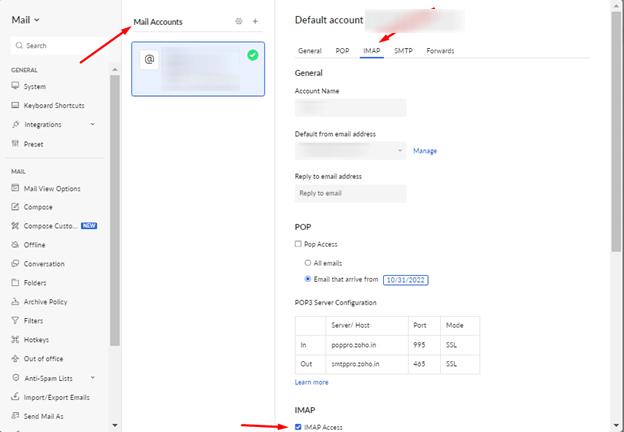
Step 1: Enable IMAP Access in Zoho
Log in to your Zoho email account and navigate to Settings >> Mail Accounts >> IMAP.
Enable IMAP access by checking the corresponding option.
-
Step 2: Install imapsync Tool
If you don't have the imapsync tool installed on your server, install it using the following command:
sudo yum install imapsync -
Step 3: Create Password Files
Create two files to store your passwords securely. Replace
shnikartswith your actual cPanel account username:/home/shnikarts/pass1– Save your Zoho account password in this file/home/shnikarts/pass2– Save your cPanel account password in this file
-
Step 4: Run the Migration Command
Initiate the migration process within a screen terminal using the following command:
imapsync --host1 imappro.zoho.in --port1 993 --ssl1 --user1 your-email@yourdomain.com --passfile1 /home/username/pass1 --host2 your-cpanel-server.com --port2 993 --ssl2 --user2 your-email@yourdomain.com --passfile2 /home/username/pass2Replace the following placeholders:
your-email@yourdomain.com– Your email addressusername– Your cPanel account usernameyour-cpanel-server.com– Your cPanel server hostname
-
Step 5: Monitor the Migration
The imapsync tool will display progress as it transfers your emails. Wait for the process to complete. Depending on the amount of email data, this may take some time.
Once the migration completes, all your emails from Zoho will be available in your cPanel email account.