Administrators with login credentials wield significant control over a server, making it crucial to prioritize the security of admin accounts. Plesk allows you to restrict administrator access to specific IP addresses, effectively preventing unauthorized access from remote locations. This guide walks you through configuring IP access restrictions for Plesk administrators.
How to Restrict Administrator Access
-
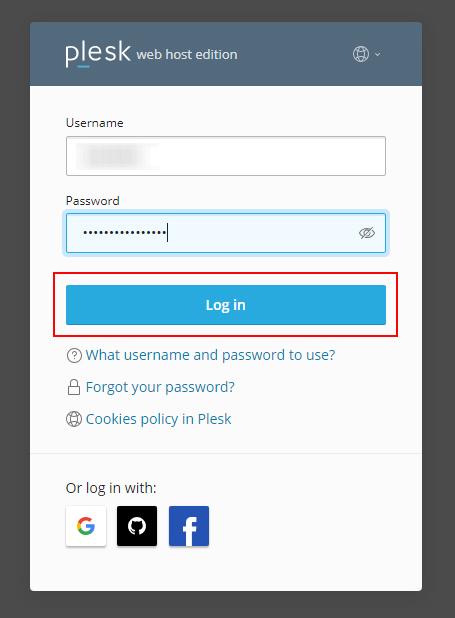
Step 1: Sign in to Plesk
Log in to your Plesk control panel with administrator credentials. Ensure you are using a secure connection (https) to protect your login details.
-
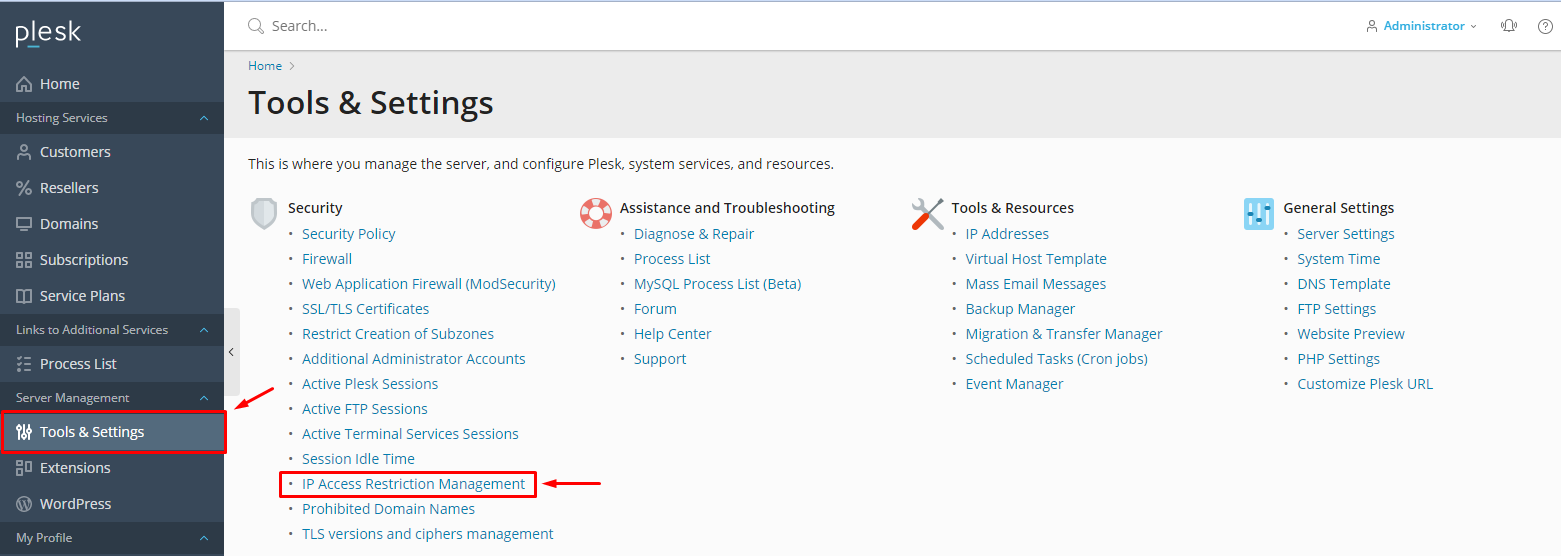
Step 2: Navigate to IP Access Restriction Management
In the Plesk control panel, go to Tools & Settings. This is usually found on the left-hand side of the dashboard. Scroll down to find the Security section and click on IP Access Restriction Management.
-
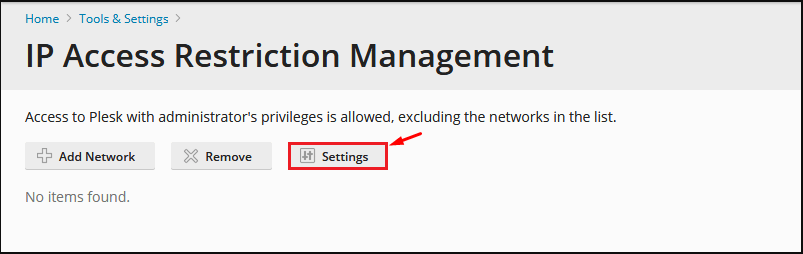
Step 3: Open Settings
Once you are in the IP Access Restriction Management page, click on the Settings button. This will open a new window where you can configure your access restrictions.
-
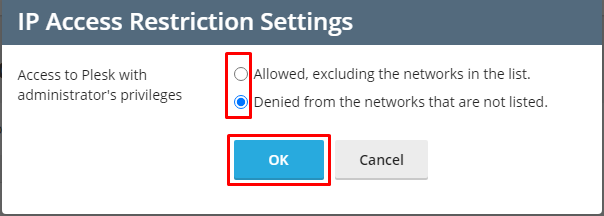
Step 4: Choose Access Policy
Select the appropriate option for your security requirements:
- Allowed, excluding the networks in the list: Users with IP addresses on the list cannot log in as Plesk or Additional Plesk Administrators. This is useful if you want to block specific IPs while allowing all others.
- Denied from the networks that are not listed: Only users with IP addresses on the list can log in as Plesk or Additional Plesk Administrators. This approach is more restrictive and only allows access from specified IPs.
After selecting your policy, click OK to save your selection. It's important to double-check your settings before saving to ensure you don't lock yourself out of the control panel.
-
Step 5: Add IP Addresses
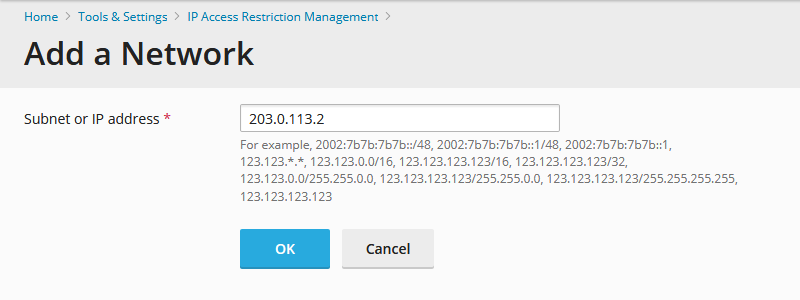
To add specific IP addresses or networks, click on the Add Network button. In the dialog box that appears, enter the IP address or network range you wish to allow or deny access to. If you're unsure about your IP address, you can find it by searching "what is my IP" in a web browser.
After entering the IP address or network range, click Add. Repeat this step for each additional IP address or network you wish to include in your access restrictions. Once all desired IPs are added, ensure that your settings reflect the correct policy and click OK to apply.
Tip: Always keep a backup of your current settings before making changes. If you ever need to revert to the previous configuration, having a backup can save time and prevent potential issues.