This guide shows you how to reset an email account password using the Plesk control panel. You'll navigate through the Plesk interface to locate your domain's email accounts and update the password for a specific account. This process is straightforward and can be completed in just a few minutes, ensuring that you regain access to your email without any hassle.
How to do it
-
Step 1: Log in to Plesk
Access the Plesk control panel using your login credentials. You can usually find a direct link to this on your hosting provider's website or through an email they sent you during sign-up. Enter your username and password, then click 'Sign In.' If you have forgotten your Plesk login details, contact your hosting provider for assistance.
-
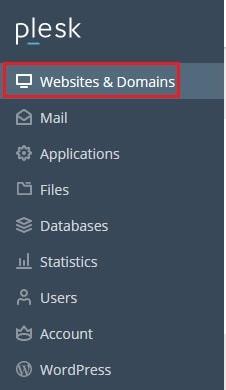
Step 2: Navigate to Websites & Domains
Once logged in, locate and click on the 'Websites & Domains' option in the main menu. This section provides an overview of all domains hosted under your Plesk account. It's where you can manage various aspects of your website, including email accounts.
-
Step 3: Access Mail Accounts
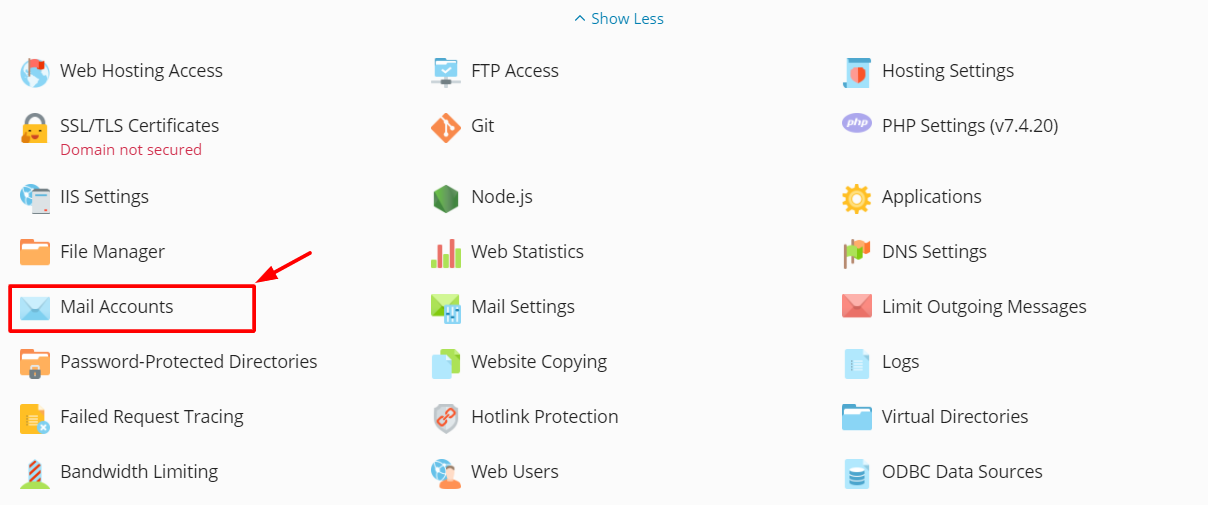
In the 'Websites & Domains' section, find the domain name for which you wish to reset an email account password. Click on this domain, and then look for the 'Mail Accounts' option in the left-hand menu or within the domain's overview page. This will bring up a list of all email accounts associated with that particular domain.
-
Step 4: Select the email account
Once you are in the 'Mail Accounts' section, you will see a list of all email accounts associated with your domain. Look for the specific email account whose password you need to reset. Click on the name of this email account to open its settings page.
-
Step 5: Reset the password
On the email account's settings page, look for a field labeled 'Password' or 'Change Password.' Enter your new desired password in this field. Make sure it meets any complexity requirements (such as length and use of special characters) that Plesk might enforce for security reasons. After entering the new password, click on the 'OK' or 'Update' button to save your changes.
Tip: It's a good practice to create strong passwords that are difficult to guess. Consider using a combination of letters, numbers, and special characters. Also, avoid using easily guessable information like birthdays or common words.