Plesk is a paid control panel that works seamlessly with both Linux and Windows hosting services. Its distinctive graphical interface offers users diverse customization options for adjusting settings and managing their hosting accounts. This guide shows you how to access your Plesk panel using the credentials provided by your hosting provider.
How to Access the Plesk Panel
-
Step 1: Locate Your Welcome Email
Open the welcome email received after sign-up. Web hosting providers typically send a notification email titled "Web Hosting Activated" (or similar) containing the control panel URL and login credentials for your Plesk account.
Note: Check your spam folder if the email isn't in your inbox.
-
Step 2: Find Your Login Details
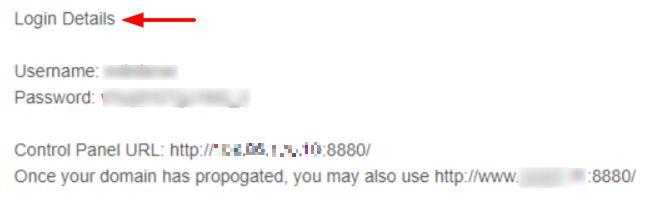
Scroll down to the "Login Details" section of the email to find the following information:
- Username: Your Plesk account's username
- Password: Your Plesk account's password
- Control Panel URL: A direct link to your Plesk account, typically ending with a 4-digit port number like
:8880/for HTTP or:8443/for HTTPS
Tip: Open the URL link in a new tab/window and bookmark it for easy future access.
-
Step 3: Log In to Plesk
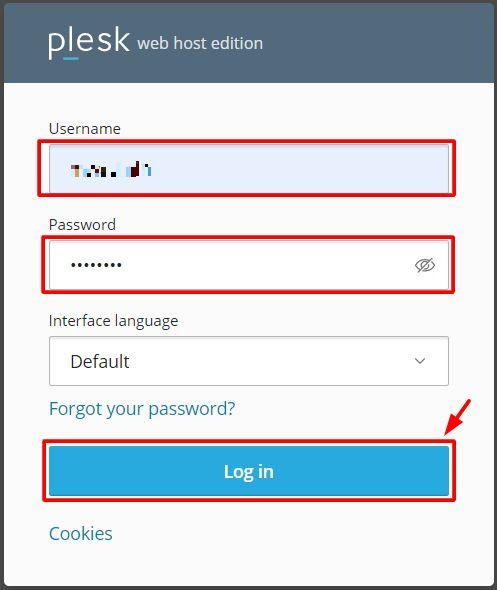
Enter the username and password from your email into the login fields, then click the "Log in" button.
The dashboard of your Plesk panel account will open, giving you access to all hosting management features.