Blacklisting a domain in Plesk allows you to block unwanted emails from specific sources using the built-in spam filtering system. While Plesk's spam filter catches most unwanted messages automatically, adding domains to the blacklist ensures that future emails from those sources are blocked entirely. This is particularly effective for preventing spam from specific servers or email addresses.
How to Blacklist a Domain
-
Step 1: Sign in to Plesk
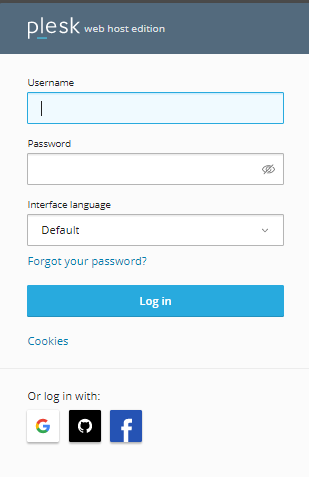
Log in to your Plesk control panel with your administrator credentials. If you are accessing Plesk for the first time, ensure you have the correct URL and login details provided by your hosting provider.
-
Step 2: Navigate to Tools and Settings
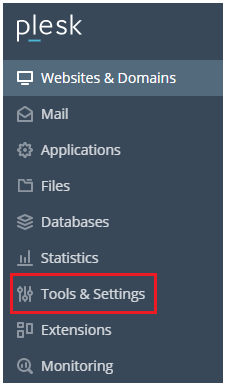
Once logged in, you will see a dashboard with various options. On the left-hand menu, find and click on Tools and Settings. This section contains all the administrative tools necessary for managing your server settings.
-
Step 3: Access the Spam Filter
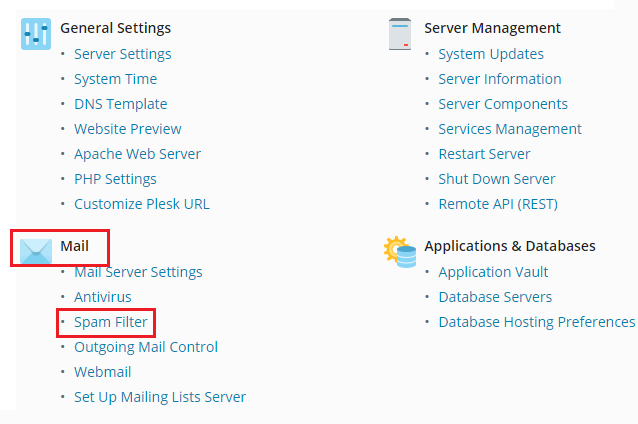
In the Tools and Settings section, scroll down to find the Mail category. Click on Spam Filter. This tool is specifically designed to help manage spam protection for your email accounts.
-
Step 4: Open the Black List
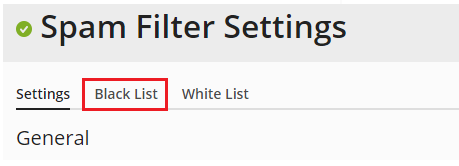
Upon entering the Spam Filter settings, you will see several tabs at the top of the screen. Click on the Black List tab to manage your blacklist entries. Here, click the Add Domain button to start adding domains or email addresses that you want to block.
-
Step 5: Add Email Addresses or Domains
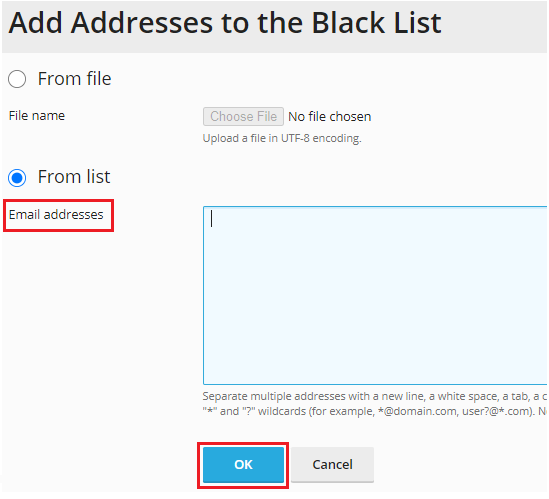
In the dialog box that appears, enter the email addresses or domains you want to blacklist. You can add multiple entries by separating them with a comma, space, or newline. For example, you might enter spam@badserver.com, anotherdomain.com. After entering all the necessary information, click the OK button to save your changes.
-
Step 6: Confirm the Changes
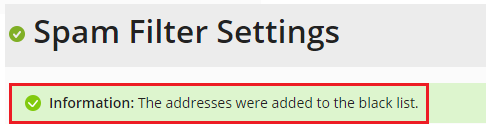
After clicking OK, you will receive a confirmation notification indicating that the addresses have been successfully added to the blacklist. This means that any emails coming from these domains or email addresses will now be blocked automatically by Plesk's spam filter.
Tips:
- Regularly review your blacklist to ensure it only contains domains and email addresses you genuinely want to block.
- If you need to remove a domain from the blacklist, simply return to the Black List tab, select the domain, and click the Delete button.
- To avoid accidentally blocking legitimate emails, ensure that you only add domains or email addresses that are confirmed sources of spam.