This guide shows you how to adjust PHP configuration parameters for your domain in Plesk Obsidian. You can modify settings like memory limits, execution times, and file upload sizes through the Plesk control panel interface.
How to do it
-
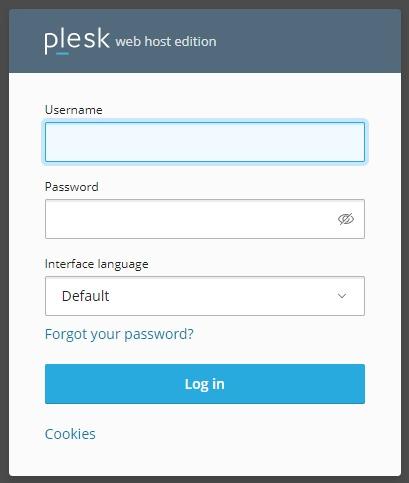
Step 1: Log in to Plesk
Access your Plesk control panel with your credentials.
-
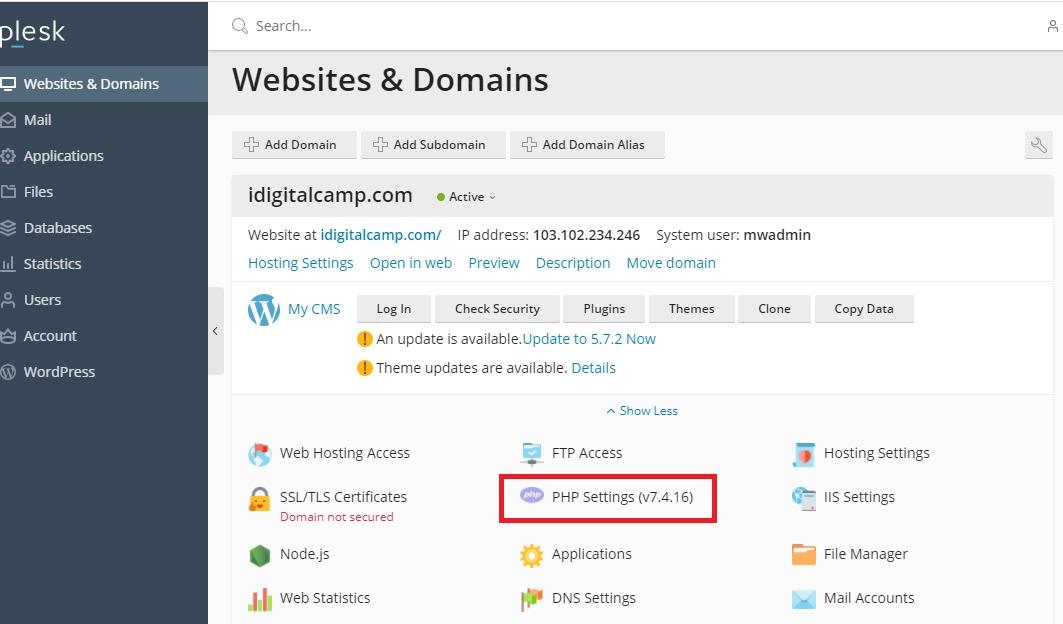
Step 2: Navigate to PHP Settings
Go to Websites and Domains and select the domain you want to configure.
Click on PHP Settings.
-
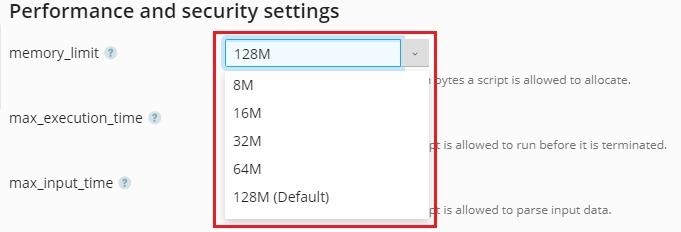
Step 3: Adjust memory limit
Select the desired
memory_limitvalue from the dropdown menu. If the value you need isn't available in the dropdown, you can manually enter it in the provided field. -
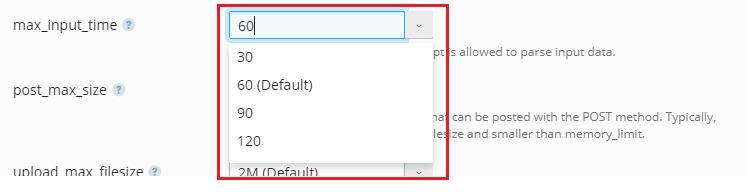
Step 4: Set max input time
Choose the
max_input_timevalue from the dropdown menu. -
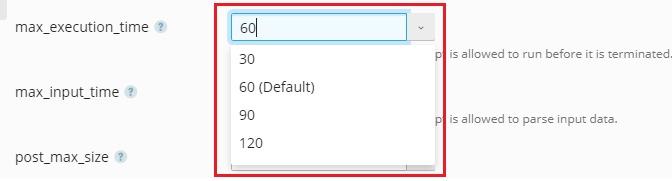
Step 5: Set max execution time
Choose the
max_execution_timevalue from the dropdown menu. -
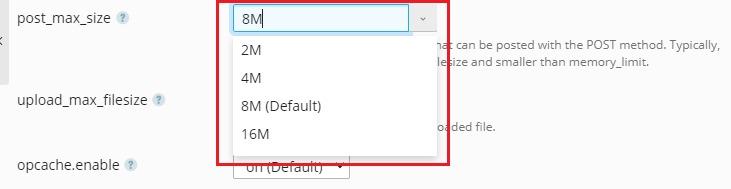
Step 6: Configure post max size
Select the
post_max_sizevalue from the dropdown menu. -
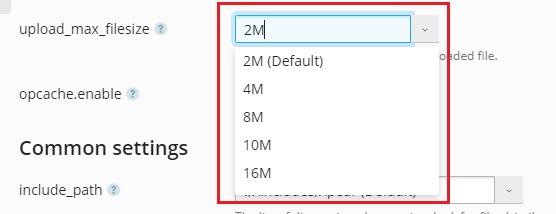
Step 7: Set upload max filesize
Choose the
upload_max_filesizevalue from the dropdown menu. -
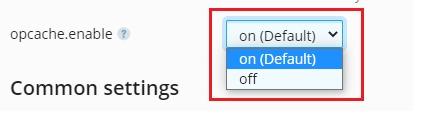
Step 8: Enable OPcache (optional)
If you want to enable PHP OPcache for better performance, select the
opcache.enableoption from the dropdown menu. -
Step 9: Apply the changes
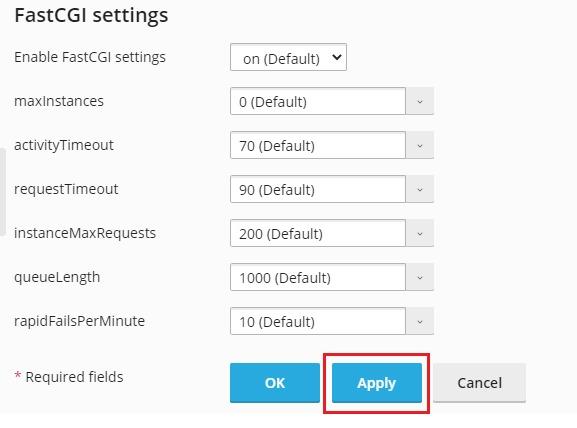
Once you've configured all the parameters you need, click the Apply button at the bottom of the page.
-
Step 10: Confirm the update
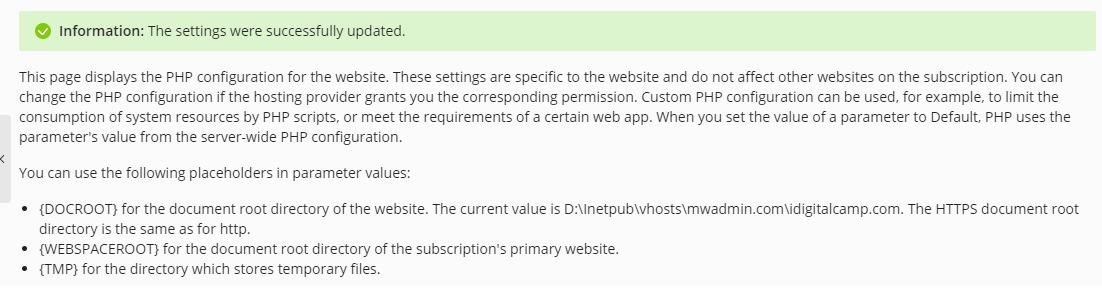
After clicking Apply, you'll see a notification confirming that the settings are scheduled for an update.