Connecting a Microsoft Access database (MDB) to your Plesk hosting environment enables your applications to interact with external data sources through an ODBC connection. This guide walks you through the process of setting up an ODBC Data Source Name (DSN) in Plesk to establish this connection.
How to Do It
-
Step 1: Access ODBC Data Sources in Plesk
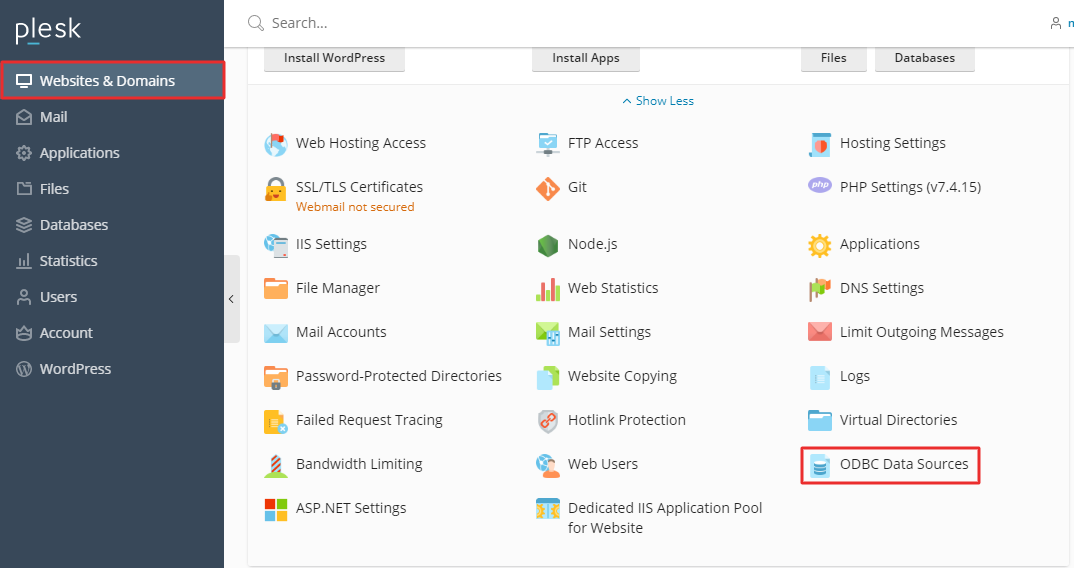
Log in to your Plesk account and navigate to Websites & Domains. Click on ODBC Data Sources.
-
Step 2: Create a New ODBC DSN
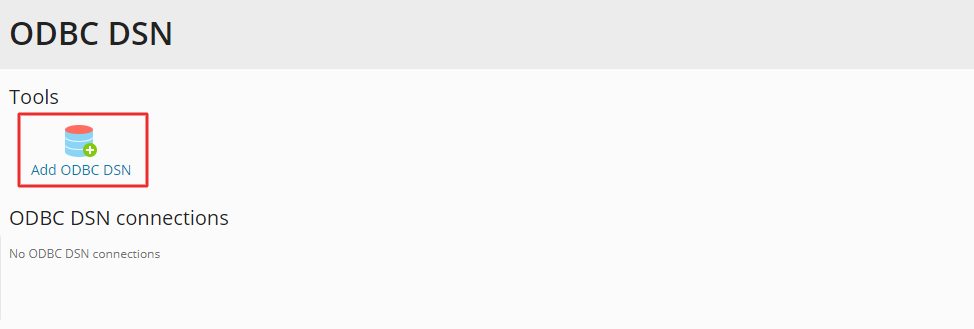
Select Add ODBC DSN to begin creating a new data source connection.
-
Step 3: Configure Connection Settings
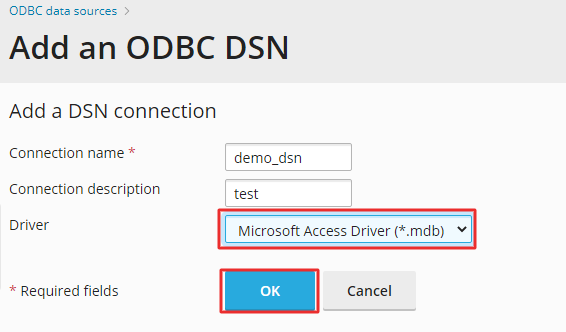
Input the Connection name (use only letters and numbers; no spaces or symbols allowed). Optionally, add a description in the Connection Description field.
From the Driver dropdown menu, select
Microsoft Access Driver (*.mdb). Once configured, click OK. -
Step 4: Specify Database Path and Credentials
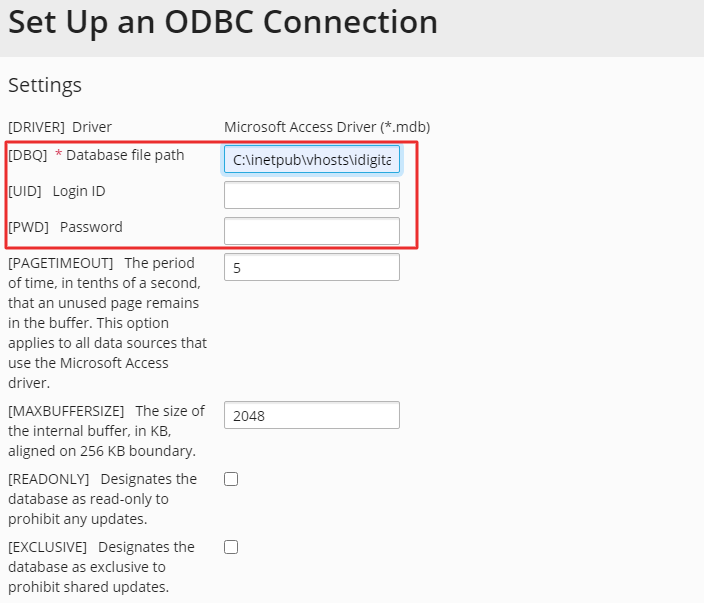
Provide the database path in the Database file path field. If your database is password-protected, enter the Login ID and Password as required.
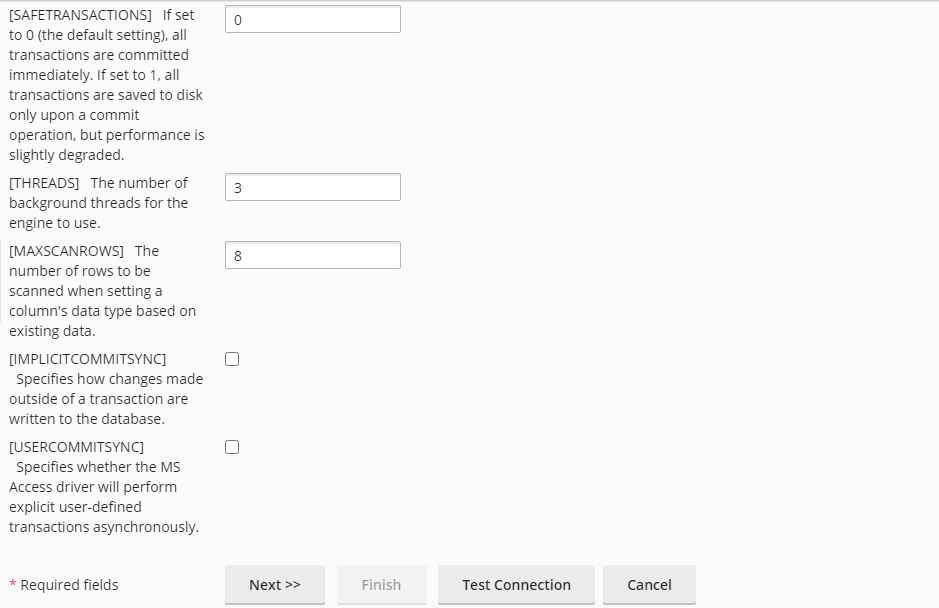
Note: It's advisable to retain the default values for other fields unless you understand their functionalities.
-
Step 5: Test and Save the Connection
Scroll to the bottom and click Test Connection to verify the connection's functionality. Upon success, a confirmation message will appear. Click Finish to save the settings and complete the procedure.