This guide shows you how to grant a MySQL user full privileges to a database through cPanel. The MySQL privilege system controls what actions users can perform on databases, such as INSERT, SELECT, DELETE, and UPDATE operations. By granting all privileges, you give the user complete control over the specified database.
How to Grant All Privileges
-
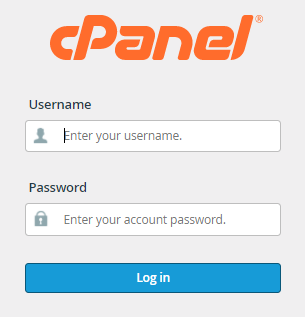
Step 1: Log in to cPanel
Access your cPanel account using your credentials.
-
Step 2: Navigate to MySQL Databases
In the "Databases" section, select "MySQL® Databases."
-
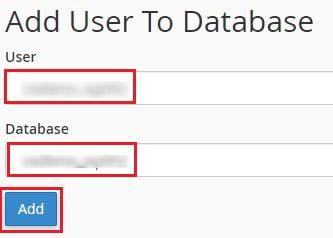
Step 3: Add User to Database
Scroll to the "Add User To Database" section. Select the user you want to grant privileges to from the first dropdown menu, then select the corresponding database from the second dropdown. Click the "Add" button.
-
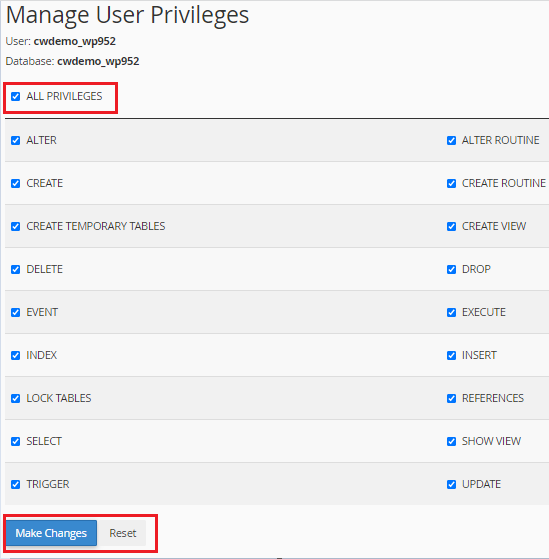
Step 4: Select All Privileges
You will be redirected to the "Manage User Privileges" page. To grant all privileges to the user, check the "ALL PRIVILEGES" checkbox at the top of the privilege list.
-
Step 5: Save Changes
Click the "Make Changes" button to apply the privileges. The system will display a success message confirming that the user's privileges have been saved.
-
Step 6: Return to MySQL Databases
Click the "Go Back" link at the bottom of the page.
-
Step 7: Verify Privileges
You will be redirected to the MySQL® Databases page. In the "Current Databases" table, the "Privileged Users" column now shows the user you just granted privileges to.