When managing databases in cPanel using MariaDB, the interfaces remain the same as those used for MySQL. MariaDB is designed to seamlessly replace MySQL. This guide demonstrates how to view and interact with MariaDB databases via SSH using the command line interface, a preferred method for many database administrators.
So here's how you do it
-
Step 1: Log in to MariaDB via SSH
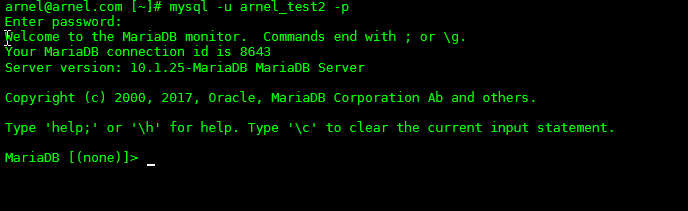
First, log in to your server via SSH. Then access MariaDB using the same command as you would with MySQL:
mysql -u <username> -pYou will be prompted for a password. Replace
<username>with your actual cPanel username or, if on VPS, the root user.Your regular command prompt will transition to the MariaDB prompt:
-
Step 2: List all databases
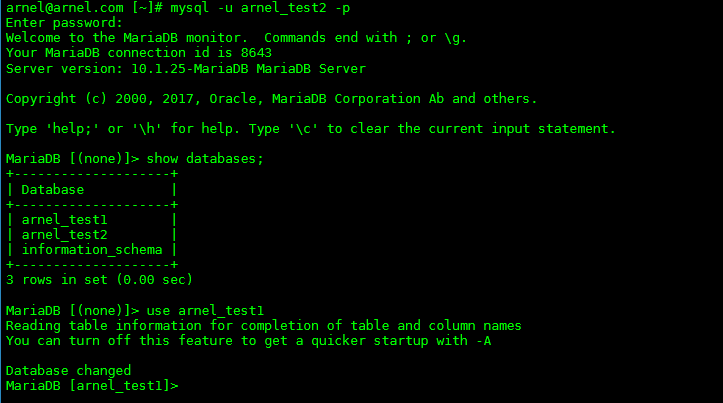
To display all databases, execute the following command:
SHOW DATABASES; -
Step 3: Select a specific database
To work with a particular database, instruct MariaDB which database you want to use:
USE <databasename>;Replace
<databasename>with the actual name of the database. If executed correctly, you'll receive a confirmation message and the MariaDB prompt will display the database name within brackets:Database changed MariaDB [<databasename>]> -
Step 4: Display tables in the database
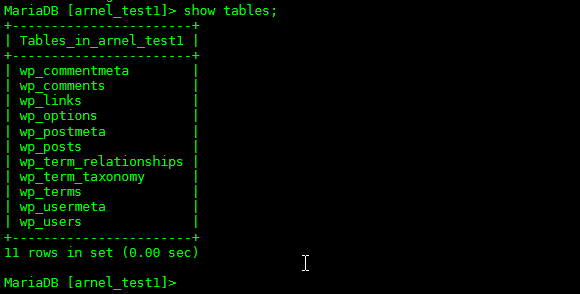
To view all tables within the selected database, use the SHOW command:
SHOW tables; -
Step 5: Display records in a table
To view all records stored in a particular table, use a SELECT statement:
SELECT * FROM <databasetablename>;Replace
<databasetablename>with the actual table name. This command will display all records.To view specific details about a table's structure, use the DESCRIBE command:
DESCRIBE <databasetablename>;Note: You must have selected a database using the USE command before you can describe or query its tables.