SQL files contain code for modifying relational databases and their structure. In Windows, you can open these files using MySQL Workbench for database operations or with text editors like Notepad for viewing and manual editing of the code.
Method 1: Using MySQL Workbench
-
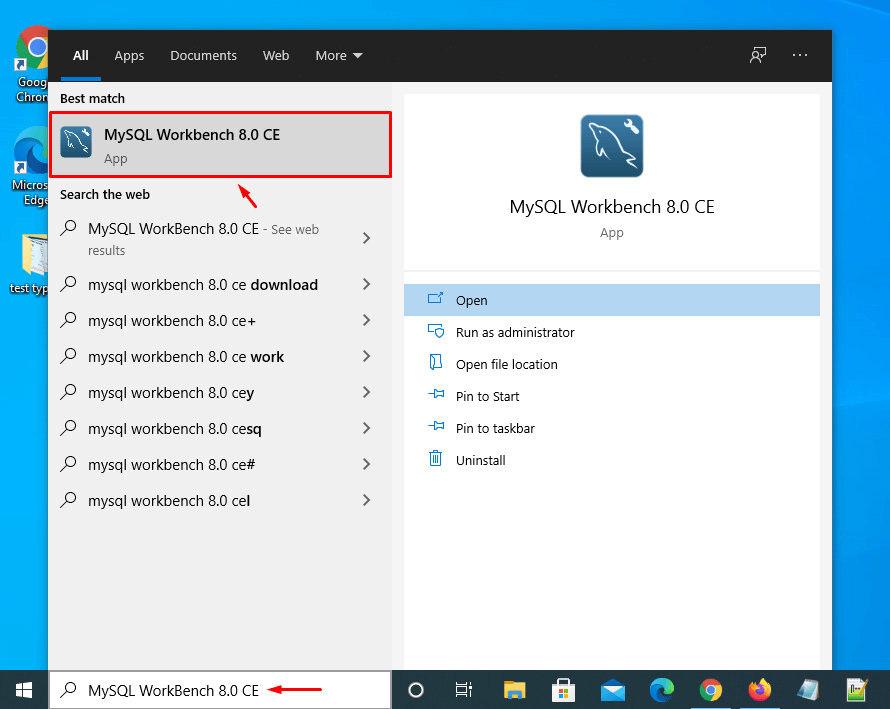
Step 1: Launch MySQL Workbench
Locate and launch the MySQL Workbench application from your Start menu.
If MySQL Workbench is not installed, download the application installer at https://dev.mysql.com/downloads/workbench.
-
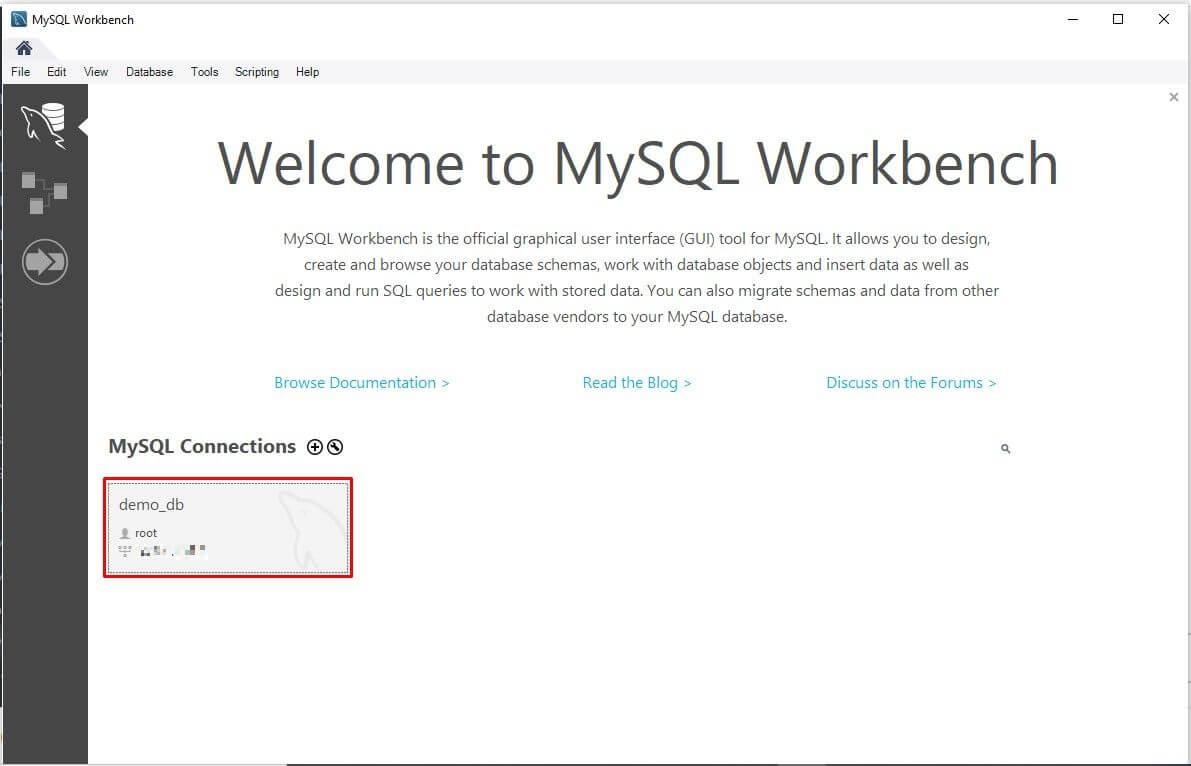
Step 2: Open database connection
Locate and double-click on the model or database connection in the MySQL Connections section to open it.
The database file will be displayed in the SQL editor.
-
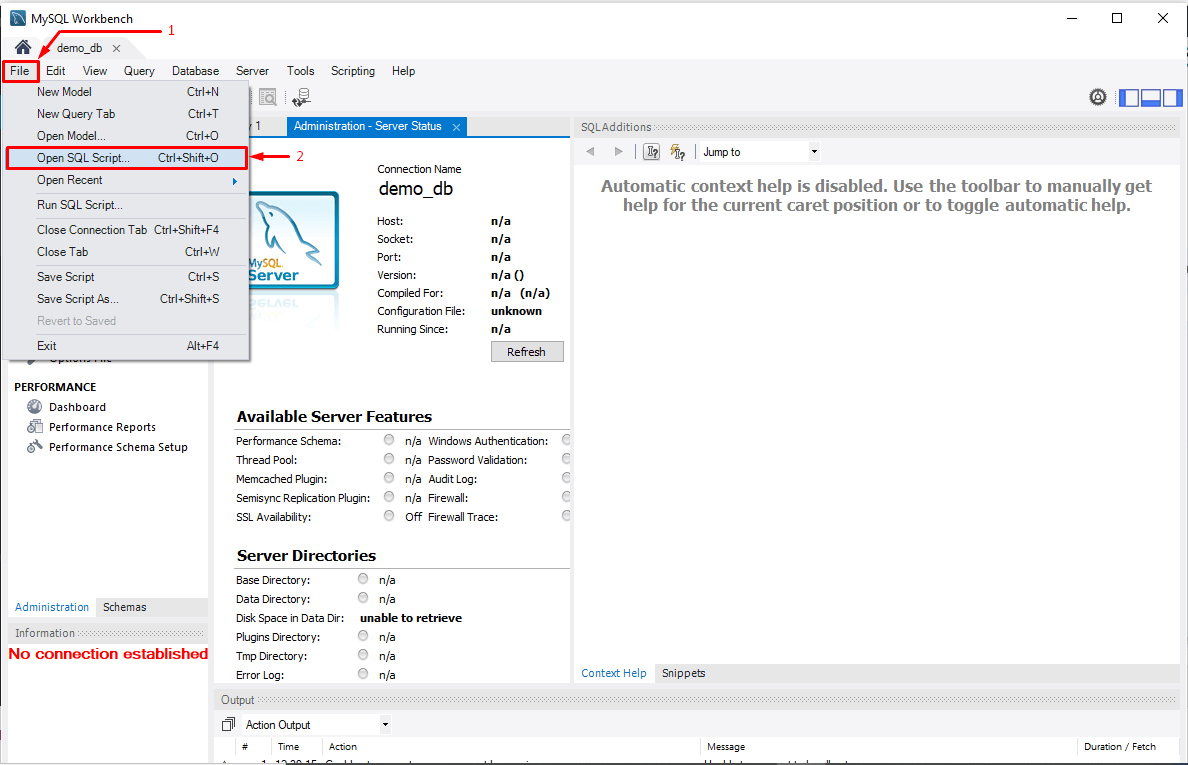
Step 3: Open SQL Script menu
Click on the File tab at the top-left corner of the editor to reveal a dropdown menu, then choose the "Open SQL Script" option.
Alternatively, use the keyboard shortcut
Ctrl+Shift+Oto directly open the SQL script.A file navigation window will appear.
-
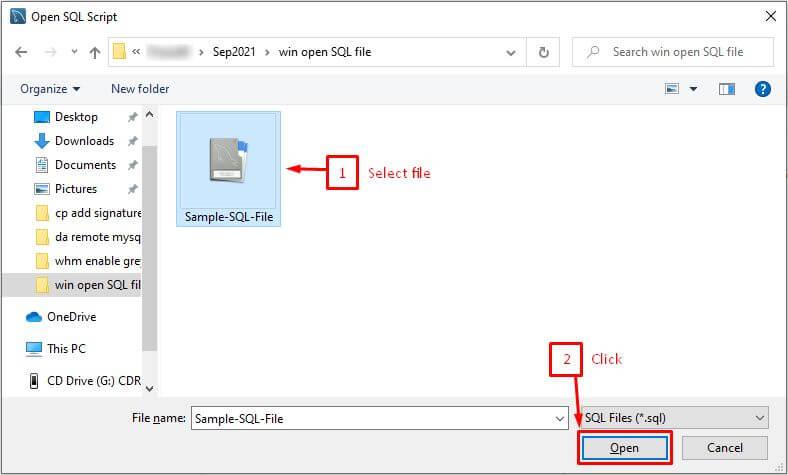
Step 4: Select and open the SQL file
Locate and choose the
.sqlfile you wish to open, then click the "Open" button.The SQL script will be displayed in MySQL Workbench, allowing you to make edits as needed.

Method 2: Using Notepad
-
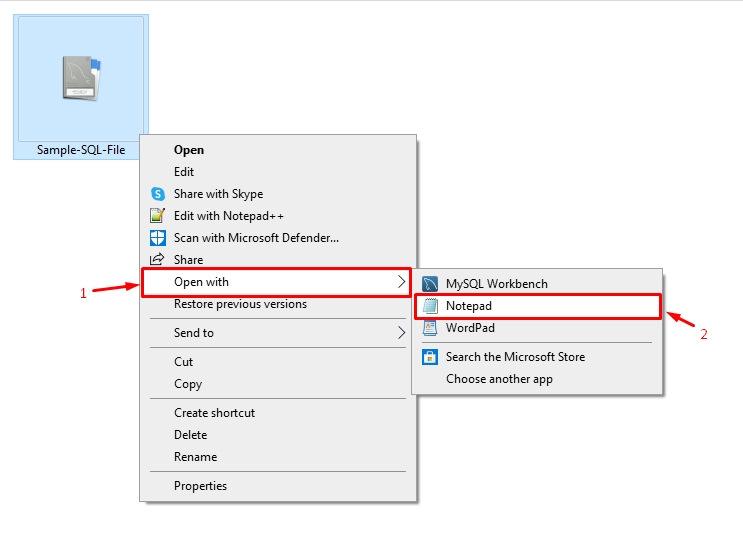
Step 1: Right-click the SQL file
Locate the
.sqlfile you wish to open and right-click on it. -
Step 2: Open with Notepad
Choose "Open with" to see options and select Notepad.
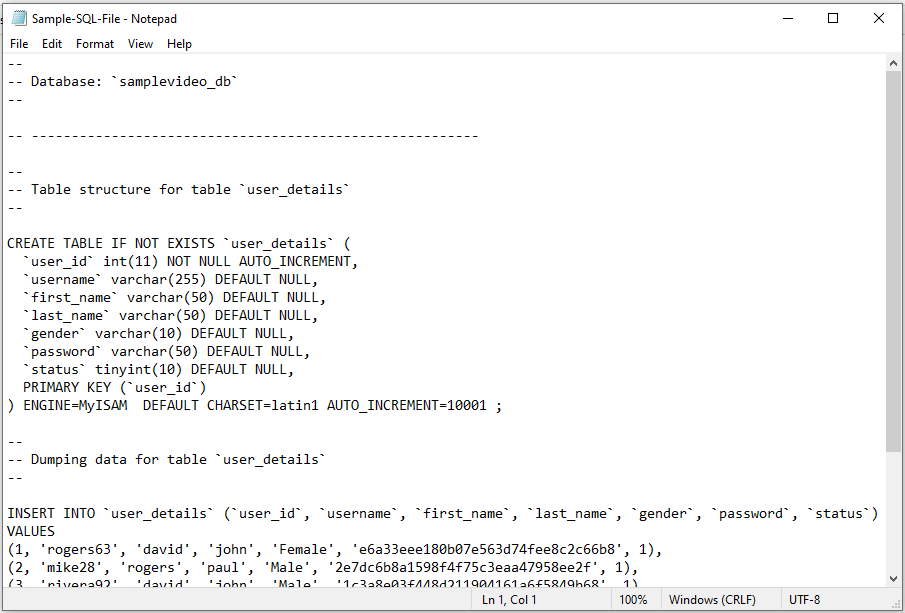
The
.sqlfile will be displayed as a text document in Notepad.Feel free to modify it and save the changes.
Note: Similar to Windows, you can open an SQL file in MySQL Workbench on Mac.