Creating regular server backups in Plesk ensures that your data remains safe and recoverable in case of unexpected issues. This guide walks you through using Plesk's Backup Manager to create a comprehensive server backup, including selecting content, configuring storage location, and choosing the right backup settings.
How to Do It
-
Step 1: Log in to Plesk
Log in to your Plesk control panel using your login credentials. Ensure you have the necessary administrative privileges to access all features, including backup management.
-
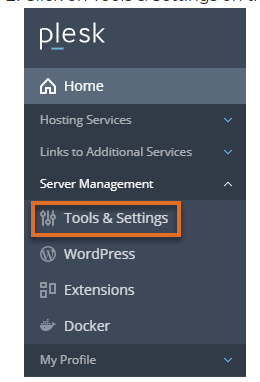
Step 2: Navigate to Tools & Settings
Click "Tools & Settings" on the left side of the admin homepage. This section contains various utilities and settings that help manage your server efficiently.
-
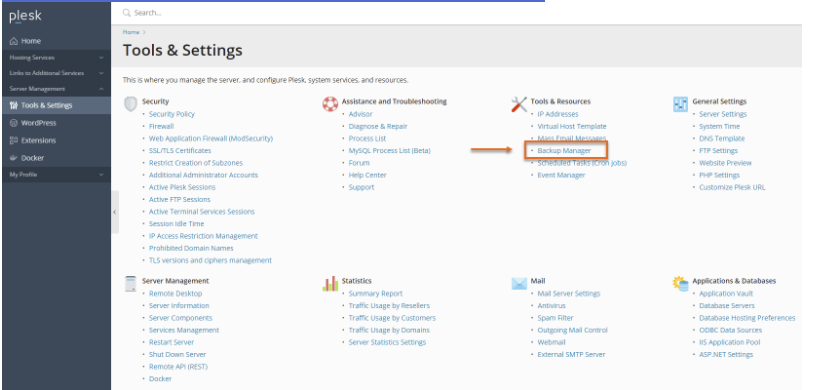
Step 3: Open Backup Manager
Under the "Tools & Resources" section, click "Backup Manager." This tool allows you to create and manage backups of your server data.
-
Step 4: Start Creating a Backup
Click the "Backup" button to start the process of creating a new server backup. This will initiate a wizard that guides you through the backup setup.
-
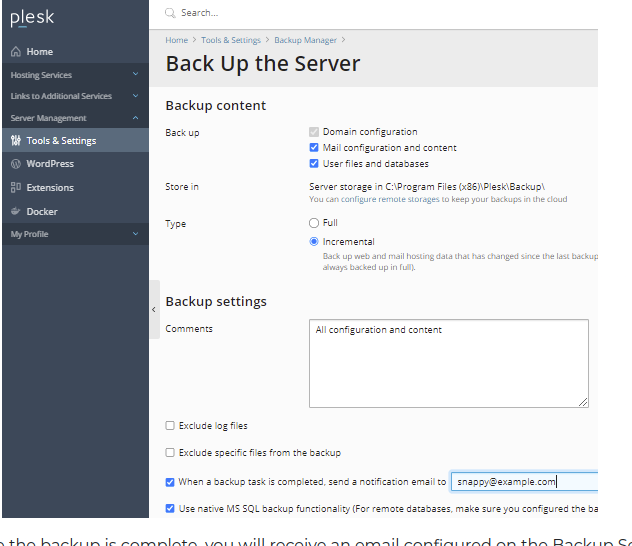
Step 5: Select Backup Content
Select the content you wish to backup from the available options. You can choose to back up entire subscriptions, individual websites, databases, or specific files and directories. For comprehensive protection, consider selecting all available options.
-
Step 6: Configure Backup Settings
Configure the backup storage by choosing a backup type (full server, subscription, or individual components) and backup settings that suit your needs. You can choose to store backups locally on the server or upload them to an external FTP/SFTP server for offsite protection. Additionally, set up encryption options if you want to secure your backup files.
-
Step 7: Locate Your Backup Files
To locate the backup storage location in Plesk Windows, check the
%plesk_dir%\Backup\folder. This directory contains all your server backups organized by date and time.For a backup of specific users, use the command-line interface with the following command:
./pleskbackup domain --domains-name exampleuser -output-file /backup/exampleuser_backup.tarThis command creates a backup of the specified user's data and saves it to the designated output file path.
Tips for Effective Backups
- Schedule Regular Backups: Set up automated backups at regular intervals (e.g., daily, weekly) to ensure you always have recent data available in case of an emergency.
- Use Offsite Storage: Store your backups on a separate server or cloud storage solution to protect against hardware failures and other local disasters.
- Test Your Backups: Periodically restore your backup files to verify their integrity and ensure that you can recover data when needed.