Email routing in Plesk allows you to redirect email traffic to a backup server when your primary mail server is unavailable. This ensures continuous email service for your domain, preventing message loss during server downtime or maintenance periods.
When to Use Email Routing
If you manage an email hosting service, ensuring continuous email service is crucial. Plesk's email routing comes into play when the primary server is down, enabling the reception of emails on a backup server.
How to Configure Email Routing
-
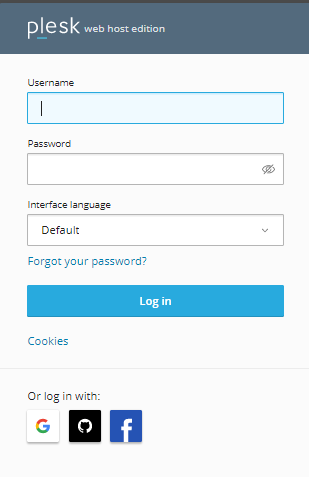
Step 1: Log in to Plesk
Access your Plesk control panel using your credentials.
-
Step 2: Navigate to Mail Settings
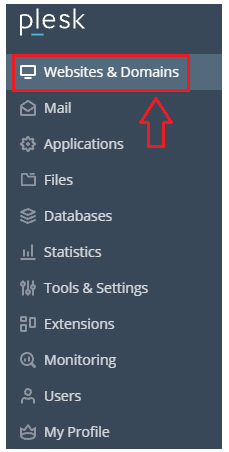
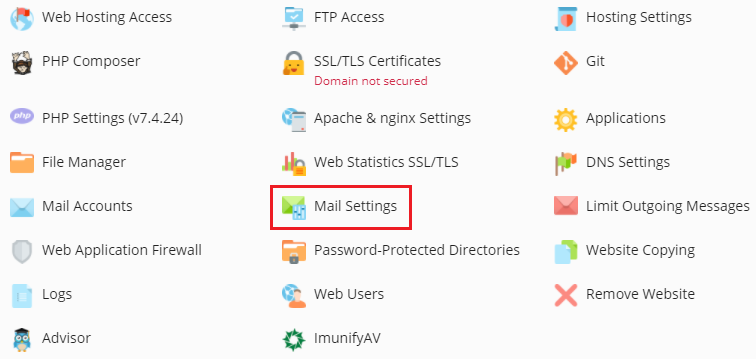
Choose your domain in the Websites & Domains section, then click on the Mail Settings option.
-
Step 3: Review Current Mail Service Settings
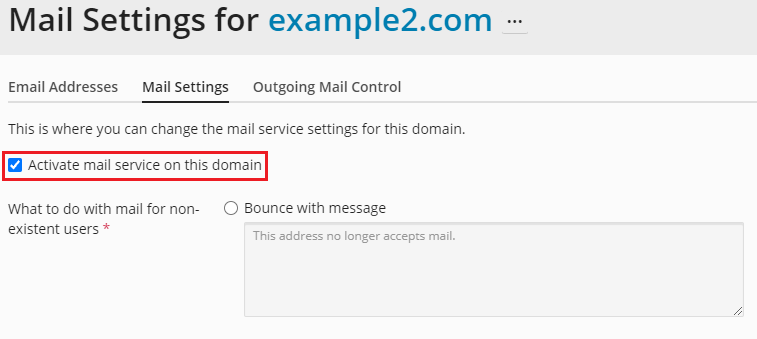
The Mail Settings page will appear, providing you the option to modify your domain's mail service settings.
Note that Activate mail service on this domain will be enabled if you are using a local mail server. It will be disabled if you are using an external mail server.
-
Step 4: Disable Local Mail Service
Deselect the Activate mail service on this domain option, and then click OK to confirm.
-
Step 5: Wait for Changes to Apply
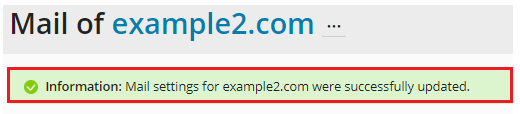
The modifications to your Plesk account's email routing may take some time to be implemented. You will receive a success message once the settings have been changed.