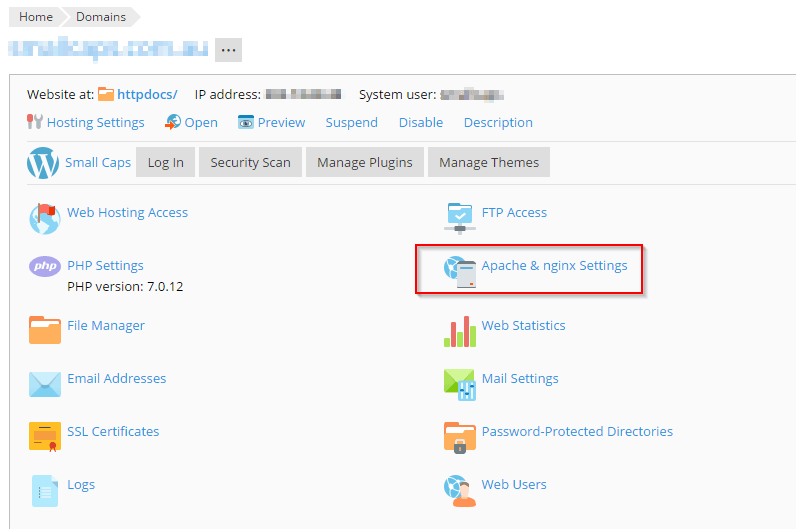
Gzip compression is typically disabled by default in Nginx for file serving. When CSS and JavaScript files aren't minified or pre-compressed, enabling gzip compression can significantly reduce file sizes and improve page load times. This guide shows how to enable gzip compression for individual sites on a Plesk 12.5 or Onyx server.
How to do it
-
Step 1: Log into Plesk
Access your Plesk server control panel.
-
Step 2: Select the domain
Choose the domain from the left-hand side menu for which you want to enable gzip compression.
-
Step 3: Navigate to Apache and Nginx settings
Go to the Apache and Nginx settings section for the selected domain.
-
Step 4: Add gzip directives
Scroll to the bottom and locate the "Additional nginx directives" field. Add the following configuration:
gzip on; gzip_disable "MSIE [1-6]\.(?!.*SV1)"; gzip_proxied any; gzip_types text/plain text/css application/x-javascript application/javascript text/xml application/xml application/xml+rss text/javascript image/x-icon image/bmp image/svg+xml; gzip_vary on; -
Step 5: Save the configuration
Click OK to save the changes.
-
Step 6: Verify gzip compression
You can verify that gzip compression is working by inspecting the page source through your browser's debugging tools (Network tab) or by using online tools like GTMetrix.