Generating a Certificate Signing Request (CSR) and private key in Plesk is a straightforward process that allows you to obtain an SSL/TLS certificate from a certification authority. This guide walks you through creating these credentials using the Plesk control panel.
How to Generate CSR and Private Key
-
Step 1: Access SSL/TLS Certificates
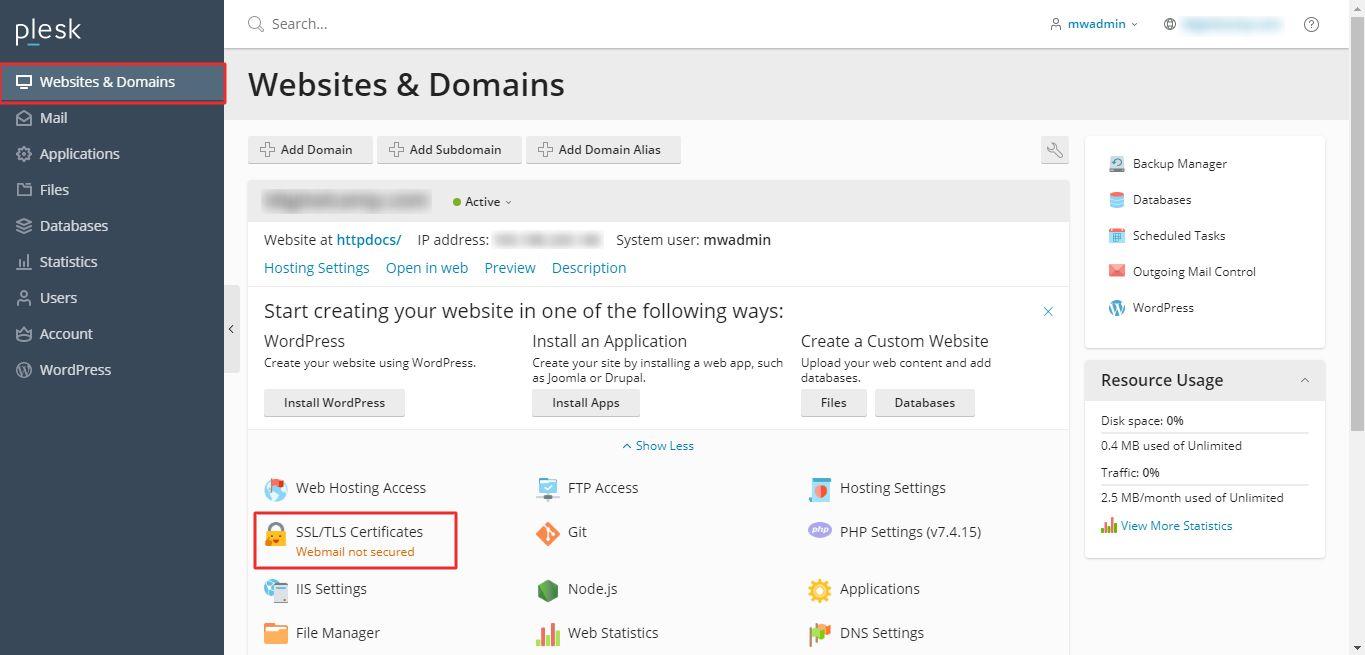
Log in to your Plesk account and navigate to Websites & Domains, then click on SSL/TLS Certificates.
-
Step 2: Open Advanced Settings
Select Advanced Settings from the SSL/TLS Certificates page.
-
Step 3: Add New SSL/TLS Certificate
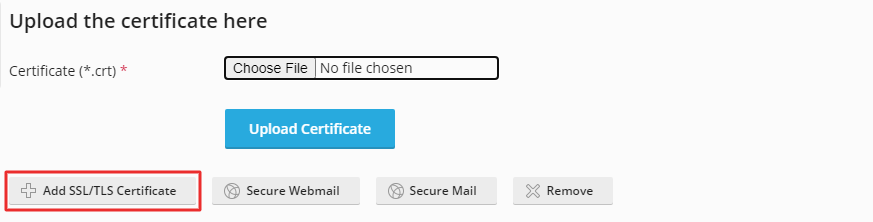
Click on Add SSL/TLS Certificate to begin the certificate request process.
-
Step 4: Fill in Certificate Details
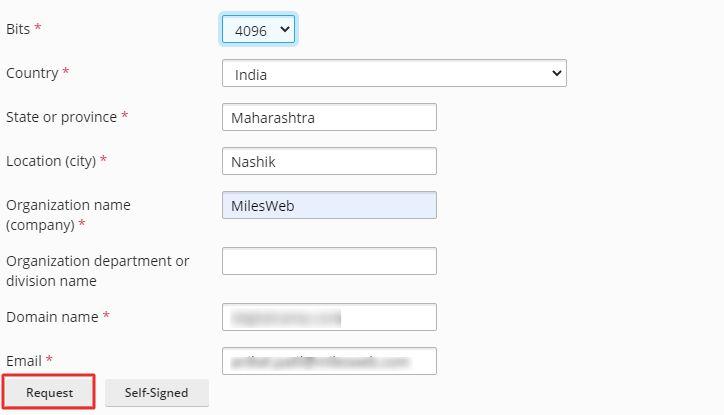
Enter a name for your SSL certificate in the Certificate name field. Complete all required fields in the form with your domain and organization information, then click the Request button.
-
Step 5: Retrieve CSR and Private Key
Select your newly created SSL certificate from the list.
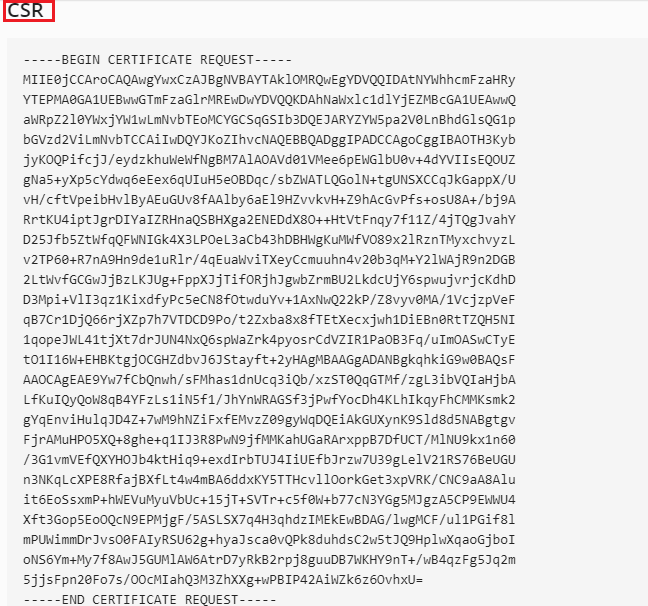
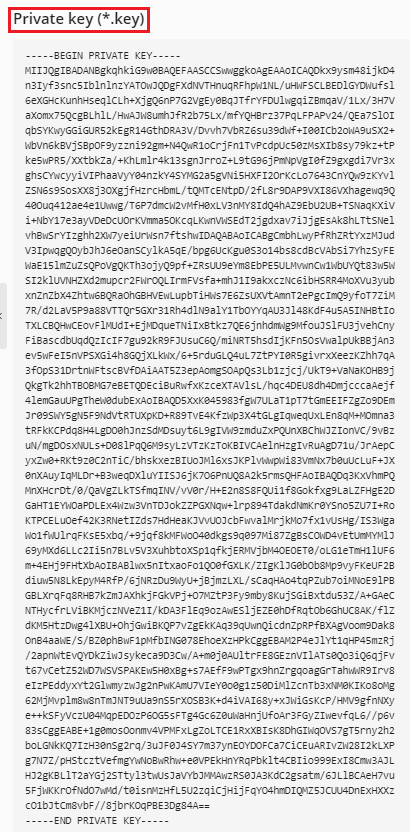
Scroll down to view the generated CSR and Private key. Copy these values to submit to your certification authority.


Important Note About Self-Signed Certificates
While Plesk offers the option to create a self-signed certificate for testing purposes, this is not recommended for production websites. Self-signed certificates are not trusted by browsers and will display security warnings to visitors, potentially damaging your site's credibility. Always use certificates issued by recognized certification authorities for public-facing websites.