This guide explains how to reset an email account password through the Plesk control panel. The process involves navigating to your domain's mail settings and updating the password for the specific email account you want to change.
How to Reset the Password
-
Step 1: Access the Plesk Control Panel
Log in to the Plesk control panel with your credentials.
-
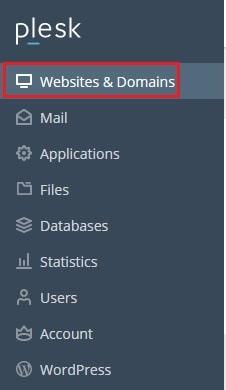
Step 2: Navigate to Websites & Domains
Click on the 'Websites & Domains' option in the main menu.
-
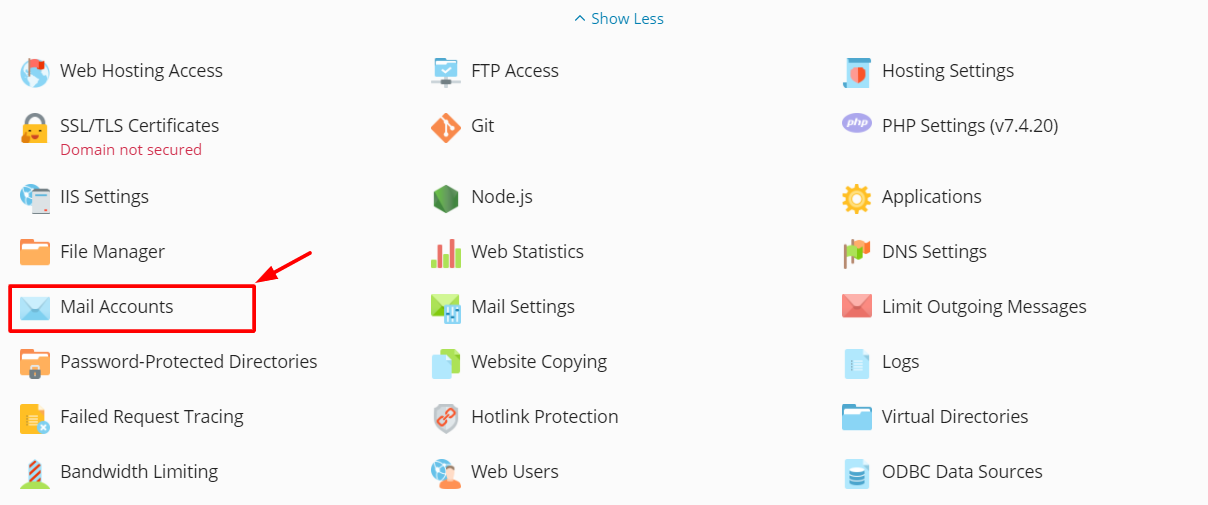
Step 3: Open Mail Accounts
Locate the domain name for which you wish to reset an email account password, and then click on the 'Mail Accounts' option.
-
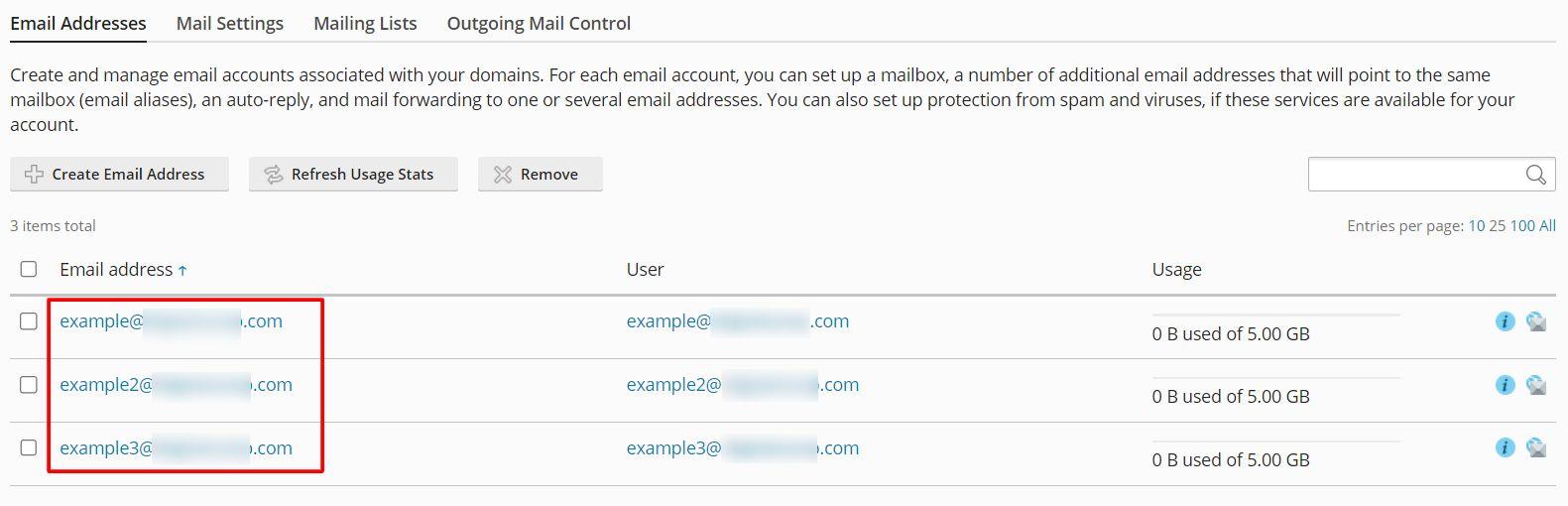
Step 4: Select the Email Account
View all the email accounts you've created and select the specific email account for which you intend to reset the password.
-
Step 5: Enter and Confirm New Password
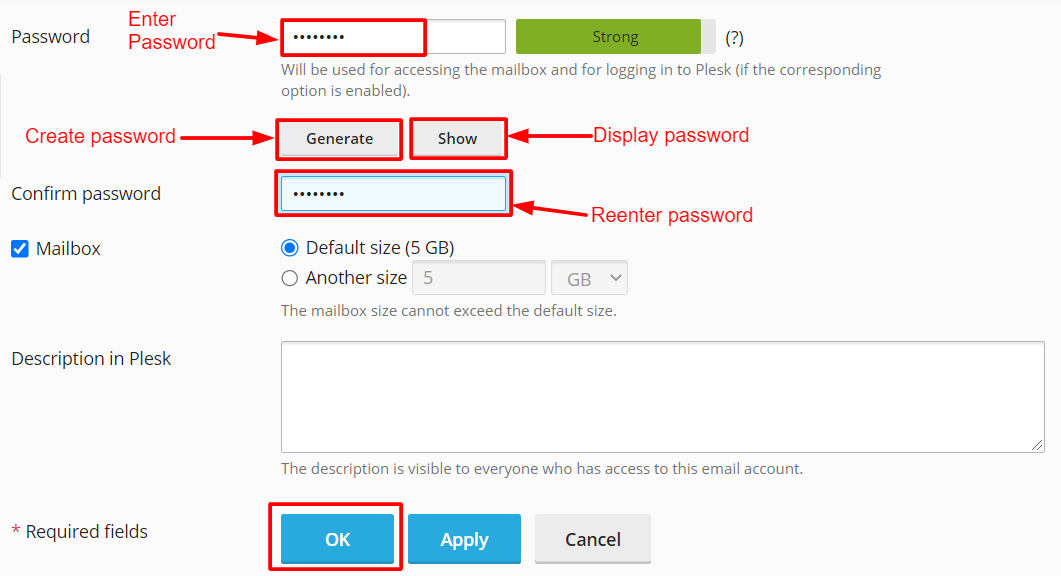
Input the preferred password into the 'Password' field, then enter the password again in the 'Confirm password' section to verify it.
Optionally, you can click on the 'Generate' button to create a random password. Select the 'Show' button to reveal the password.
Note: It's essential to copy the password to a secure location before proceeding to ensure you remember the email password.
-
Step 6: Confirm the Change
Click the OK button to save the new password. A success message confirming the password change will be displayed at the top of the screen.