Plesk allows you to configure the Microsoft ASP.NET version for your website based on the code requirements. Choose version 3.5 for ASP.NET 2.0–3.5, or version 4.5 for ASP.NET 4.0 and above. This guide shows two methods to set the ASP.NET version in Plesk: through Hosting Settings or through ASP.NET Settings.
Method 1: Configure ASP.NET Version via Hosting Settings
-
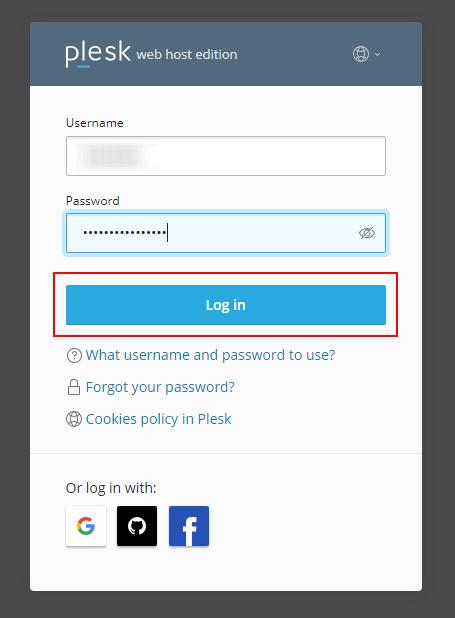
Step 1: Log in to Plesk
Access the Plesk control panel using your login credentials.
-
Step 2: Navigate to Websites & Domains
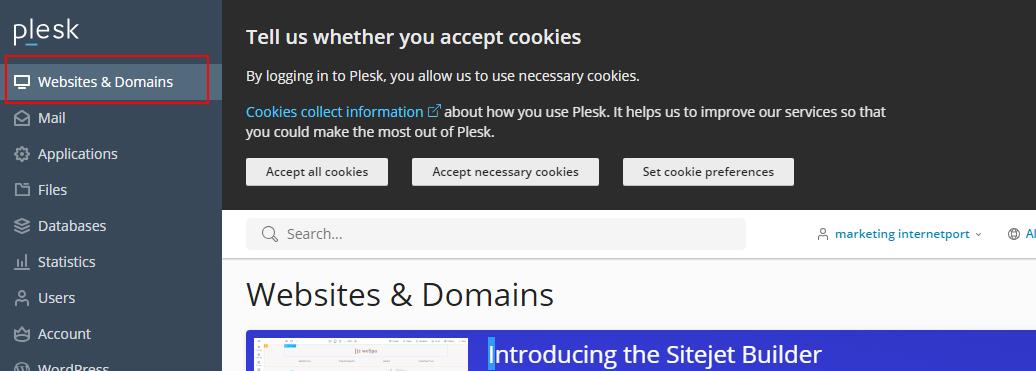
Select the Websites & Domains option from the left corner of the dashboard.
-
Step 3: Open Hosting Settings
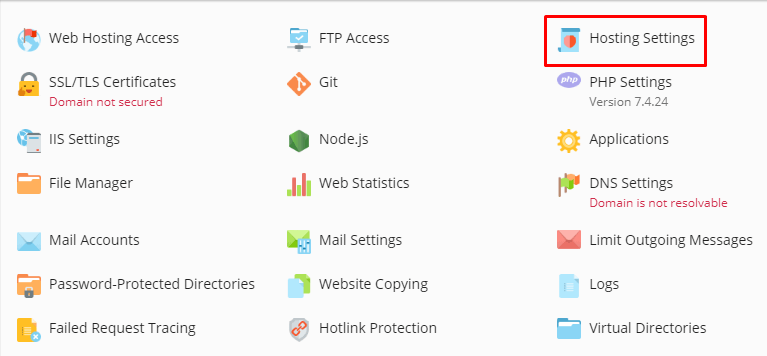
Click on the Hosting Settings icon.
-
Step 4: Select ASP.NET Version
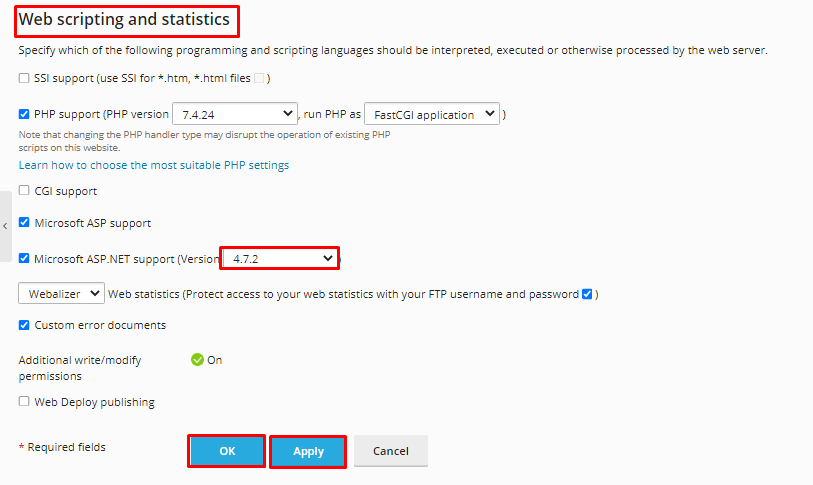
In the Web scripting and statistics section, select the desired Microsoft ASP.NET version from the drop-down menu. Click OK to save your changes.
Method 2: Configure ASP.NET Version via ASP.NET Settings
-
Step 1: Log in to Plesk
Access the Plesk control panel using your login credentials.
-
Step 2: Navigate to Websites & Domains
Select the Websites & Domains option from the left corner of the dashboard.
-
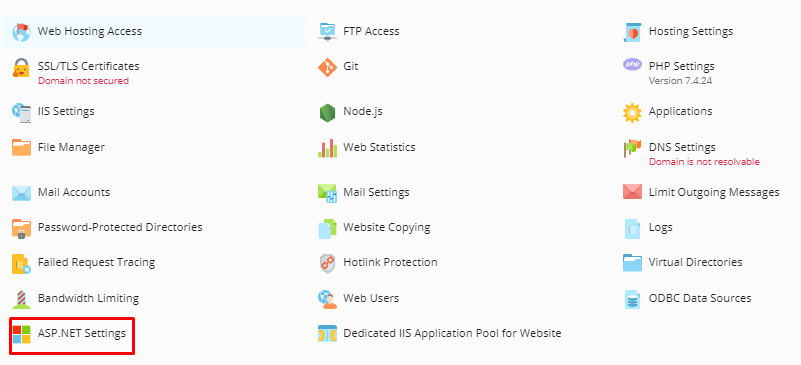
Step 3: Open ASP.NET Settings
Click on the ASP.NET Settings icon.
-
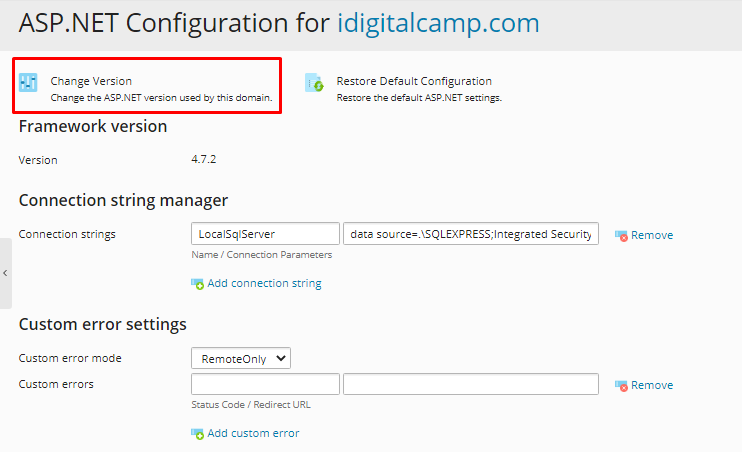
Step 4: Change Version
Click on Change Version.
-
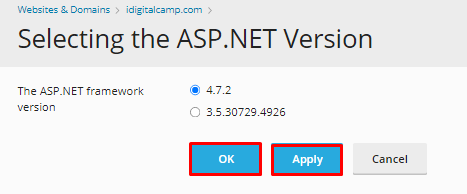
Step 5: Select and Confirm Version
In the Selecting the ASP.NET Version window, choose the required version and click OK.