This guide explains how to create, modify, and delete scheduled tasks in Plesk. Scheduled tasks allow you to automate recurring operations such as running scripts, fetching URLs, or executing system commands at specified intervals.
How to Add a Scheduled Task
-
Step 1: Access Scheduled Tasks
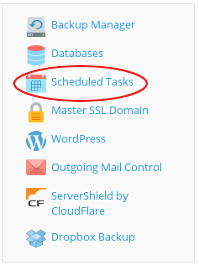
Log in to Plesk and select Scheduled Tasks from the right sidebar.
-
Step 2: Create New Task
Click on Add Task.
-
Step 3: Choose Task Type
On the "Schedule a Task" page, within the "Task type" section, choose the type of task you wish to configure:
- Run a command: To run a command using commands recognized by the Windows Command Center. Specify the command in the "Command" text box and add any optional arguments in the "with arguments" text box.
- Fetch a URL: For fetching a URL with similar functionality to the curl program. Specify the URL in the "URL" text box.
- Run a PHP script: To run PHP scripts hosted on the server. Specify the script file path in the "Script path" text box and add any optional arguments in the "with arguments" text box. Choose the required PHP version from the "Use PHP version" drop-down menu.
-
Step 4: Configure Schedule
In the "Run" section, define the frequency and time for executing the scheduled task.
-
Step 5: Add Description (Optional)
In the "Description" text box, add a note or comment related to the scheduled task or leave it empty.
-
Step 6: Set Notifications
Within the "Notify" section, choose the frequency for receiving notifications related to the scheduled task.
-
Step 7: Save or Run Task
To immediately execute the scheduled task, click on Run Now. To save the scheduled task, click on OK.
How to Modify a Scheduled Task
-
Step 1: Access Scheduled Tasks
Log in to Plesk and select Scheduled Tasks from the right sidebar.
-
Step 2: Edit Task
Click on the scheduled task you wish to modify. Plesk will present the same "Schedule a Task" page that you utilized to create the task, containing all of the task's settings.
How to Delete a Scheduled Task
-
Step 1: Access Scheduled Tasks
Log in to Plesk and select Scheduled Tasks from the right sidebar.
-
Step 2: Select Tasks to Remove
Choose the checkbox next to the task or tasks you wish to remove, then click on Remove.
-
Step 3: Confirm Deletion
Click Yes to confirm the deletion. Plesk will remove the selected task or tasks.