This guide shows you how to configure G Suite MX records in Plesk to route your domain's email through Google Workspace. You'll remove existing mail records and add the required Google MX records with correct priorities.
How to do it
-
Step 1: Remove existing MX records
Log in to Plesk and click on DNS.
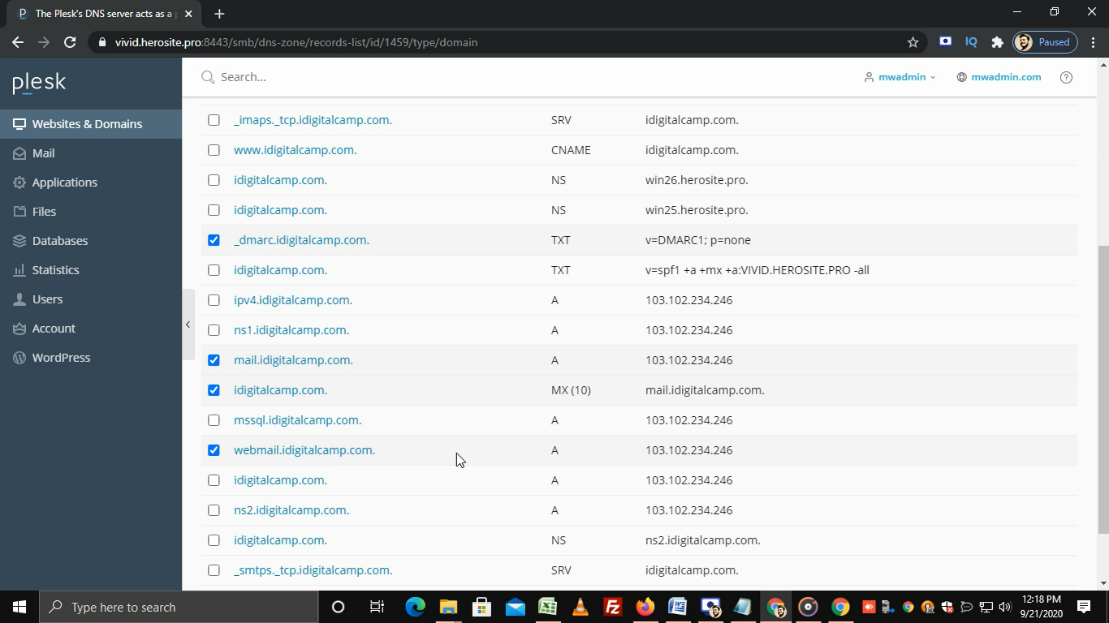
Select the checkboxes for the existing mail-related records you want to remove. The most important record to remove is the MX record, but to avoid conflicts, also remove DMARC TXT, SPF TXT (if any), and A records for mail and webmail.
Click on Remove.
-
Step 2: Add the primary G Suite MX record
In the same DNS dashboard, click on Add Record.
From the Record Type list, select MX.
Leave the Mail Domain field empty.
In the Mail exchange server field, enter:
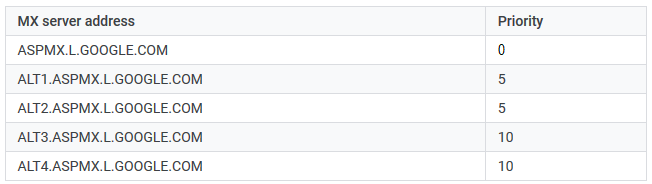
ASPMX.L.GOOGLE.COMIn the Specify the priority of the mail exchange server list, select priority 1 for this record.
Click on OK.
-
Step 3: Add remaining G Suite MX records
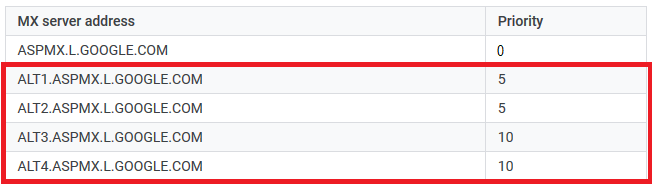
Repeat the same procedure to add the remaining MX records with their respective priorities:
Add each MX record from the table above with the correct priority value.
-
Step 4: Update and activate
After adding all the MX records, click on Update.
You will get a success message. Now you can activate G Suite from the Google admin panel.