Changing a MySQL database user's password in cPanel is a straightforward process that helps maintain database security. This guide walks you through accessing the MySQL Databases interface and updating the password for any database user on your cPanel account.
How to Change the Password
-
Step 1: Log in to cPanel
Open your web browser and enter
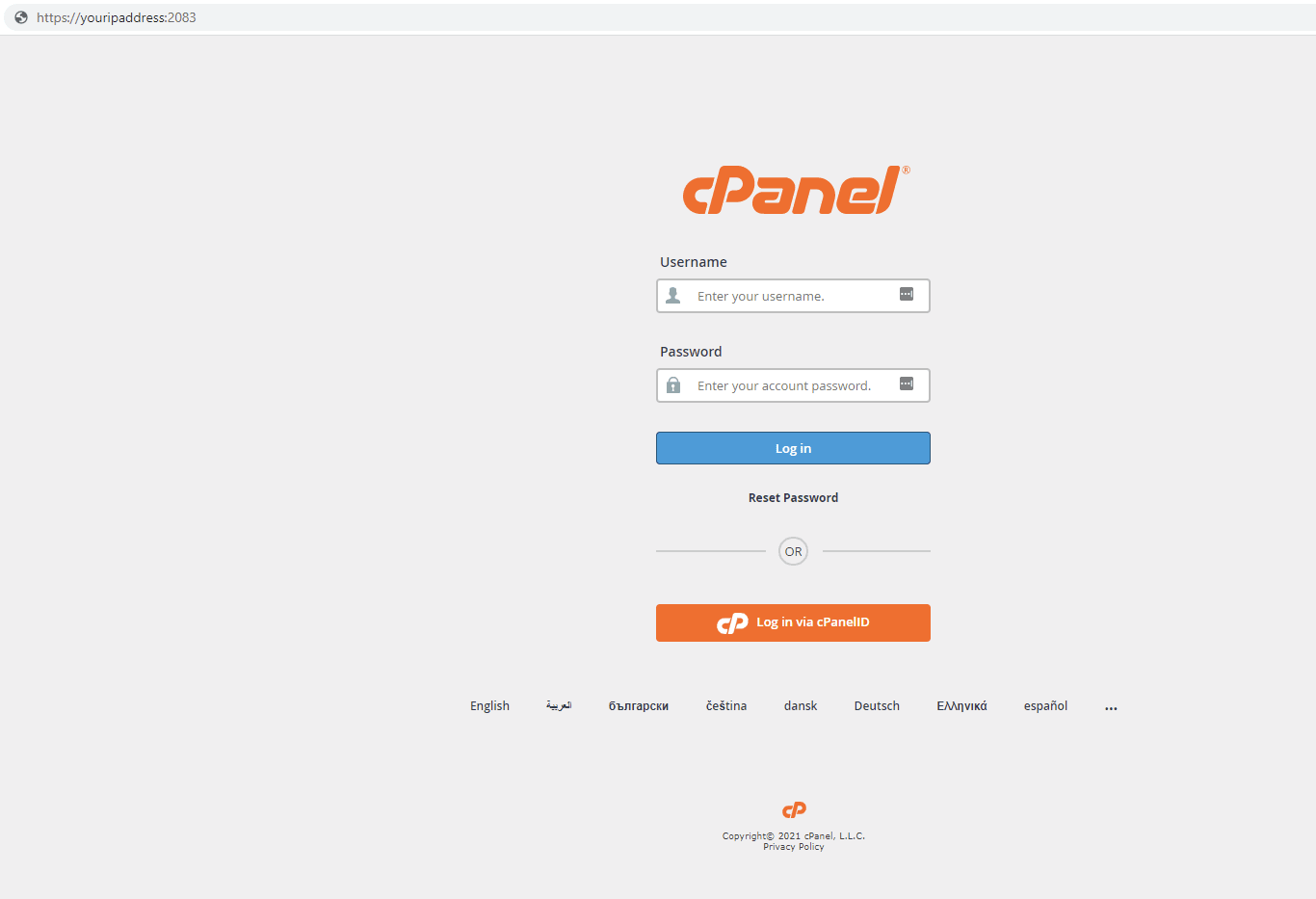
https://youripaddress:2083in the address bar, replacing "youripaddress" with your actual IP address. Input your credentials and click Log in.Tip: If you have a domain name associated with your cPanel account, you can also log in by visiting
https://yourdomain.com:2083. -
Step 2: Open MySQL Databases
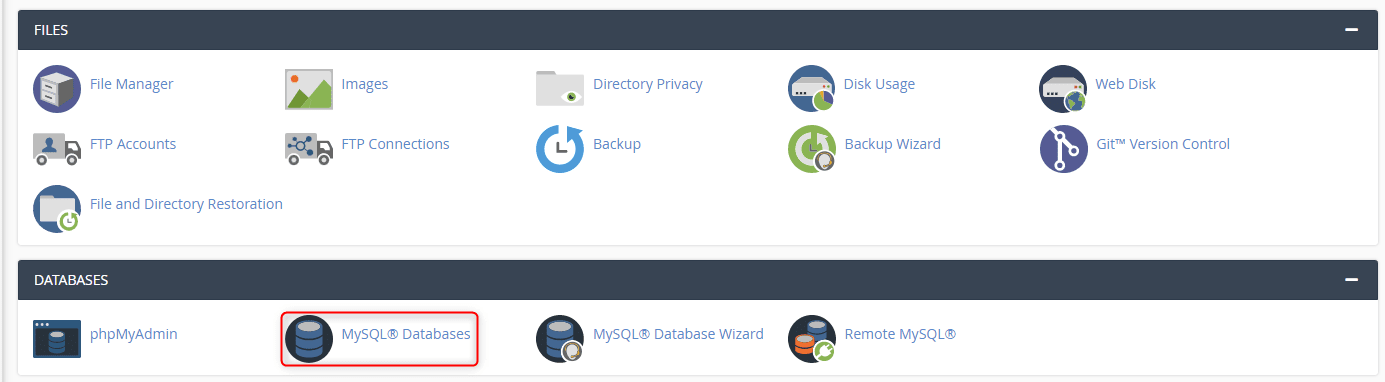
Navigate to the Databases section and click on the MySQL Databases icon.
Tip: You can also use the search bar at the top of the cPanel dashboard to quickly find "MySQL Databases".
-
Step 3: Select the User
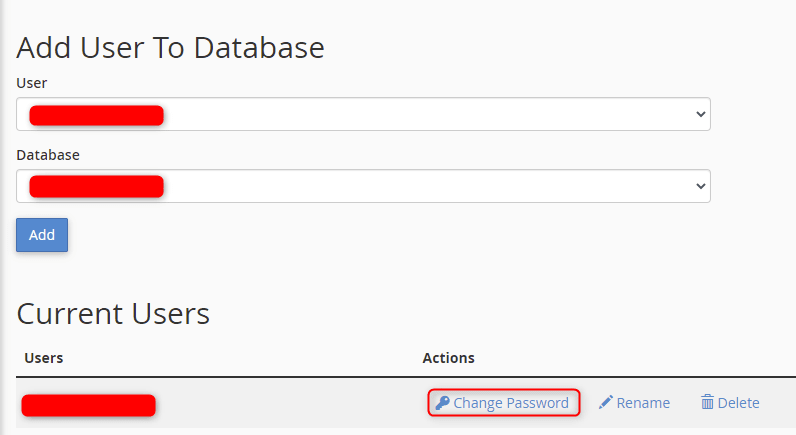
Scroll down to the Current Users section. Find the user for whom you want to change the password, and click on Change Password.
Tip: If you have many users, use the search box to filter and find the specific user quickly.
-
Step 4: Enter New Password
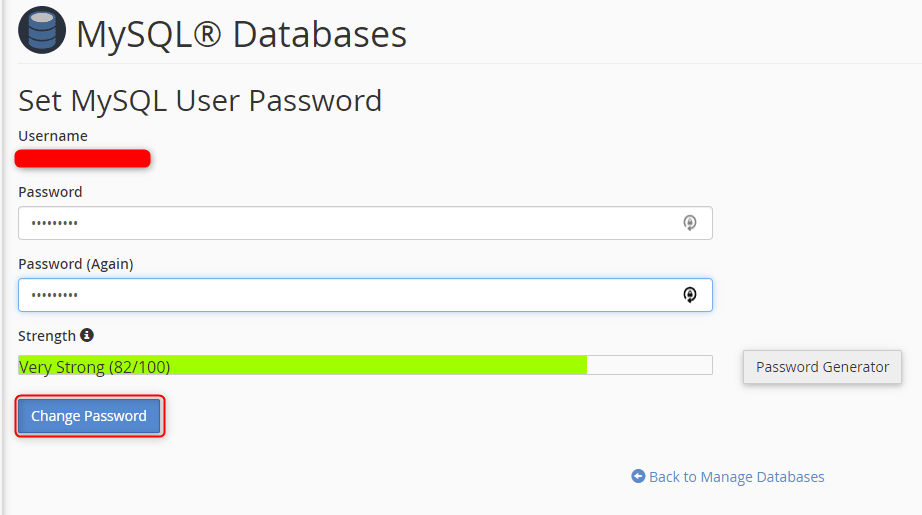
Input and confirm a new password. It's important to create a strong password that includes a mix of uppercase and lowercase letters, numbers, and special characters to enhance security. Click Change Password to save the changes.
Tip: cPanel often provides a password generator to help you create a strong, secure password. Click on the "Generate Password" button for assistance.
-
Step 5: Confirm Success
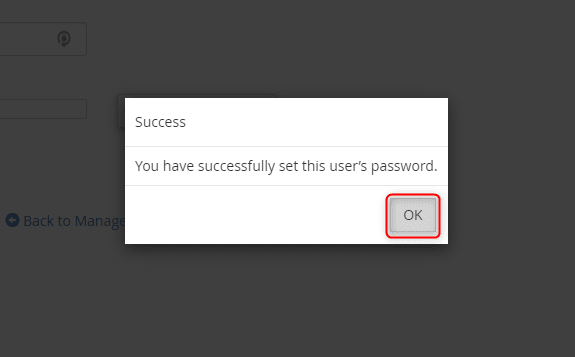
A success prompt will appear. Click OK to return to the MySQL Databases page. The password for the database user has been successfully changed.
Tip: After changing the password, update any applications or scripts that use this database user to ensure they connect successfully with the new credentials.