This guide explains how to delete or remove a MySQL database in Webuzo. Deleting a database permanently erases all data stored within it, so ensure you have backups of any essential data before proceeding.
How to Delete a Database
-
Step 1: Log in to Webuzo
Open your web browser and navigate to the Webuzo control panel login page. Enter your username and password to access your account.
-
Step 2: Navigate to MySQL Database Section
After logging in, locate the "MySQL Manager" or "MySQL Database" section. The exact wording may vary depending on your Webuzo version.
-
Step 3: Select the Database
Within the MySQL Database section, you will see a list of existing databases. Locate the specific database you want to delete.
-
Step 4: Delete the Database
Look for an option or button labeled "Delete," "Remove," or similar. Click on this button to initiate the deletion process.
-
Step 5: Confirm Deletion
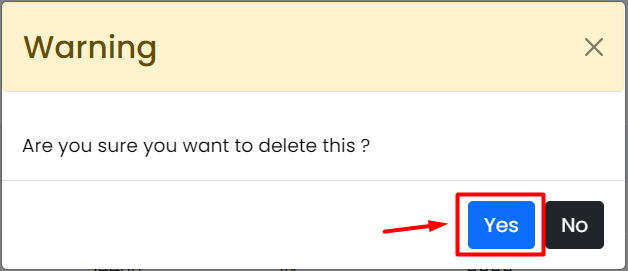
Webuzo will prompt you to confirm the deletion. Confirm your intent to permanently delete the selected database.
-
Step 6: Verify Deletion
After confirmation, verify that the database has been successfully deleted. Look for a confirmation message indicating the deletion is complete.


Important: Deleting a database permanently erases all data. Always back up essential data before deletion. For the most current instructions, consult the official Webuzo documentation or contact their support.