Some users may not be able to send emails after installing the CSF Firewall application. This problem is more frequent among WordPress users who rely on email notifications for plugins like Contact Form 7 or WooCommerce. By configuring the outbound SMTP settings for CSF Firewall using WHM, you can resolve this issue and allow your server to send emails properly. Here’s a detailed guide on how to do it.
How to Do It
-
Step 1: Log in to WHM
Log in to your WHM root account using the provided credentials. Ensure you are accessing the correct server by checking the URL and any confirmation messages.
-
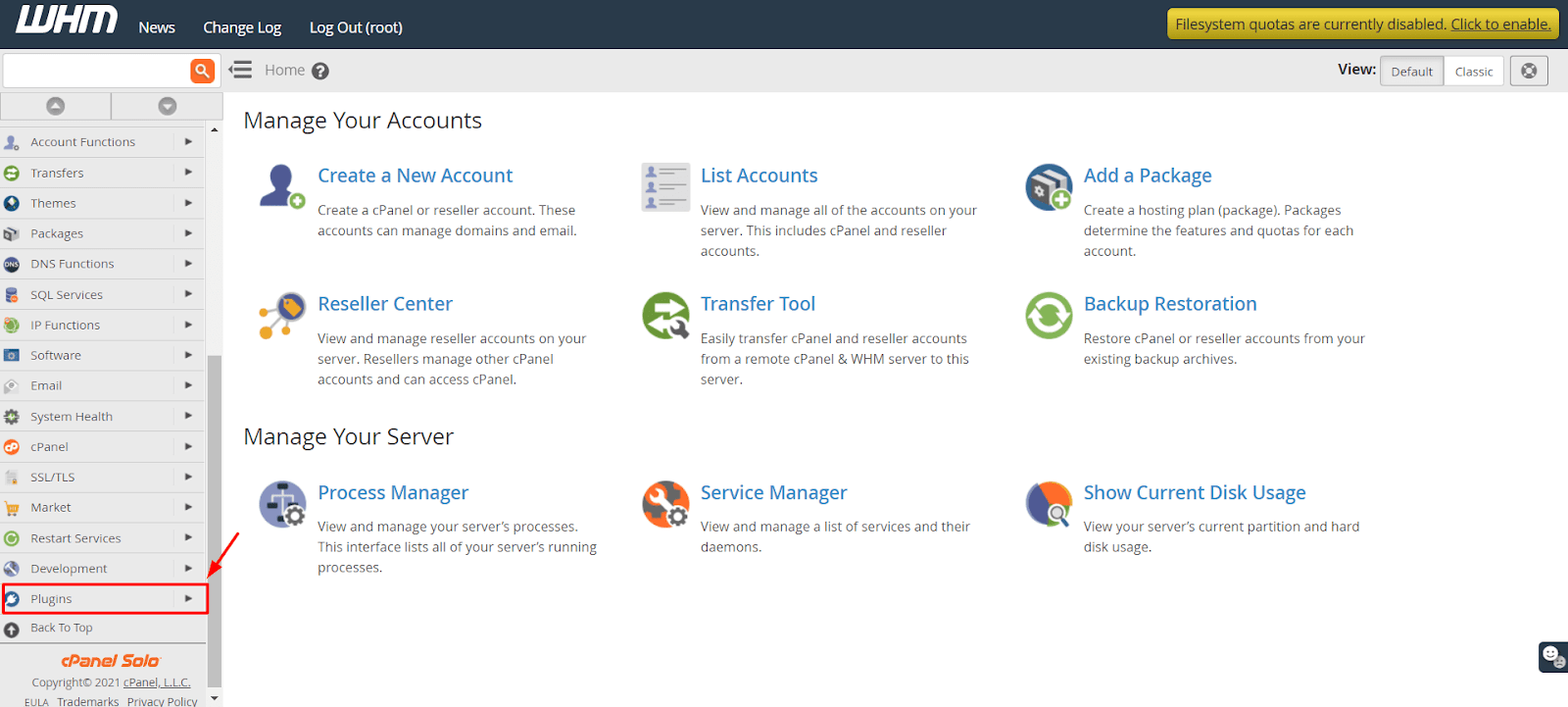
Step 2: Access Plugins
Navigate to Plugins from the menu on the left-hand side of WHM. This section contains various plugins that can be managed or configured through WHM.
-
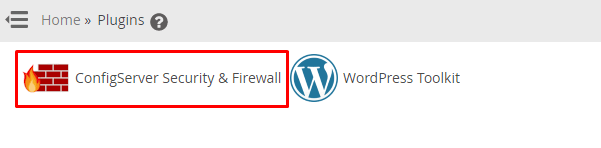
Step 3: Open ConfigServer Security & Firewall
Click on ConfigServer Security & Firewall. This will lead you to the main interface of CSF, where all firewall settings can be managed.
The CSF application will open, displaying various options and settings.
-
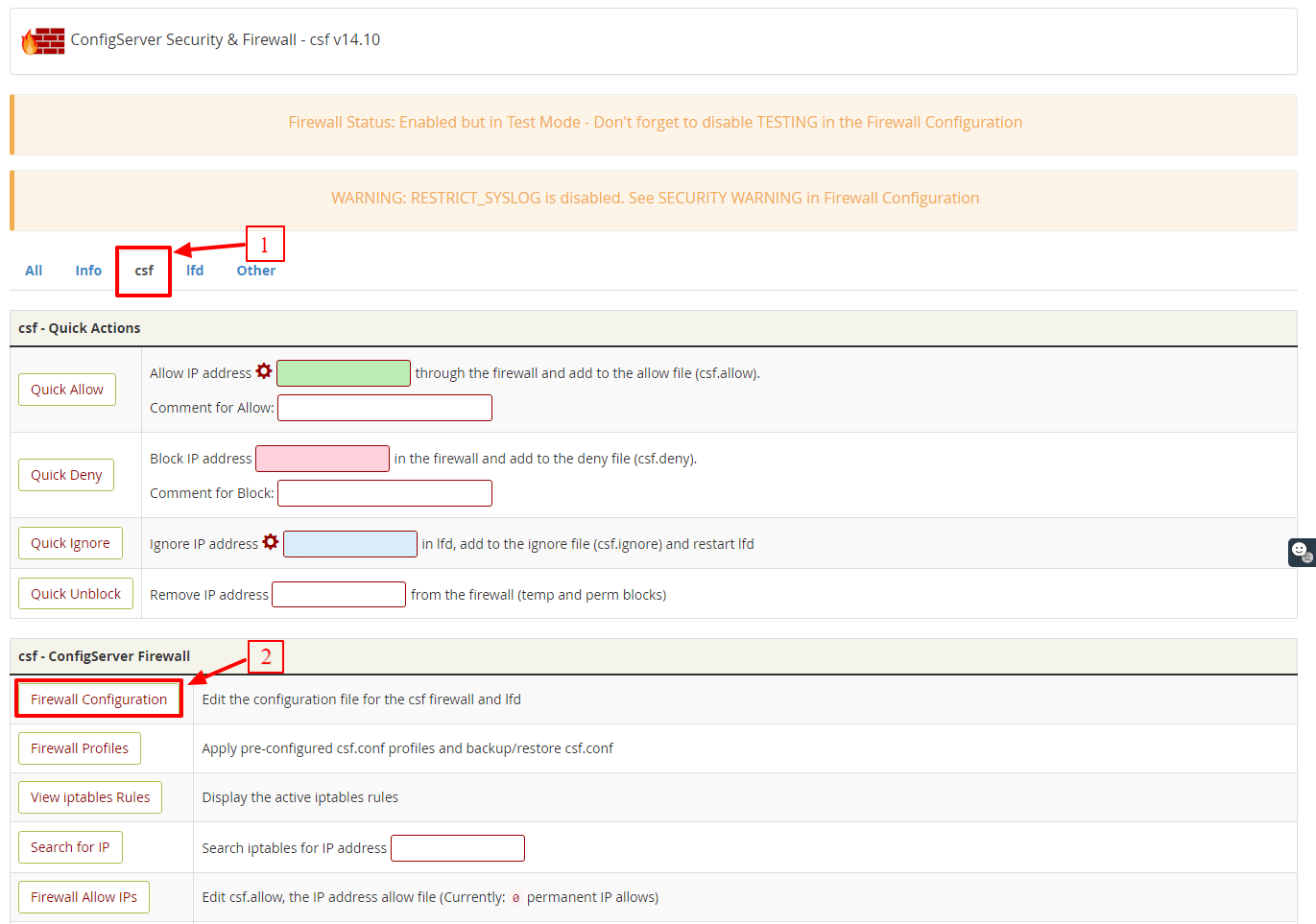
Step 4: Access Firewall Configuration
Select the csf tab at the top of the interface. Within this tab, find and click the Firewall Configuration button in the csf - ConfigServer Firewall section. This will open a detailed configuration page for CSF.
The ConfigServer Firewall's configuration interface will appear, allowing you to modify firewall rules and settings.
-
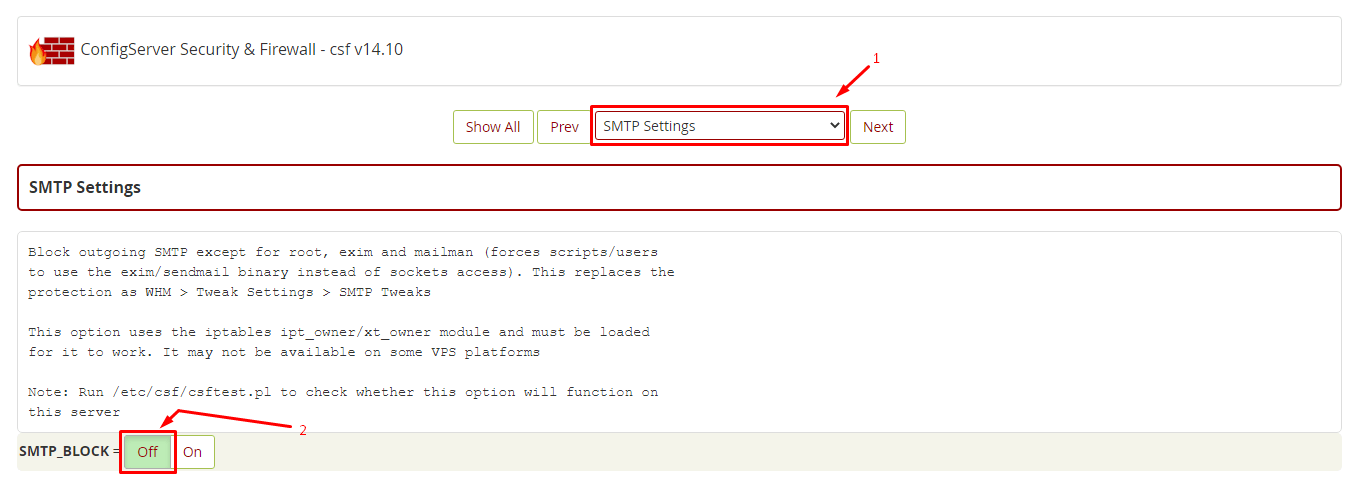
Step 5: Disable SMTP Blocking
Scroll down the page until you find the SMTP Settings section. Here, look for the
SMTP_BLOCKfield, which controls whether CSF blocks outgoing SMTP traffic. Click the Off switch to disable this feature.Disabling SMTP blocking ensures that your server can send emails without being intercepted by the firewall.
-
Step 6: Save Changes
After making changes to the configuration, scroll down to the end of the page. Click the Change button to save your modifications. This action will apply the new settings to the firewall.
-
Step 7: Restart CSF
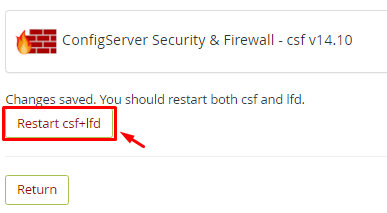
To ensure that all changes take effect, click the Restart csf+lfd button. This command restarts both the ConfigServer Firewall (csf) and the Login Failure Daemon (lfd), applying any recent configuration changes.
The CSF Firewall will no longer block outgoing SMTP traffic for your WHM/cPanel server, allowing emails to be sent successfully.
Tips:
- Always ensure you have a backup of your current firewall settings before making any changes. This allows you to revert back if necessary.
- If you continue to experience issues after following these steps, check the SMTP server logs for more detailed error messages that could indicate other problems.