When adding a new IP address to your server or modifying the shared IP address, WHM allows you to efficiently update IP addresses for multiple sites or accounts simultaneously, eliminating the need to update each account manually. This can be particularly useful when managing a large number of domains on a single server.
How to Do It
-
Step 1: Access WHM
Log in to WHM using your root account. Ensure you have the necessary administrative privileges to make these changes.
-
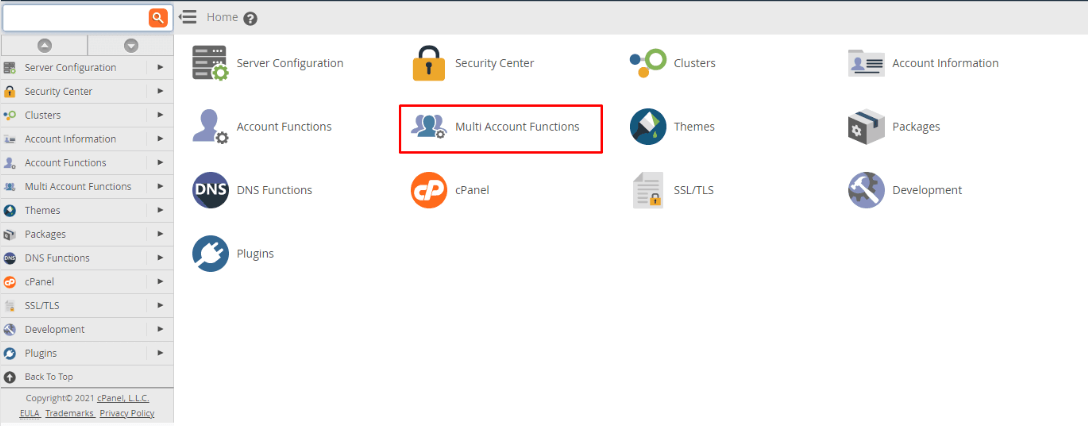
Step 2: Navigate to Multi Account Functions
In the WHM interface, navigate to Multi Account Functions. This section is designed for managing multiple accounts at once, streamlining your administrative tasks.
-
Step 3: Select Change Multiple Sites' IP Addresses
Under Multi Account Functions, select Change Multiple Sites' IP Addresses. This tool allows you to batch update the IP addresses for multiple domains.
-
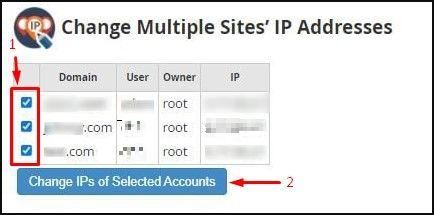
Step 4: Select Accounts to Update
In the list of accounts, locate and check the boxes next to each domain whose IP address you wish to update. You can use the search function at the top if there are many domains listed.
After selecting the desired accounts, click on Change IPs of Selected Accounts. This will bring up a new page with detailed information about the selected accounts.
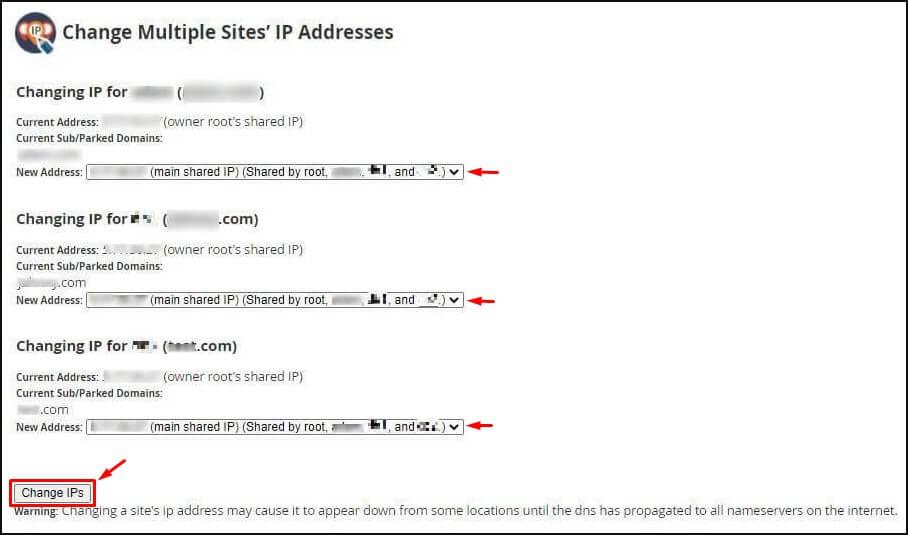
The details for the selected accounts will be displayed, including their current IP addresses.
-
Step 5: Assign New IP Addresses
For each domain account listed, select a new IP address from the dropdown list under New Address. Ensure that the IP addresses you are assigning are available and correctly configured on your server.
Once all desired changes have been made, click on Change IPs to apply the updates. This action will initiate the process of changing the IP addresses for the selected accounts.

Note: The process of changing IP addresses for multiple accounts may take some time, as the system will implement changes and adjust settings across different levels. This involves updating the DNS zone files to reflect the new IP addresses, configuring Apache (or another web server) based on these new IPs, and waiting for DNS propagation to occur. During this period, your domains might experience downtime or connectivity issues.
Additional Tips:
- Before making any changes, it is advisable to back up your current configuration and settings.
- Communicate with your customers in advance about the planned IP address changes to minimize disruptions.
- Monitor the process closely for any errors or issues that may arise during the update.