This guide shows you three different methods to check which version of cPanel/WHM is installed on your server. Knowing your cPanel version is important for troubleshooting, compatibility checks, and ensuring you have the latest security updates.
How to Check the Version
-
Method 1: Using the cpanel Command
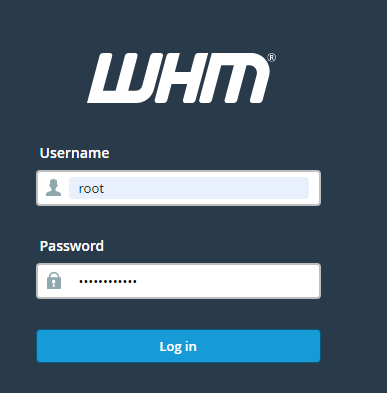
To check your cPanel version using the command line, you first need to log in to your WHM account with root access. This method is particularly useful if you are comfortable using the terminal.
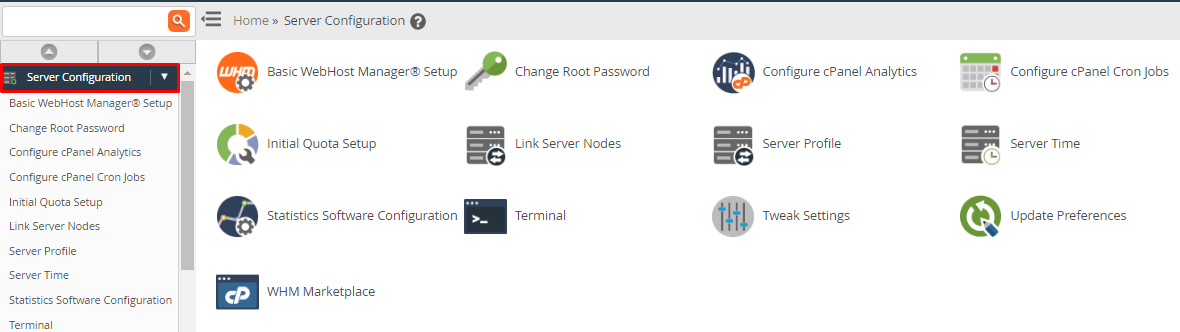
Once logged in, navigate to the left-hand menu and choose Server Configuration.
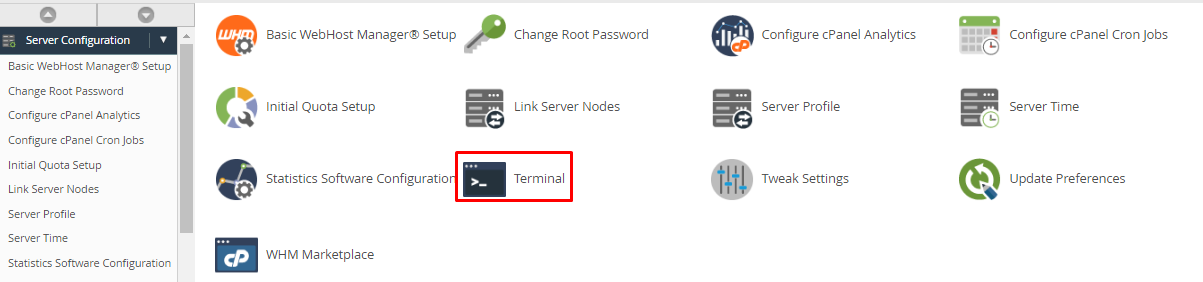
From the Server Configuration options, select the Terminal option. This will open a command-line interface within your WHM.
In the terminal, enter the following command and press Enter:
/usr/local/cpanel/cpanel -VThe output will display your cPanel version number. For example:
98.0 (build 12)This indicates you are running version 98.0, build 12 of cPanel.
-
Method 2: Using the Version File
This method also involves using the command line to check your cPanel version, but it accesses a specific file that contains this information.
Start by logging into your WHM account with root access.
From the left-hand menu, select Server Configuration.
Click on the Terminal option to open a command-line interface.
Enter the following command and press Enter:
cat /usr/local/cpanel/versionThis command reads and displays the contents of the version file, which contains your cPanel version number. For example:
11.98.0.12This indicates you are running version 11.98.0, build 12.
-
Method 3: From the cPanel Dashboard
This method is straightforward and does not require command-line access. It's ideal for users who prefer a graphical interface.
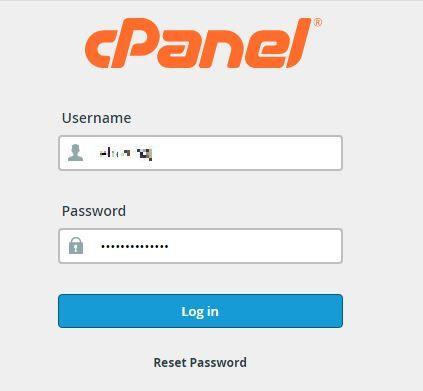
To check your cPanel version through the dashboard, log in to your cPanel control panel using your credentials.
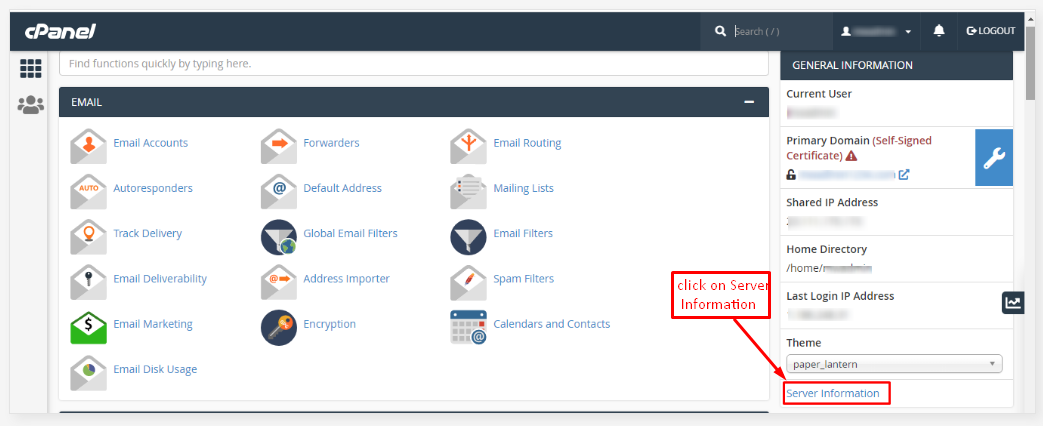
Once logged in, look for the Server Information link located in the right-side margin of the dashboard.
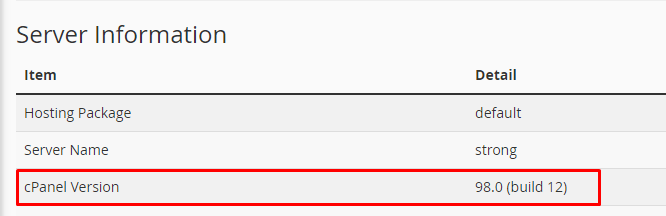
Clicking on this link will direct you to the Server Information page, where you can find your cPanel version number listed among other server details.
Make sure to look for the section labeled "cPanel Version" to find your specific version number.


Tips:
- Always ensure you have root access when using WHM and the command line methods, as these actions require administrative privileges.
- If you encounter any issues accessing the terminal or files, consider reaching out to your hosting provider's support team for assistance.
- Regularly checking your cPanel version can help you stay informed about new features and security patches. Consider setting reminders to check periodically.