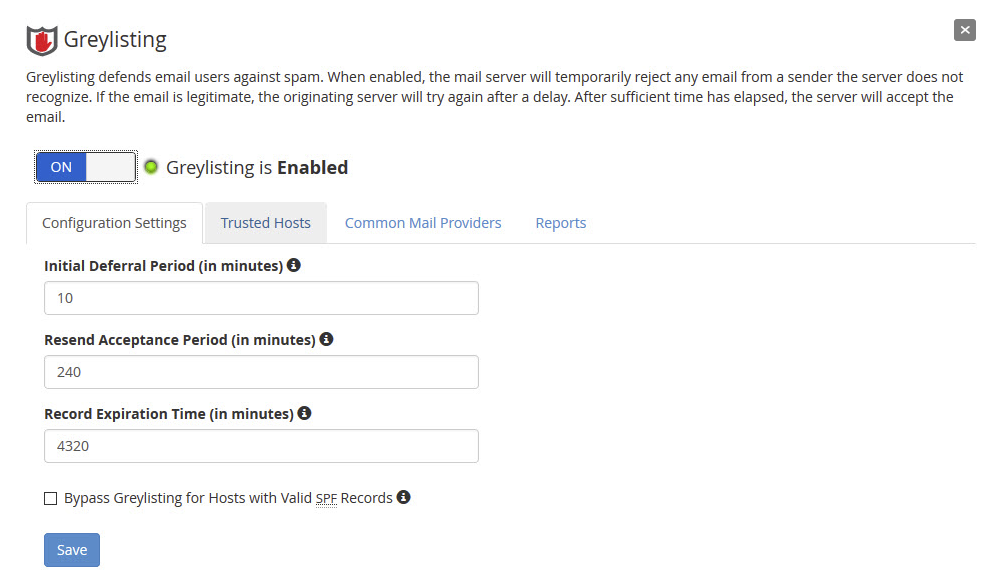
Greylisting is a WHM feature that reduces spam by temporarily deferring suspicious emails. Legitimate mail servers will retry delivery, while spam sources typically won't. This guide shows you how to enable and configure Greylisting to improve your email security.
How to Configure Greylisting
-
Step 1: Access WHM
Log in to WHM as the
rootuser. Ensure you have a stable internet connection and access to your server's IP address or domain name. -
Step 2: Navigate to Greylisting
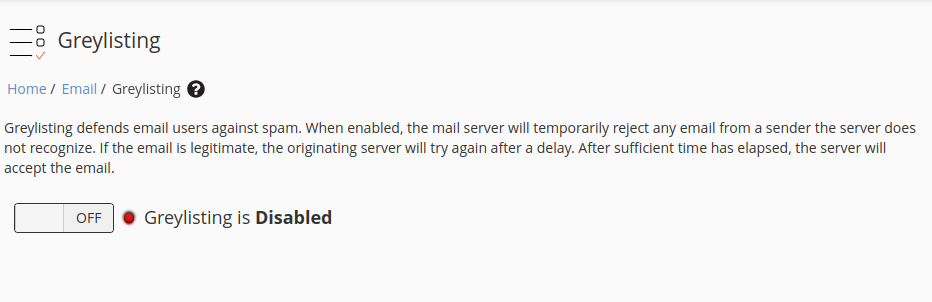
Use the search bar at the top right corner of WHM to find "Greylisting" and open the Greylisting Configuration interface. This will take you directly to the settings page where you can manage greylisting options.
-
Step 3: Enable Greylisting
Click the "OFF" button to activate Greylisting. Once activated, WHM will start deferring suspicious emails for a set period before retrying delivery. This helps in filtering out spam without blocking legitimate emails immediately.
-
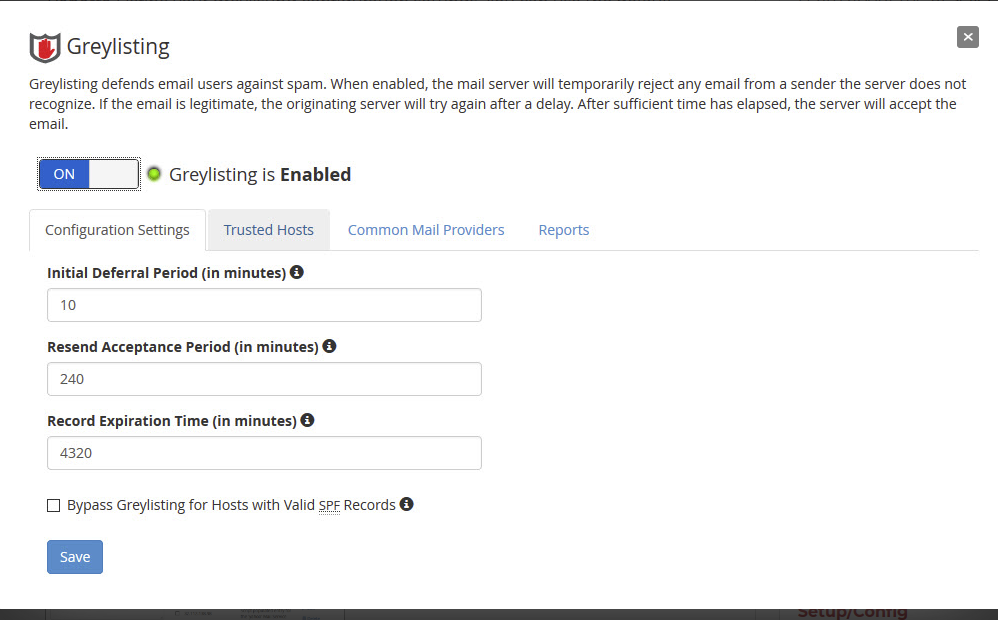
Step 4: Configure Greylisting Settings
Choose to use the default settings or customize them according to your needs. Key options include setting the deferral time and the maximum number of attempts before accepting an email. Default settings are usually sufficient for most users, but you can adjust these parameters based on your specific requirements.
-
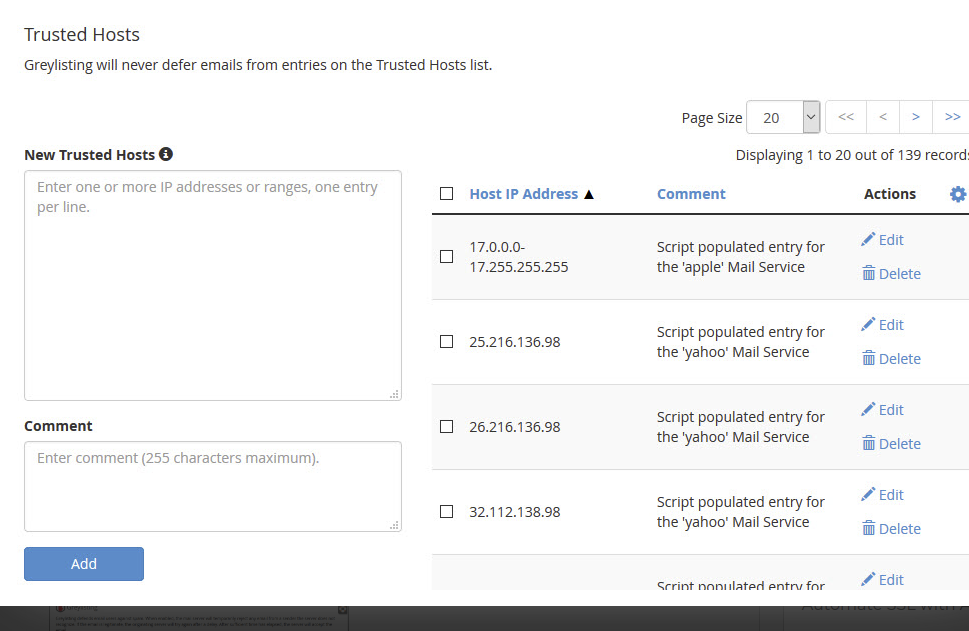
Step 5: Add Trusted Hosts
Use the "Trusted Hosts" section to define hosts that you commonly receive email from and do not want Greylisting to affect. Enter IP addresses or domain names of trusted mail servers here. This ensures that emails from these sources are not deferred, improving delivery speed for legitimate communications.
-
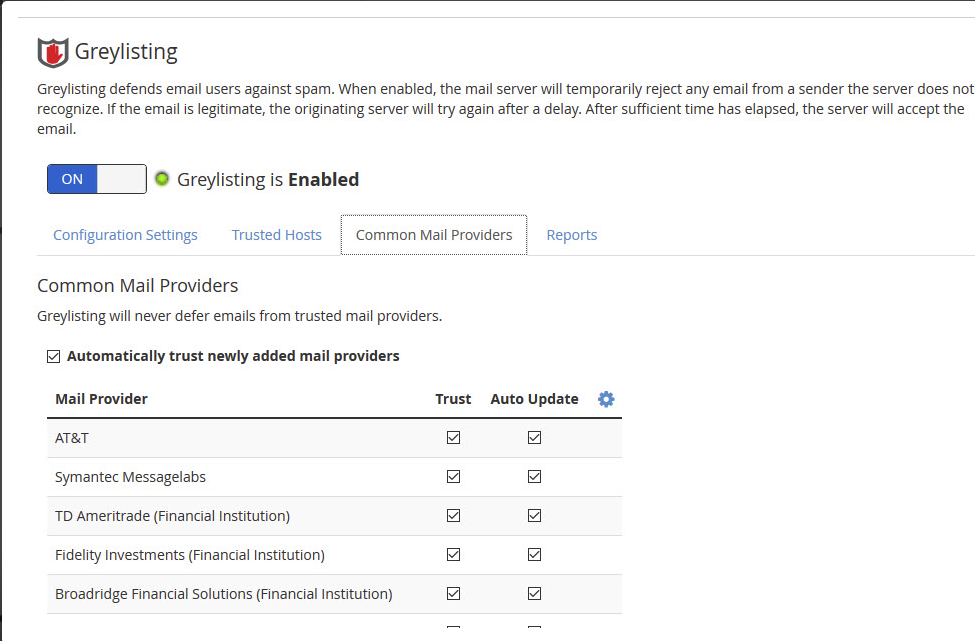
Step 6: Configure Common Mail Providers
Navigate to the "Common Mail Providers" section and edit as needed to exclude major email providers from greylisting. This step is crucial for maintaining smooth communication with popular services like Gmail, Yahoo, and Outlook. Ensure that you add all relevant domains or IP ranges of these providers.
-
Step 7: Monitor Deferred Emails
Use the "Reports" tab to view deferred emails categorized by sender IP address, From Address, and To Address. This feature allows you to track which emails have been deferred and why. Regularly reviewing these reports can help you identify any issues with greylisting and make necessary adjustments.