This guide explains how to customize your cPanel server using WHM's Server Profile feature. Server profiles allow you to configure your server for specific roles (standard hosting, DNS, mail, or database services) by enabling only the necessary services and cPanel features for that purpose. This customization can help optimize performance, security, and resource usage on your server.
How to Set a Server Profile
-
Step 1: Access WHM Server Profile Settings
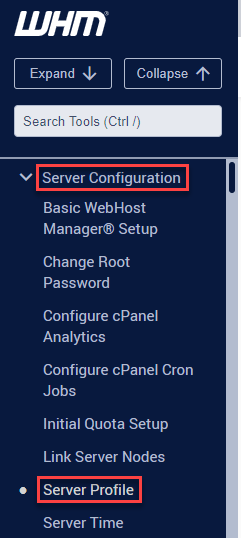
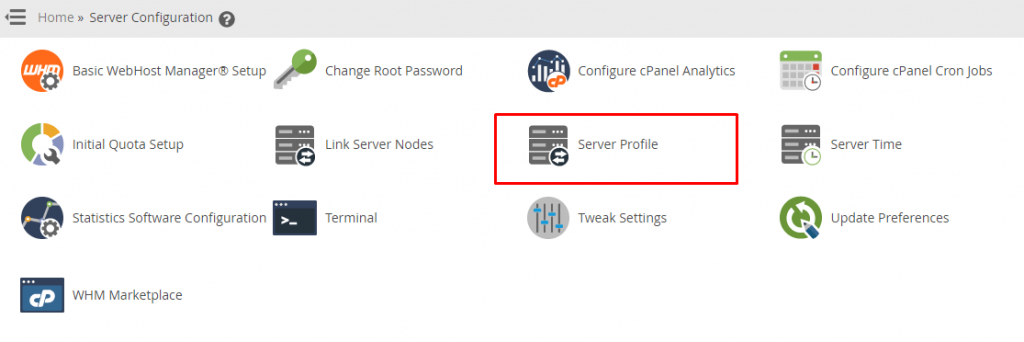
To begin, log in to your WHM control panel using your administrator credentials. Once logged in, locate the Server Configuration section in the left-hand menu and click on Server Profile. This will take you to the server profile management interface.
-
Step 2: Review Available Server Profiles
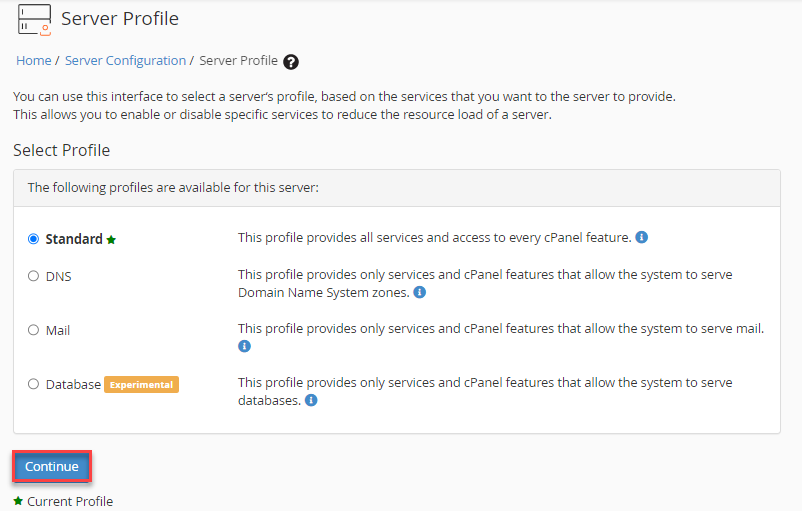
The Server Profile interface displays four profile options, each designed for a specific server role:
- Standard: This is the default profile that includes all services and access to every cPanel feature, making it suitable for full hosting environments.
- DNS: If your server's primary function is to manage Domain Name System zones, this profile limits services and cPanel features to DNS-related functionalities only.
- Mail: This profile is tailored for mail servers, providing access to essential email-related services and features while disabling others.
- Database: Ideal for database servers, this profile focuses on enabling necessary database management tools and services while minimizing other functionalities.
Choosing the appropriate profile can help streamline your server's operations by focusing resources where they are most needed.
-
Step 3: Select Your Desired Profile
After reviewing the available profiles, select the one that best matches your server's intended role. For instance, if your server is dedicated to handling email, choose the Mail profile. Once you've made your selection, click the Continue button to proceed.
Choosing the right profile is crucial for ensuring that your server is configured to perform its designated tasks efficiently.
-
Step 4: Confirm and Apply the Profile
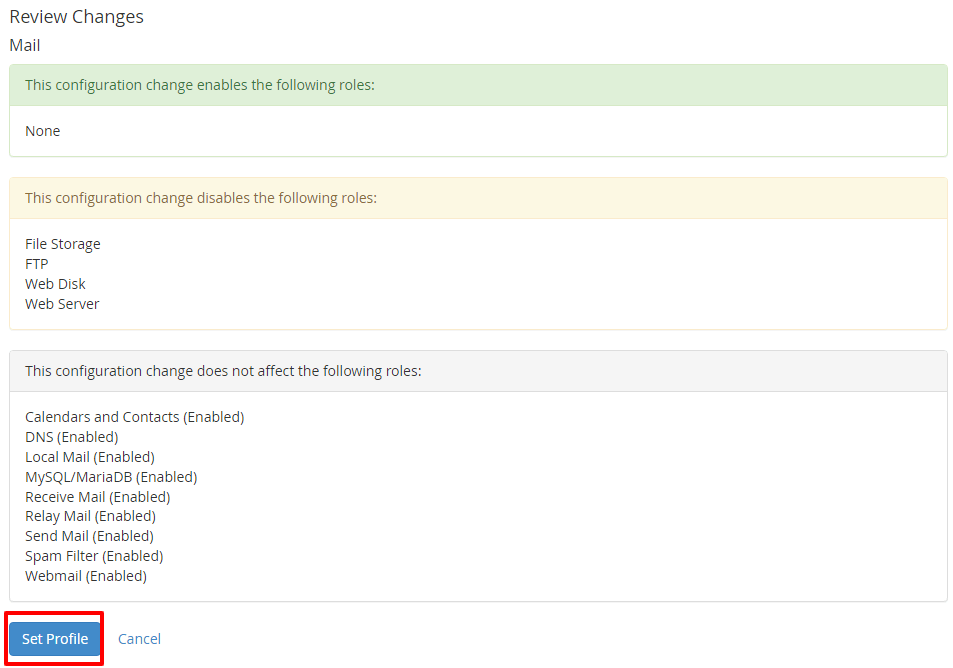
Upon clicking Continue, WHM will display a summary of the modifications and functions associated with your selected profile. This overview allows you to verify that the changes align with your server's intended role. Once you are satisfied, click Set Profile to apply the configuration.
After clicking Set Profile, WHM will configure your cPanel hosting environment according to the selected profile. This process may take a few moments, during which you should refrain from making additional changes.
Tips:
- Before setting a new server profile, it's advisable to back up your current configuration and data as a precautionary measure.
- If your server serves multiple roles (e.g., both DNS and mail), consider creating a custom profile that combines the necessary features from each role.
- Regularly review and adjust your server profile settings to ensure they continue to meet your evolving hosting needs.